
Appearance
Other appearance settings
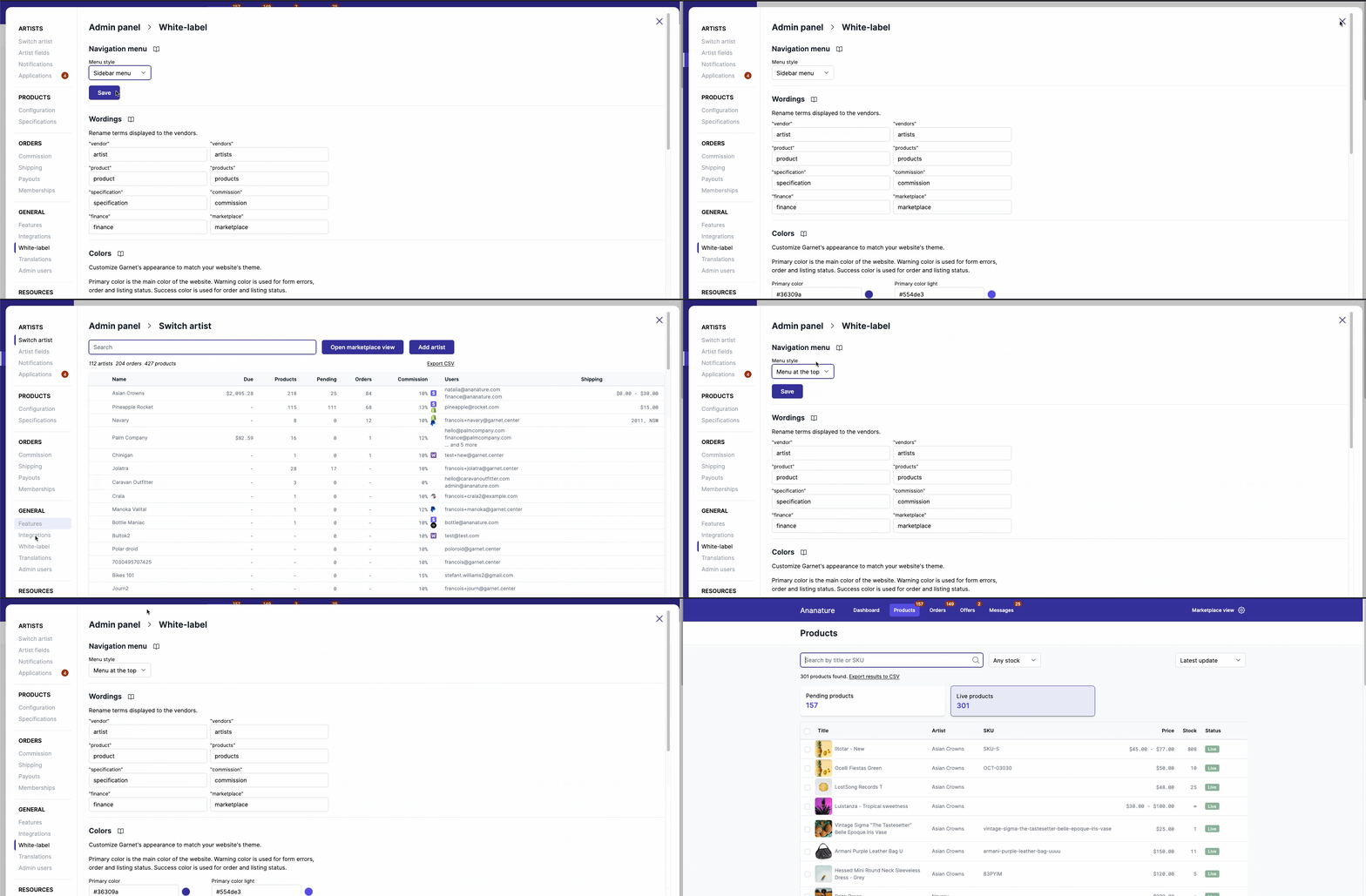
Side-bar menu vs top-bar menu
Garnet has two flavors: topbar and sidebar menu. Which one do you prefer?
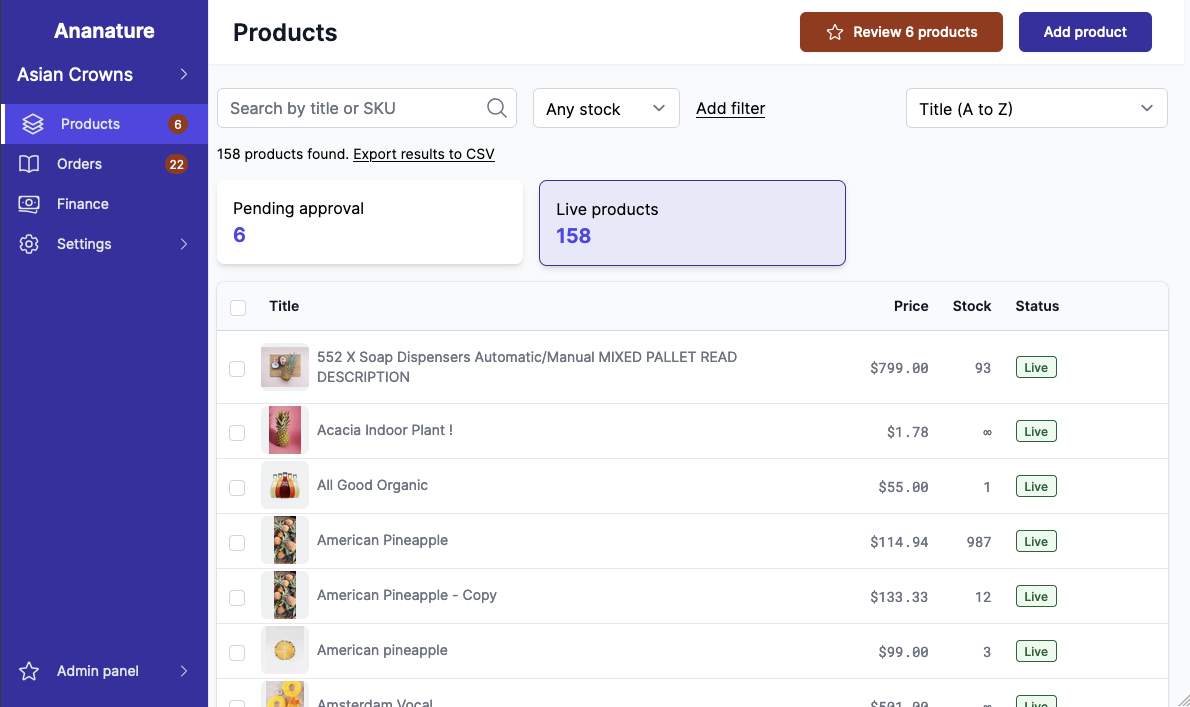
Sidebar menu on desktop
Mobile View
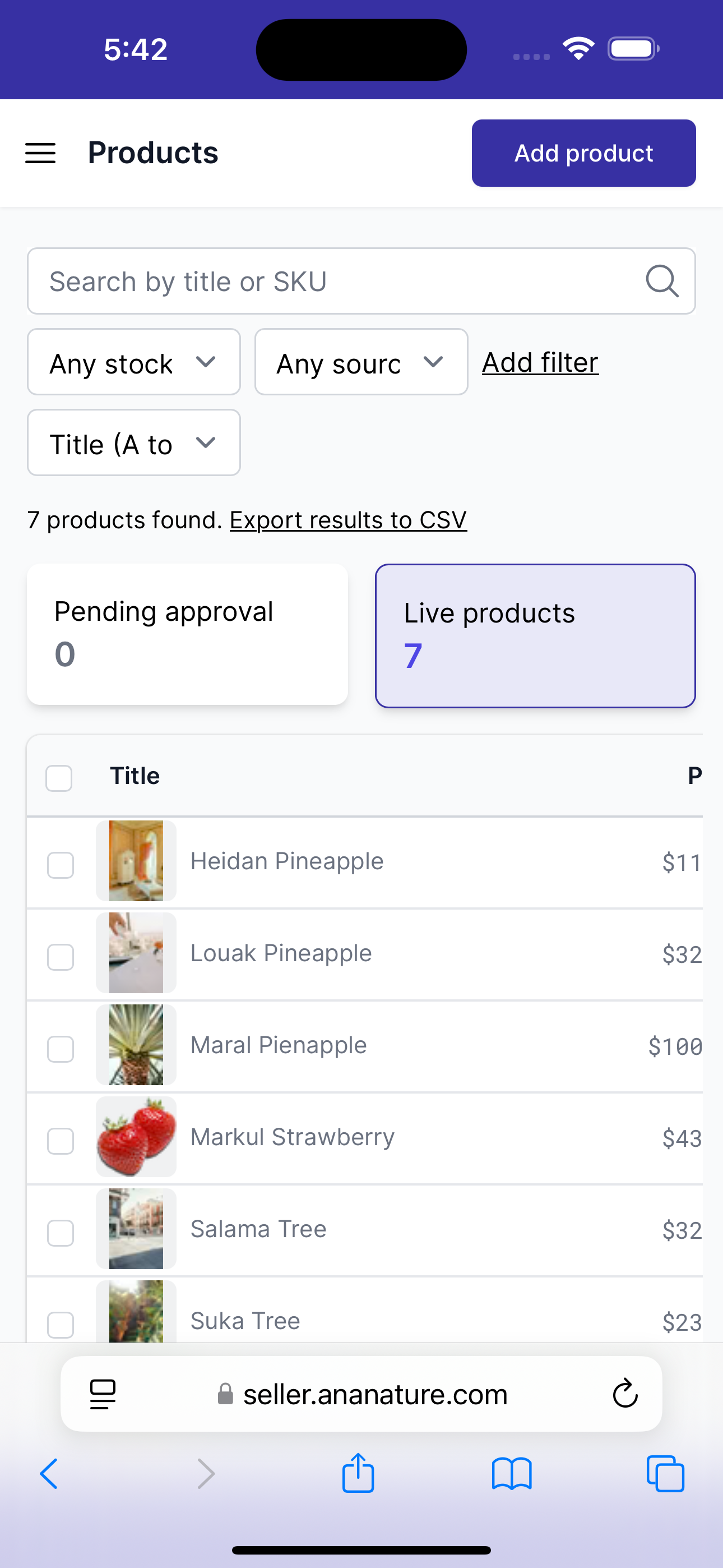
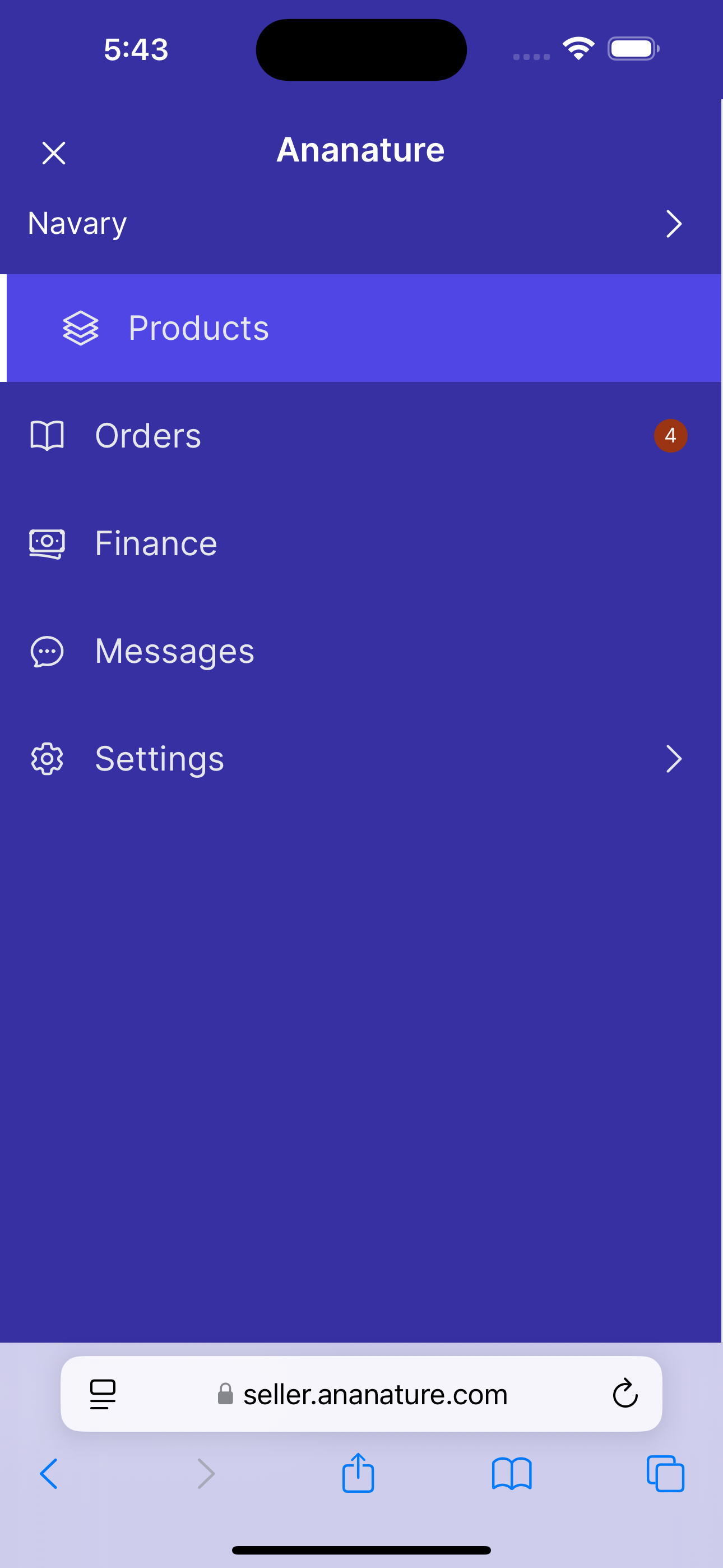
Sidebar menu on mobile
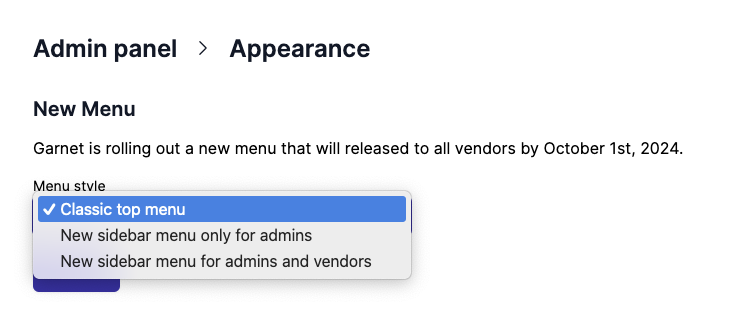
To try out the new menu before it is released, you can go to Admin panel > Appearance and set the style to New sidebar menu for admins and vendors.
Change your support email or link
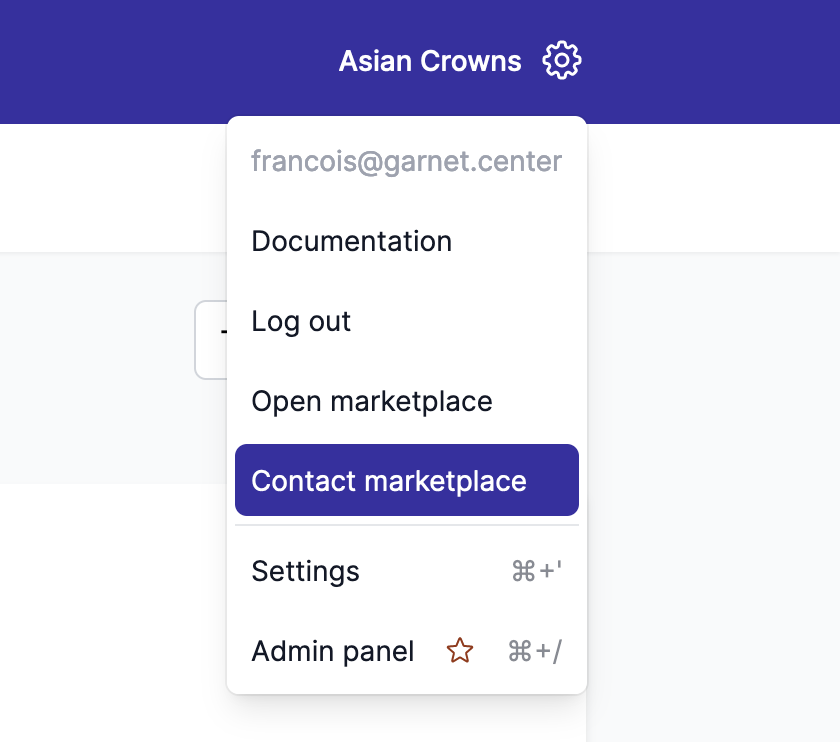
You can change your contact marketplace link in Garnet > Admin panel > Appearance. This email will be used to redirect vendors when they want to reach out to you.
By default it links to the email of the marketplace's owner.
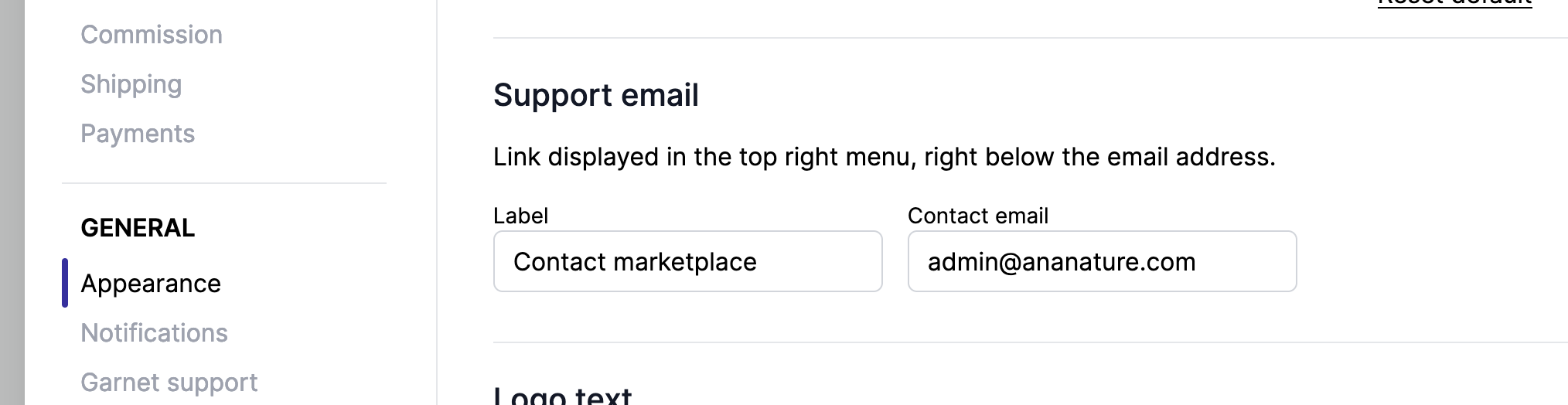
If you want to remove this field, simply set the contact text to empty.
Garnet also supports link starting with https://.
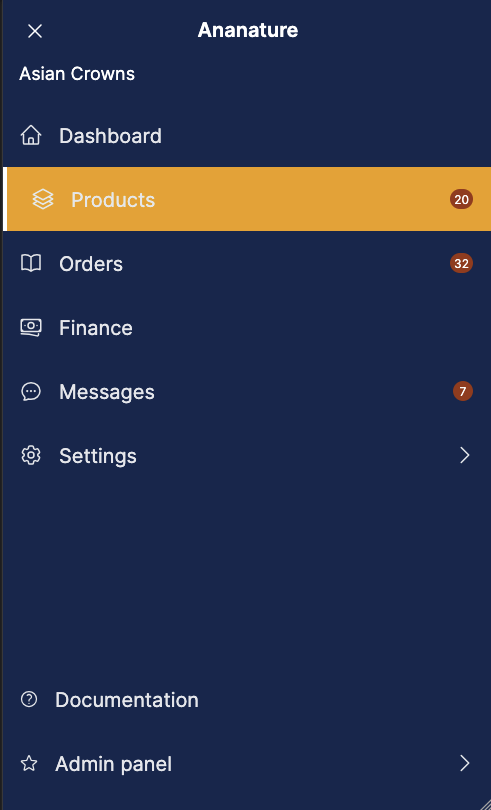
Using the vertical menu, the support button looks like this:
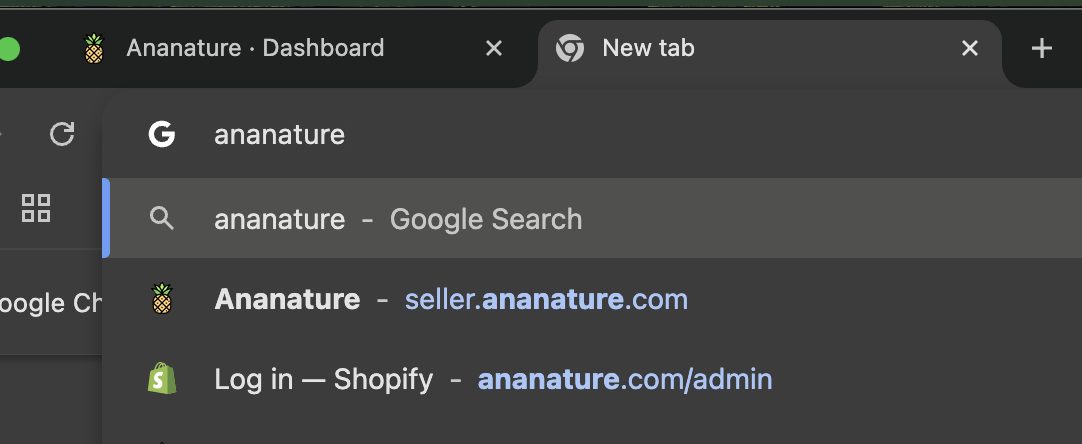
Search by marketplace name in the search bar
With or witout a custom domain, the user can directly search for marketplace name in their search bar and it will automatically find Garnet Marketplace.
Looking for more?
At Garnet we thrive on making your marketplace platform the best it can be. If you find anything that does not look great, let us know.