
Appearance
Sell digital assets
Some marketplaces reached out to us with interesting use cases.
1. Create a file product field
You can request vendors to add a file of any type to their product by adding a product field Short text, then change the Style to file.

2. Create a product
Vendors can upload a file when creating a product in Add products > Product fields:
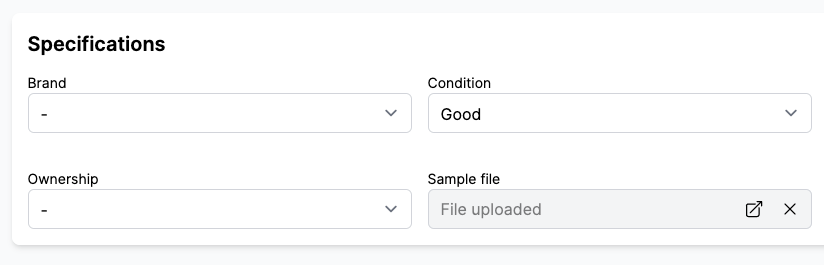
Once the product is published, you can access the URL of the file in Shopify > Products > (your product) > Metafields. Programmatically, you can use the metafield reference in your theme.
3. Asset download link on the order status page
Garnet provides a Digital Assets Download block that you can add to the Thank You page and the Order Status page. This block automatically displays download links for any product that has a file product field.
To add the block, go to Shopify > Settings > Checkout > Customize and add the Digital Assets Download block to the Thank You page and/or the Order Status page.
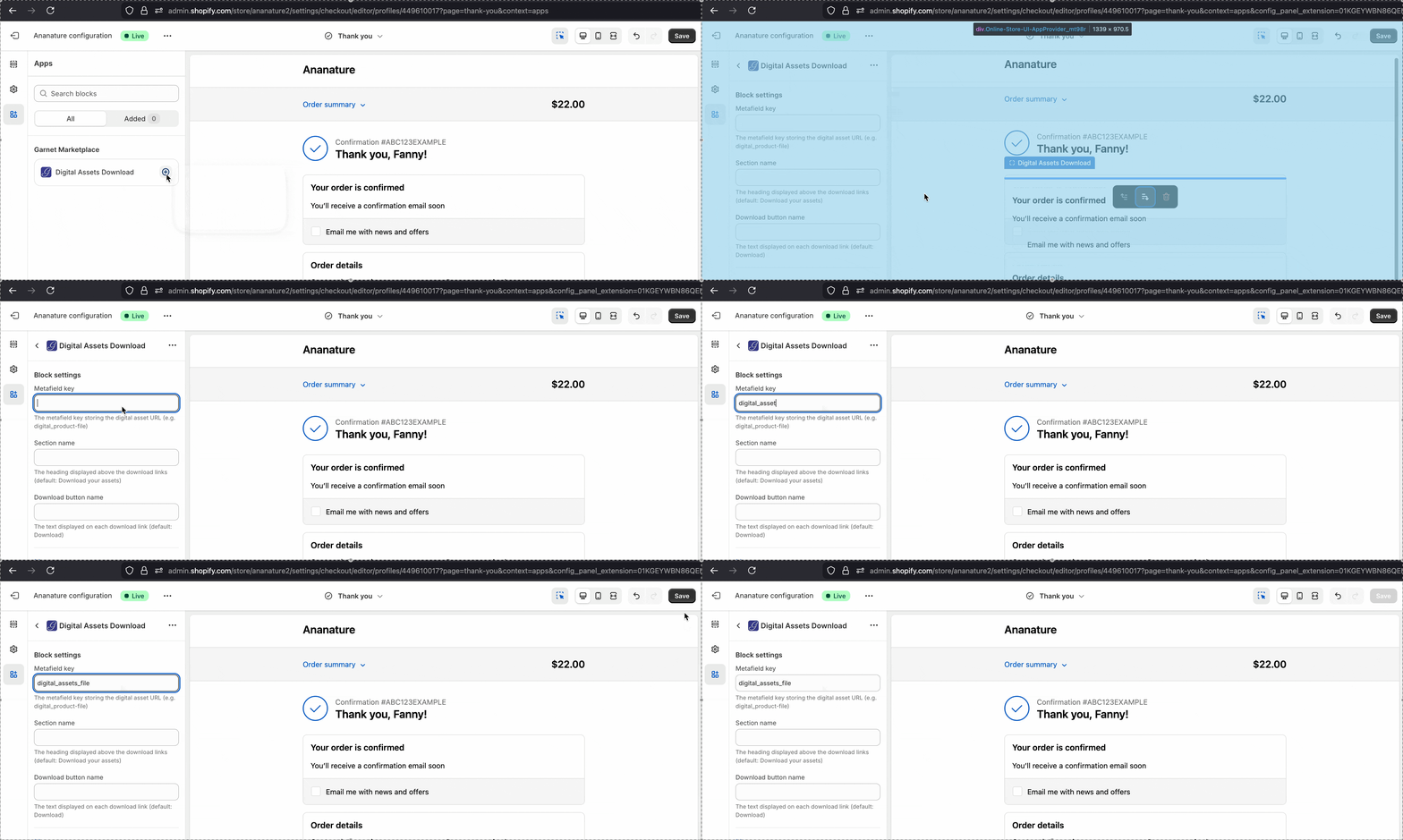
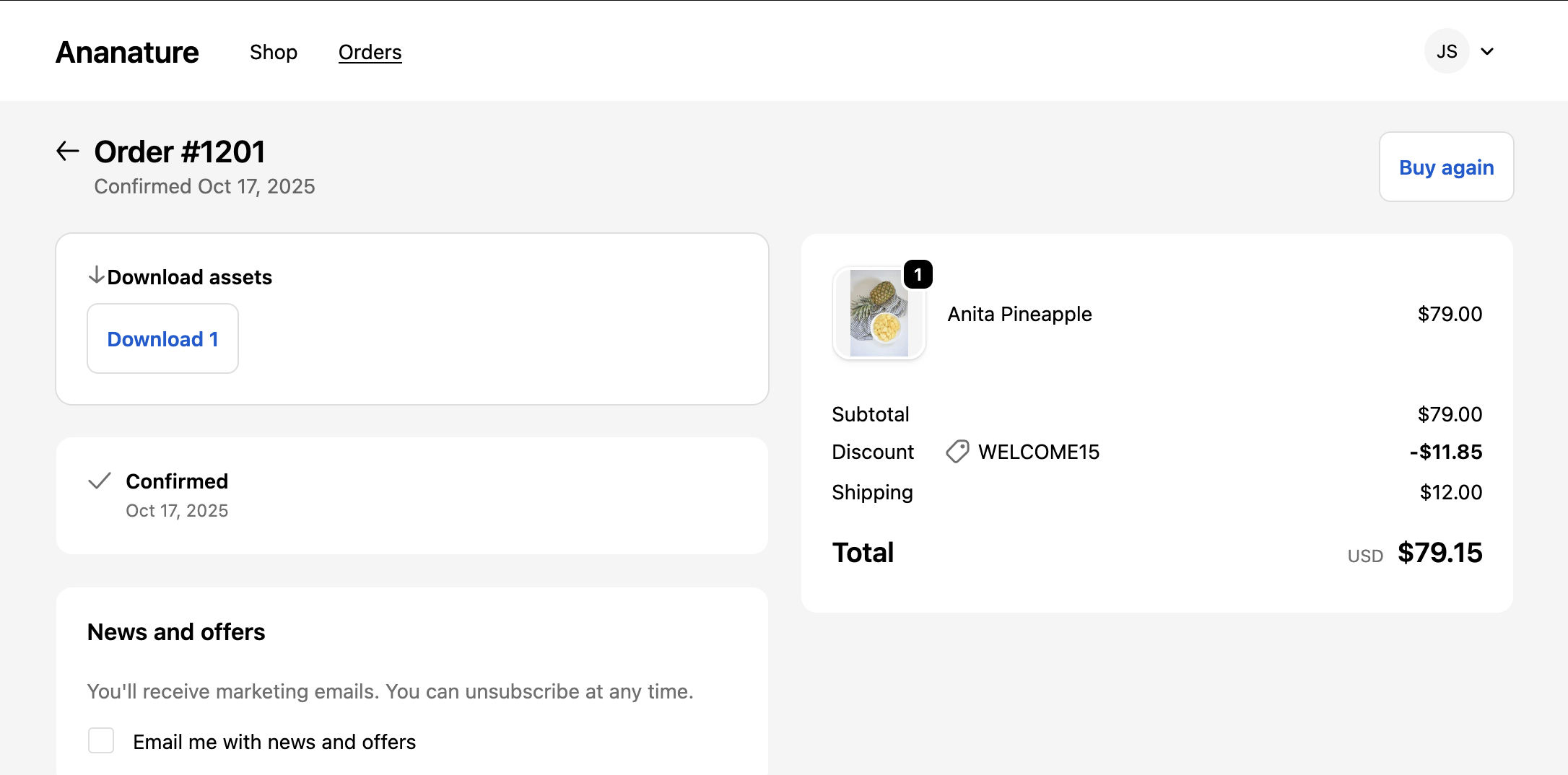
Make sure to also add the block to the Thank You page so buyers can download their assets right after purchase.
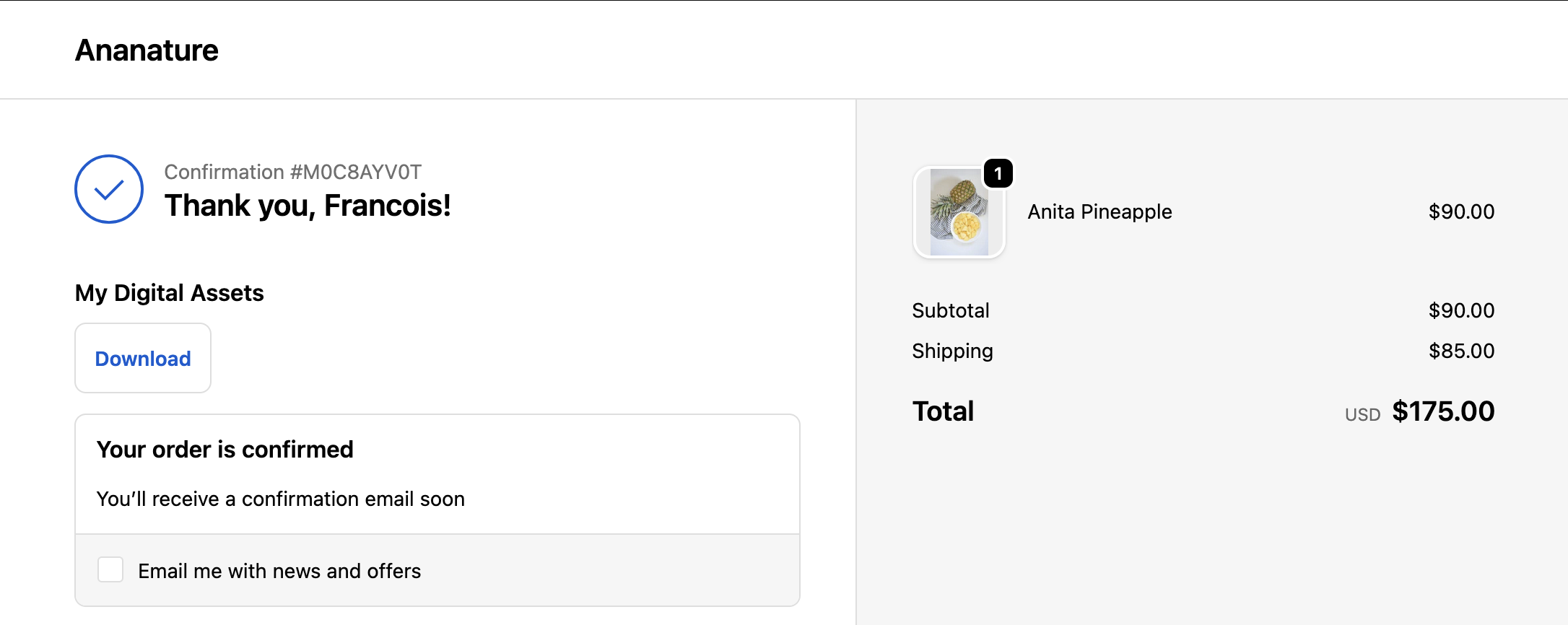
The block has the following settings:
- Metafield key: The metafield key storing the digital asset URL (e.g.
digital_product-file). Must match the product field key from step 1. - Section name: The heading displayed above the download links.
- Download button name: The text displayed on each download link.
Digital asset not showing?
The created metafields must be available to the storefront. Navigate to Shopify > Settings > Metafields > Products > yourt metafields and ensure Storefront API access is checked. 
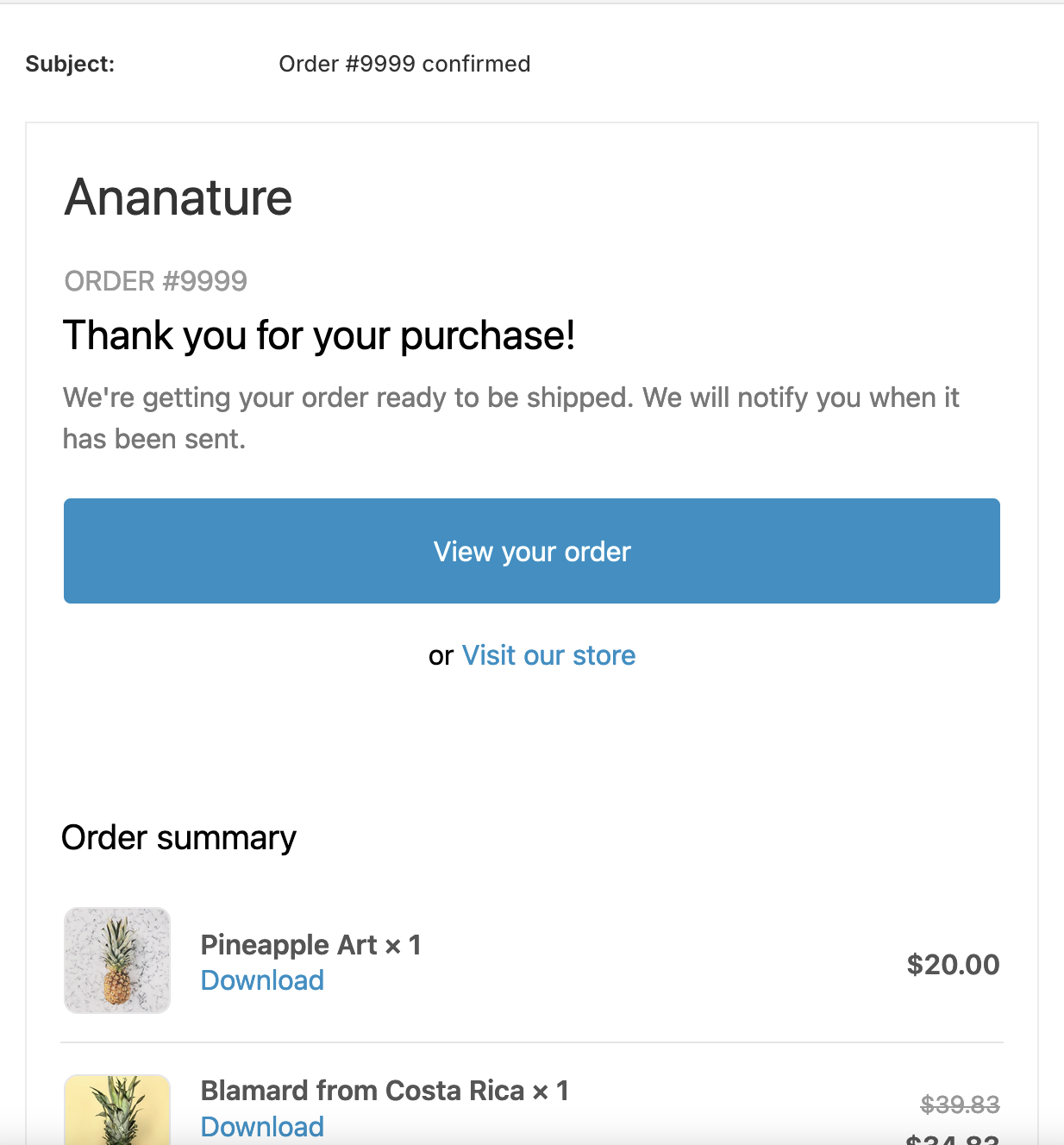
4. Asset download link on the confirmation email
Following Shopify > Settings > Notifications > Customer notifications > Order confirmation > Edit code, the marketplace can customise the order confirmation code and add the links of the assets
See the code
Locate the code next to the product title cell and use:
liquid
{% assign metafield_key = 'download_link' %} <!-- ⚠️ Change the name of the metafield key -->
{% assign asset_url = line.product.metafields.custom[metafield_key] %}
{% if asset_url %}
  <a href="{{ asset_url }}" target="_blank">Download</a>
{% endif %}
Result
Any issue?
Reach out to us if you need help from our developers.