
Make an Offer
Make an Offer lets customers propose a price for listed products. Vendors review each offer and can accept, reject, or send a counter offer. The feature is powered by Shopify Draft Orders under the hood.
Use cases
- B2B negotiations: buyers and sellers negotiate pricing on bulk or custom orders.
- High-value items: customers propose a price for premium products where negotiation is expected.
- Slow-moving inventory: vendors accept lower offers to move stale stock rather than keeping items unsold.
Enable Make an Offer
Navigate to Admin Panel > Products > Settings and toggle Make an offer on.
When disabled:
- The
Offerstab is hidden from the dashboard for all users. - The storefront theme block displays a "Make an offer is disabled" message instead of the offer form.
Customer experience
Offer form
The offer form is a Shopify theme app extension block available on product pages. To add it, go to your Shopify theme editor and place the Make an offer block where you want it to appear.
The form contains:
- Email address: pre-filled if the customer is logged in.
- Offer price: the proposed unit price.
- Quantity: how many units the customer wants to buy.
- Total to pay (optional): a computed total displayed to the customer.
Price validation
The offer price must be within a valid range:
- Minimum: listed price x
minPriceFraction(default: 80% of the listed price). - Maximum: the listed price itself.
If the customer enters a price below the minimum, a validation message explains the allowed range.
Minimum price configuration
The storefront theme enforces a default minimum of 80% of the listed price, while the backend defaults to 50%. The backend is the authoritative validator. If you change minPriceFraction in the feature settings, make sure the theme block configuration matches your intended minimum.
Customization
All text in the offer form is customizable from the Shopify theme editor:
- Button text (default: "Make an offer")
- Modal title (default: "Make an offer")
- Description text (default: "By submitting an offer, you confirm you're ready to purchase the item if accepted.")
- Submit button text (default: "Submit offer")
- Success message (default: "Offer submitted")
- Show/hide total calculation
- Login popup behavior (popup or redirect to customer account)
- Custom CSS for full styling control
What happens on submission
When a customer submits an offer:
- A Shopify Draft Order is created with the tag
garnet:make-an-offer. - The customer receives a confirmation email ("Your offer has been received").
- The vendor receives a notification email ("Offer received for [product]") with a link to review the offer.
Vendor experience
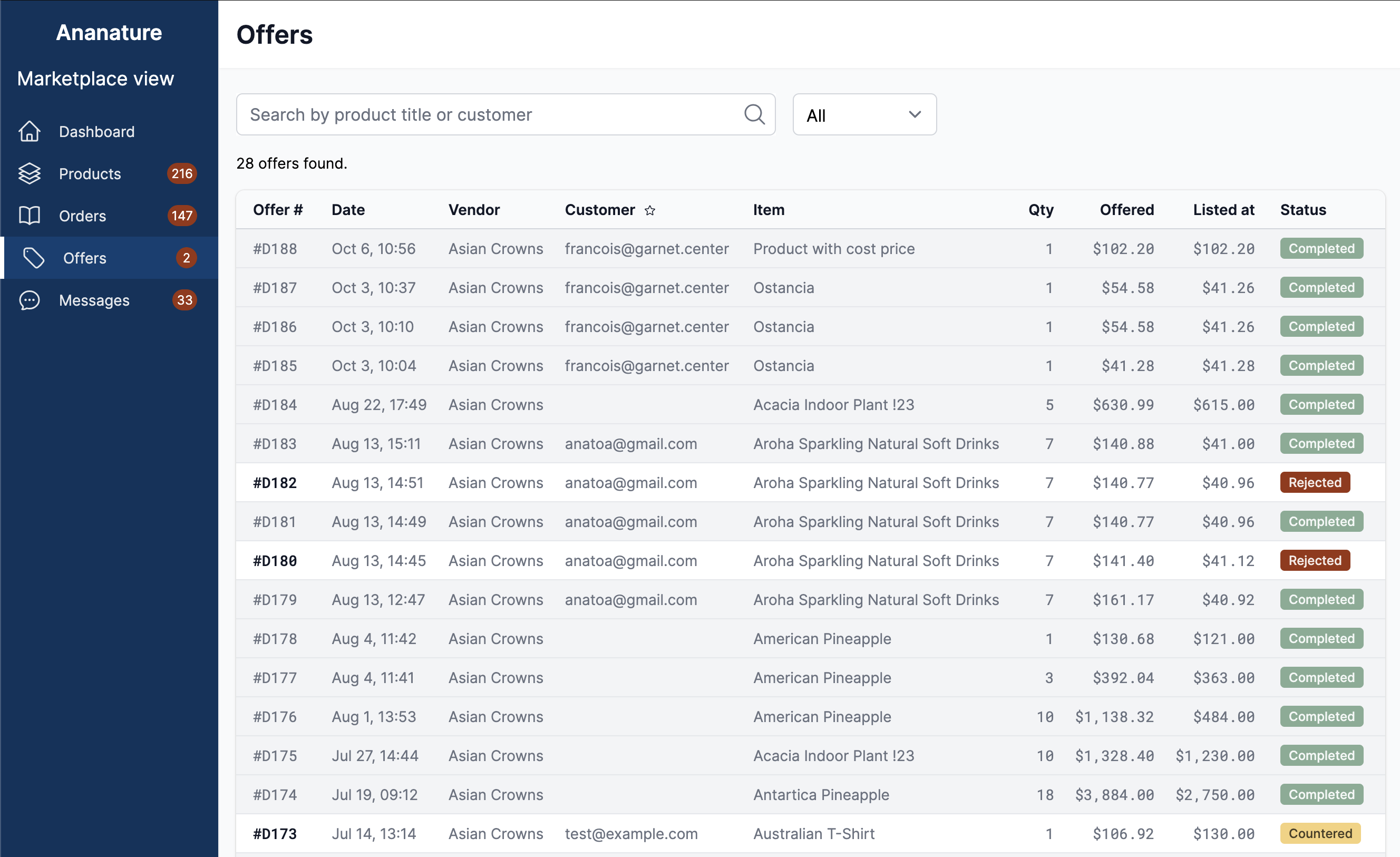
Offers tab
The Offers tab appears in the main navigation with a badge showing the number of pending offers.
Search and filter
- Search by product title, customer email, vendor name, or offer number.
- Filter by status:
All,Pending,Rejected,Countered,Accepted,Completed.
Offer table
| Column | Description |
|---|---|
| Offer # | Draft order ID |
| Date | When the offer was submitted |
| Vendor | Which vendor received the offer |
| Customer | Customer email (admin only) |
| Item | Product title |
| Qty | Quantity requested |
| Offered | Total offered price |
| Listed at | Original listed price x quantity |
| Status | Current offer status |
The table auto-refreshes every 60 seconds and paginates at 20 offers per page.
Admin-only fields
The customer email column is only visible to marketplace admins. A star icon next to the column header indicates "Only admin". Vendors only see their own offers.
Offer details
Click any row to open the offer detail modal. It displays:
- Offer number with a link to the Shopify draft order admin page
- Line item details with variant image
- Customer email (admin only)
- Date and time of the offer
- Offer unit difference: how much less than the listed price
- Offer unit price: the per-item offered price
- Offer total price: unit price x quantity
Accept an offer
Sends a Shopify draft order invoice to the customer. The email subject is "Your offer has been accepted" and the message informs the customer that the item is reserved for 24 hours. The customer must finalize payment within that period.
Status changes to accepted.
Reject an offer
Triggers the offer-rejected email template to the customer. The email encourages the customer to submit a new offer or purchase at the listed price.
Status changes to rejected.
Counter an offer
Enter a counter unit price and send it to the customer. The counter price must be greater than or equal to the listed price x minPriceFraction.
A Shopify draft order invoice is sent with the subject "You have received a counter offer". The draft order is updated with the new discounted price.
Status changes to countered.
INFO
Actions are only available when the offer status is pending. Once an action is taken, the offer cannot be changed.
Status lifecycle
| From | To | Trigger |
|---|---|---|
pending | accepted | Vendor accepts the offer |
pending | rejected | Vendor rejects the offer |
pending | countered | Vendor sends a counter offer |
accepted | completed | Customer pays the draft order invoice |
If a draft order is deleted in Shopify, the offer status automatically becomes rejected.
Notifications
Three email templates are associated with this feature. See the notifications page for general email configuration.
| Template | Recipient | Trigger | Subject |
|---|---|---|---|
| Offer received | Customer | Offer submitted | "Your offer has been received" |
| Offer requested | Vendor | Offer submitted | "Offer received for [product]" |
| Offer rejected | Customer | Vendor rejects | "Your offer was not accepted" |
For accept and counter actions, Shopify draft order invoices are sent directly by Shopify rather than Garnet email templates. These emails follow your Shopify notification settings.
Vendor statistics
On the vendor details page, admins see an offer statistics card showing:
- Total offers
- Pending offers
- Accepted offers
- Rejected offers
Each count links to the filtered offers list.
Edge cases
- 24-hour hold: accepted offers reserve the item for 24 hours. After the hold period, other customers can purchase the product.
- Completed status: an offer is marked as
completedonly when the customer pays the Shopify draft order invoice. - Draft order deletion: deleting the draft order in Shopify automatically sets the offer status to
rejected. - Vendor isolation: vendors only see offers on their own products. Admins see all offers across the marketplace.
- Feature disabled: when
Make an offeris turned off, the navigation tab disappears and the storefront block shows a disabled message. - Counter offer minimum: the counter price cannot be lower than the listed price x
minPriceFraction.