Memberships
Memberships enable the marketplace to charge a recurring fee for vendors to join. The marketplace has control over payment via the Stripe integration. Any update made on the Stripe dashboard will be reflected in Garnet Marketplace.
The wording between Garnet and Stripe is slightly different:
| In Garnet | In Stripe |
|---|---|
| Vendor | Customer |
| Membership | Subscription |
Settings for the marketplace
The marketplace can find membership settings in Garnet > Admin Panel > Finance > Memberships. However, the marketplace must have configured the Stripe integration beforehand.
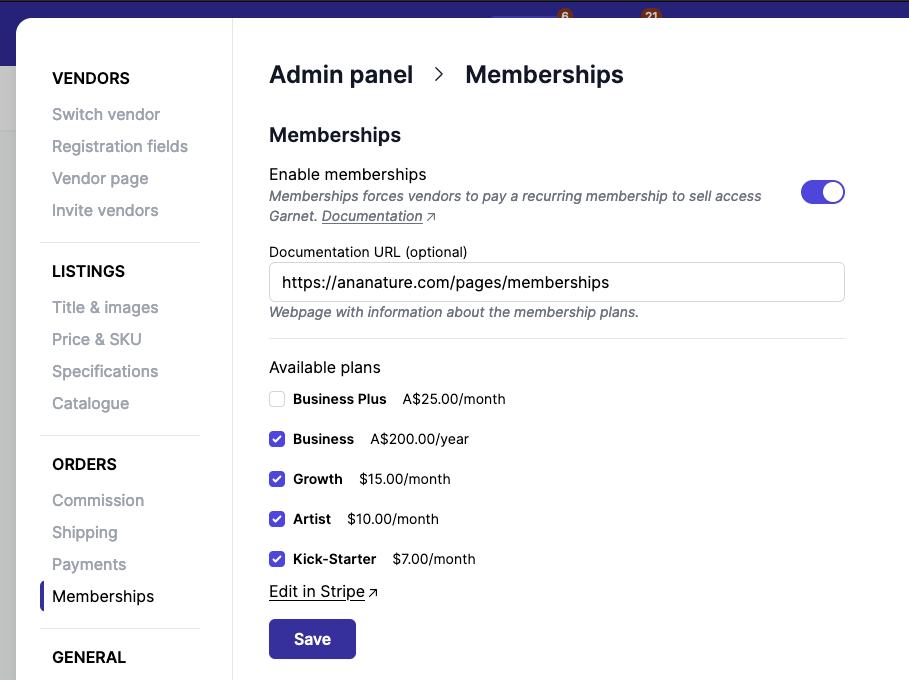
- Enabled memberships: restricts vendors to having an active membership to continue using Garnet Marketplace.
- Documentation URL: add a documentation link to tell your vendor the advantages on the marketplace's website
- Available plans: these plans are pulled directly from Stripe products. The marketplace can select the product they want vendors to choose from.
Product limitation
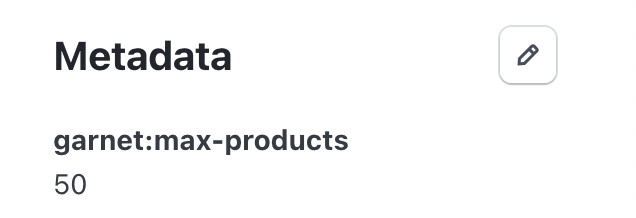
A marketplace can restrict the number of products a vendor can have live under their membership plan. To do so, simply go to Stripe > Products catalog and add the metadata with name garnet:max-products and the value being the number of available products, between 0 and 10,000. Any other value is ignored, and a plan without a valid value sets no limit.
See where to set the metadata
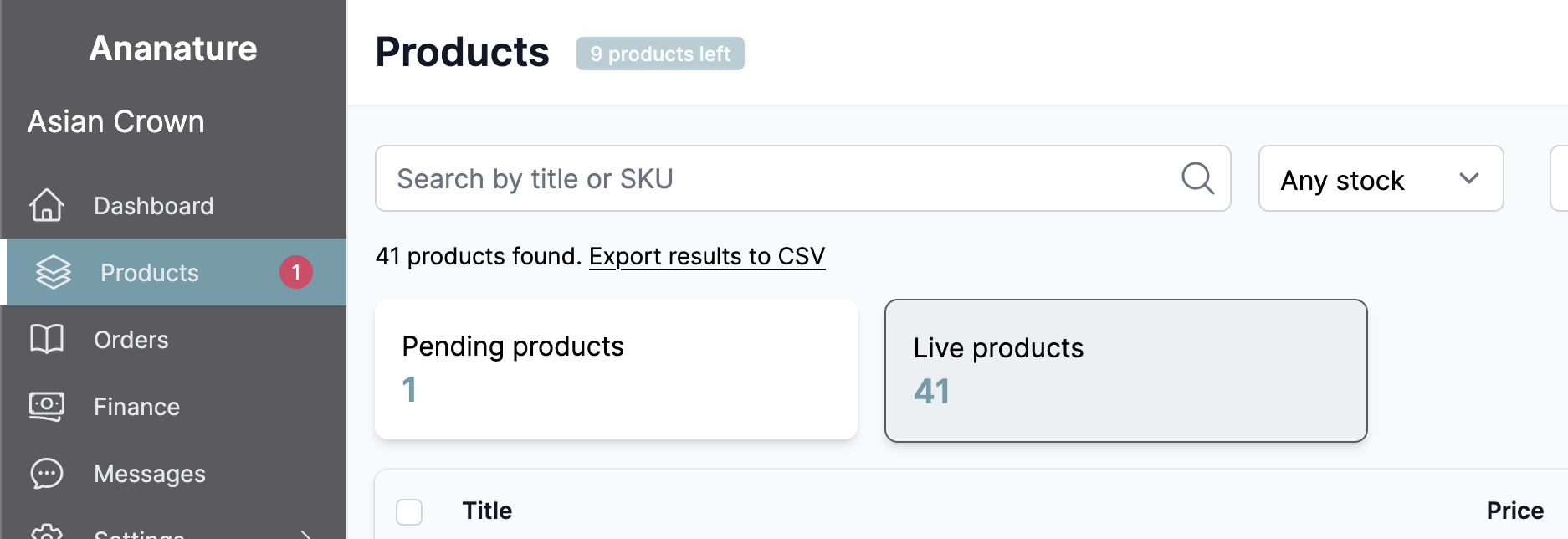
The limit is copied to the vendor when their membership starts, renews or changes plan, so a later change to the metadata only reaches a vendor at their next membership update. When the limitation is set, the vendor will not be able to create new products if the limit is reached. As we see below, the vendor has a membership limited to 50 products, and they only have 9 products left.
When a membership is cancelled
A membership can end because the vendor cancelled it, because their payment kept failing, or because it was cancelled from Stripe. To set how many live products the vendor keeps afterwards, add the metadata garnet:on-cancel:max-products to the membership product in Stripe, with the number of products as the value, between 0 and 10,000.
If the product has no such metadata, the vendor keeps the limit of the plan they cancelled.
A vendor whose membership is cancelled or unpaid is asked to pick a plan again, and the membership step of their onboarding shows as incomplete.
Commission per membership
A membership plan can also set the vendor's commission. Add the metadata garnet:set-commission-rate to the membership product in Stripe, with the commission percentage between 0 and 100 as the value (for example 12 for 12%). Any other value is ignored. When a vendor's membership on that plan starts, renews or changes, the percentage is applied to all their commission rules. A later change to the metadata only reaches a vendor at their next membership update. Price ranges and flat fees stay as they were. A vendor without their own commission starts from the marketplace default commission.
To change the commission when the membership is cancelled, add garnet:on-cancel:set-commission-rate the same way. Without it, the vendor keeps the commission of the plan they cancelled.
The new commission applies to orders placed after the change.
Membership modal
When vendors without paid membership log into Garnet Marketplace, they are prompted using the modal below. The vendor cannot manage their products or orders until they subscribe for a membership.
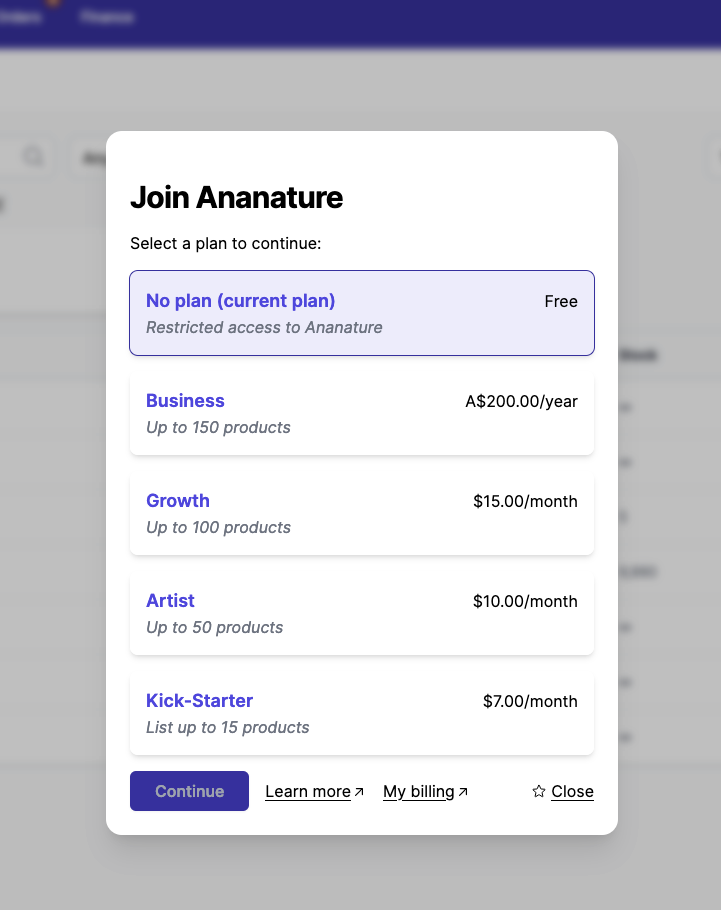
From this view, the vendor can:
- see the available membership,
- upgrade, downgrade or cancel their membership,
- access the membership invoices,
- learn more about the membership (if
Documentation URLhas been set up).
Subscribe to a membership
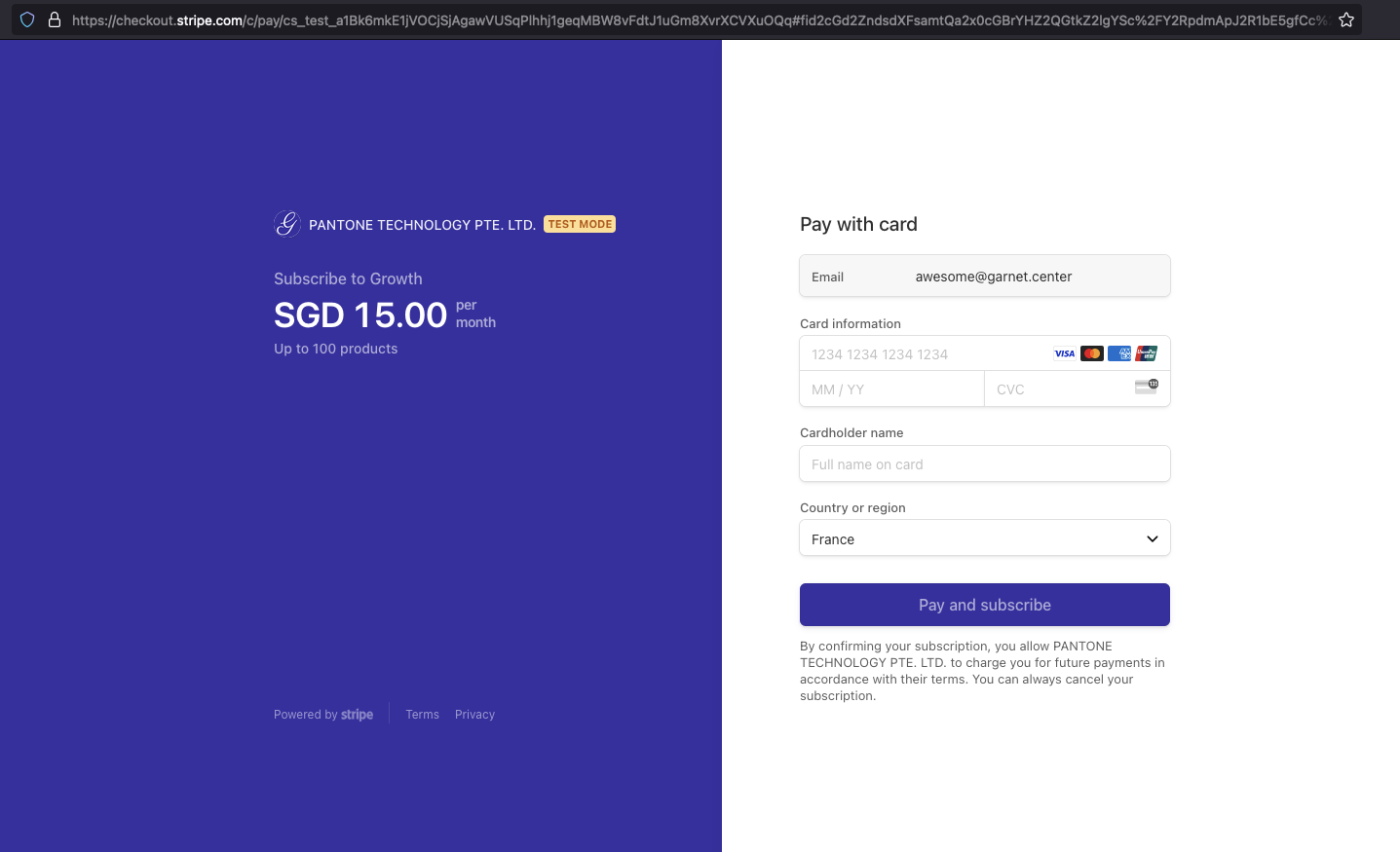
The first time a vendor subscribes to a membership, the vendor will navigate to a Stripe payment page. The payment page and the available payment methods can be customized in Stripe.
Screenshot
Upgrade, downgrade, cancel
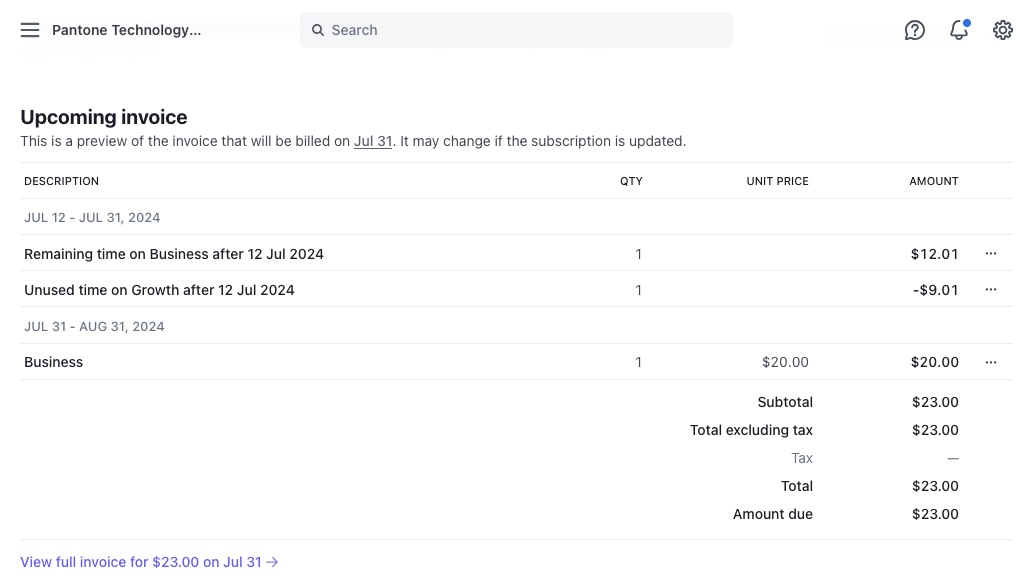
When a membership is upgraded or downgraded, the same Stripe membership is edited. Stripe will take care of computing the correct pro-rated price. The pro-rated amount is invoiced and charged immediately at the time of upgrading.
Note that an upgrade or a downgrade does not require the vendor to input their payment details.
Upgrade membership example
Here we can see the vendor upgrade their membership. The billing period stays the same and Stripe automatically computes the right amount to be charged for the rest of the billing period.
Billing
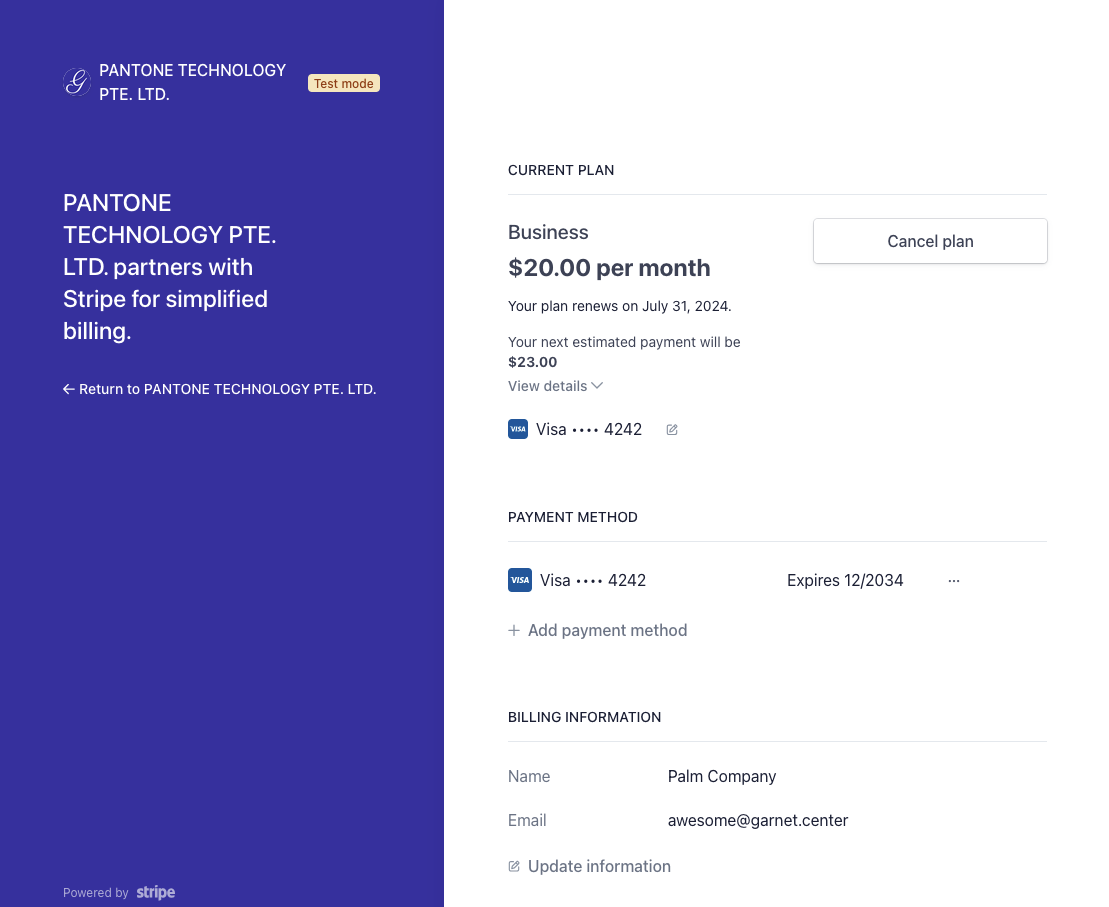
The vendor can click View billing to see more details about the membership, print invoices, and update payment methods.
Billing example