
Modern messaging setup
Modern messaging adds a floating, Messenger-style chat dock to every page of your store. Signed-in customers see a collapsed "Messaging" bar in the bottom-right corner; clicking it expands their conversation list, and selecting a conversation opens the chat in place — no page reload. It only shows for signed-in customers who already have at least one conversation.
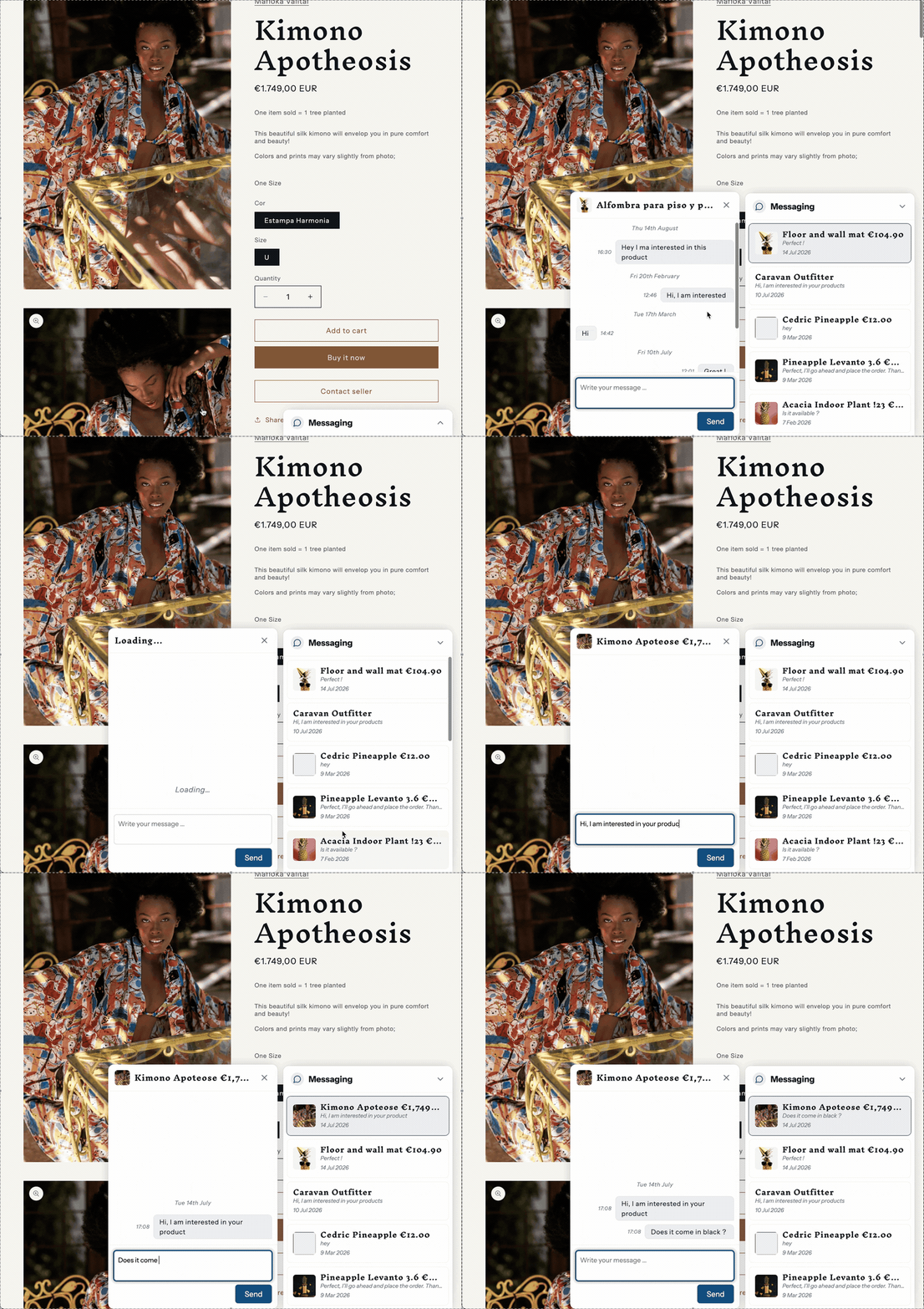
Unlike the classic messages page, this is an app embed: enable it once and it is available store-wide, so you don't need to create a dedicated messages page. A Contact seller button opens the widget in-page with that product's conversation instead of navigating away.
1. Turn on messaging
If you haven't already, enable the Messaging feature in Garnet > Admin Panel > Vendors > Settings. See the classic setup for details.
2. Enable the Messages Widget app embed
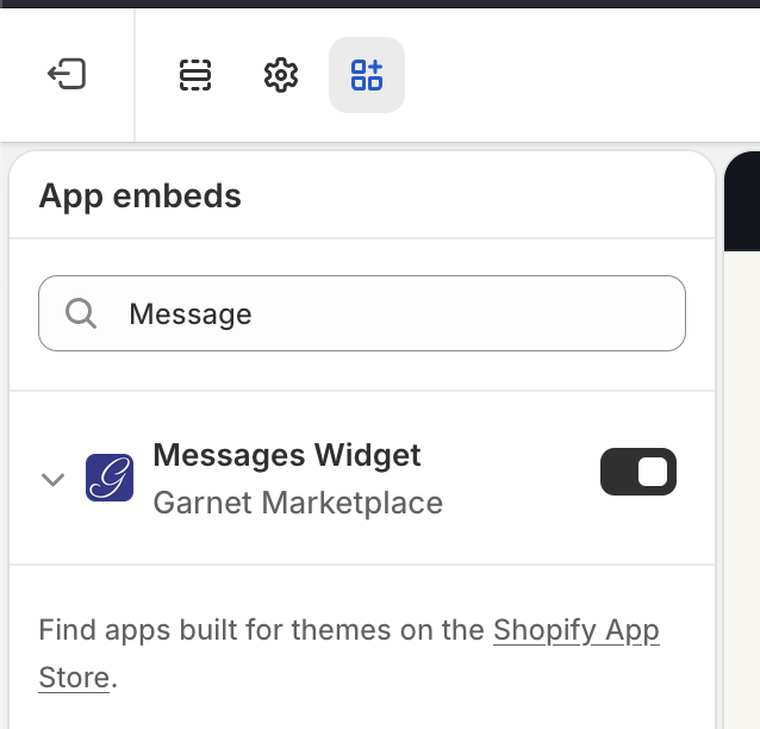
Unlike the other theme components, the Messages Widget is not a section you drag onto a page — it is an app embed you turn on from the theme editor's sidebar:
- Go to
Shopify admin > Online Store > Themes > Customize. - Open the
App embedstab (the puzzle-piece icon in the left sidebar). - Toggle on
Messages Widget, then clickSave.
You can customize the component with the following settings:
- Accent color: Buttons, highlights and icon tint. Leave empty to use your Garnet theme color.
- Widget label: The text shown on the collapsed messaging bar. Default:
Messaging. - Message placeholder: The placeholder text shown in the empty message input.
- Empty conversation list message: Shown in the dock when the customer has no conversations.
Languages
The widget follows the language the customer is browsing your store in. Its built-in text ("Send", "Loading…", dates, and the defaults of the three text settings above) is available in English, French, German, Spanish, Italian, Dutch, Polish, Romanian, Hungarian, Arabic and Chinese, and falls back to English for any other language.
If you type your own text into the settings, it shows on every language until you translate it. To give each language its own value, open Translate & Adapt, go to Theme > Theme settings, pick the language, and translate the Messages Widget fields there.
3. Add the Contact seller button
Add the Contact seller theme component to your product pages just like in the classic setup. When the Messages Widget is enabled, the button opens the floating widget in-page with that product's conversation instead of navigating to a dedicated page.
4. Start a conversation from your own markup
The Contact seller component is only a thin wrapper around a link the widget knows how to intercept. Any element in your theme can start a conversation the same way — give it a data-garnet-messaging attribute holding the conversation context:
html
<!-- Chat about a product -->
<a href="/pages/messages?productId=123" data-garnet-messaging="garnet:messaging/chat-on-product/123">Contact seller</a>

<!-- Chat with a vendor, by base64-encoded vendor name -->
<a href="/pages/messages?vendor=Acme" data-garnet-messaging="garnet:messaging/chat-on-vendor/QWNtZQ==">Contact Acme</a>
In a real theme you never hardcode those values — Liquid fills them in. The vendor segment is the vendor name run through Liquid's base64_encode filter, which is what lets a name containing spaces, accents or slashes survive inside a URL path:
liquid
{% comment %} On a product page {% endcomment %}
<a href="/pages/messages?productId={{ product.id }}"
   data-garnet-messaging="garnet:messaging/chat-on-product/{{ product.id }}">
  Contact seller
</a>

{% comment %} On a vendor page, or anywhere you have the vendor name {% endcomment %}
<a href="/pages/messages?vendor={{ product.vendor | url_encode }}"
   data-garnet-messaging="garnet:messaging/chat-on-vendor/{{ product.vendor | base64_encode }}">
  Contact {{ product.vendor }}
</a>
The garnet: prefix works like Shopify's own shopify: and app: links: only the widget understands it, which is why it lives in data-garnet-messaging rather than in href. Links written with the former /_garnet/messaging/... form keep working.
Use base64_encode, not base64_url_safe_encode: the widget decodes the segment with standard base64, so the URL-safe variant (which swaps + and / for - and _) will not be understood. The href is a plain deep link and takes the vendor name as-is, so it uses url_encode instead.
Where the vendor name comes from depends on the page: {{ product.vendor }} on a product, {{ collection.all_vendors.first }} on a vendor collection, and {{ metaobject.vendor.value }} on a vendor metaobject page.
When the Messages Widget is enabled, clicking the element opens the conversation in the floating widget without leaving the page. When it isn't — the app embed is off, or the visitor has JavaScript disabled — nothing intercepts the click and the browser simply follows the href, so always point it at a real destination such as your classic messages page.