
Search and Filter
Garnet offers an extensive search among products. We will break down the available filters and sorting you can use
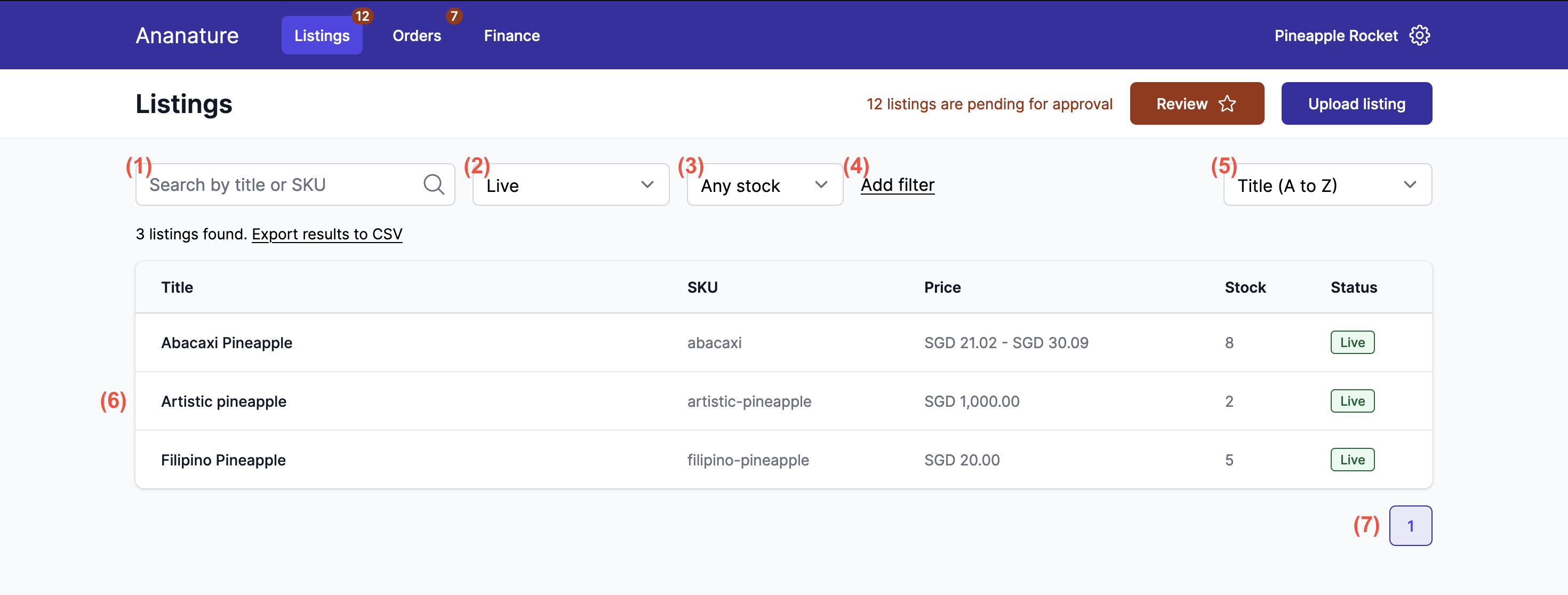
Search by title and SKU, is the main search input returning a partial or complete match of listings.Live / Pending approval, shows either the live listings, or the pending for approval listings.Any stock / In stock / Out of stock, filters the listings based on the quantity available.Add filter, opens the Advanced filters (see below).Sort, sorts the listing view either by title, SKU, price, or stock.Results, all matching listings are displayed here. You can click on a row to access the detailed view.Pagination, to navigate between the different result pages
Filter by submission status
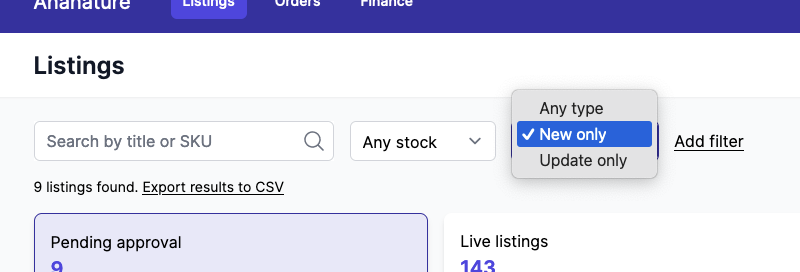
Submissions on new products can be more important than updates. Filter down the submission view to display the desired results.
Filter by source
When using eCommerce integrations, products can be synchronised with an external source (Shopify, WooCommerce, API ...). You can filter the product by source.
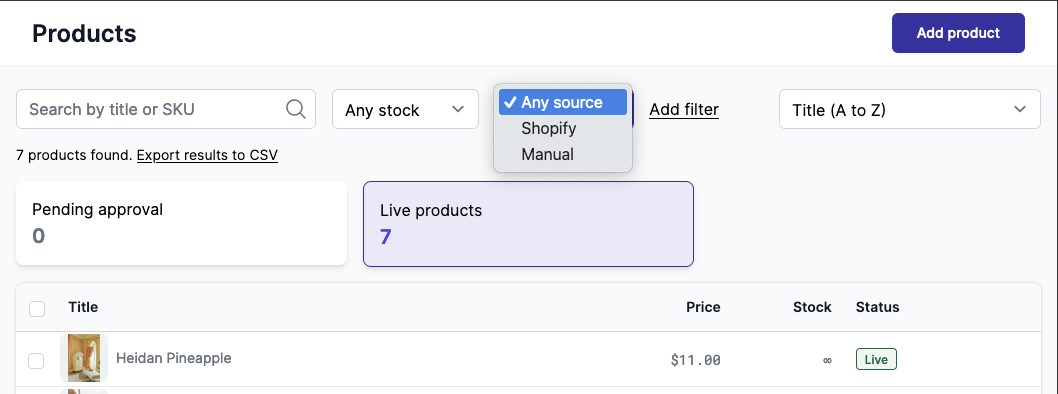
Manual refer to products added manually from the Garnet's interface.
Advanced filters
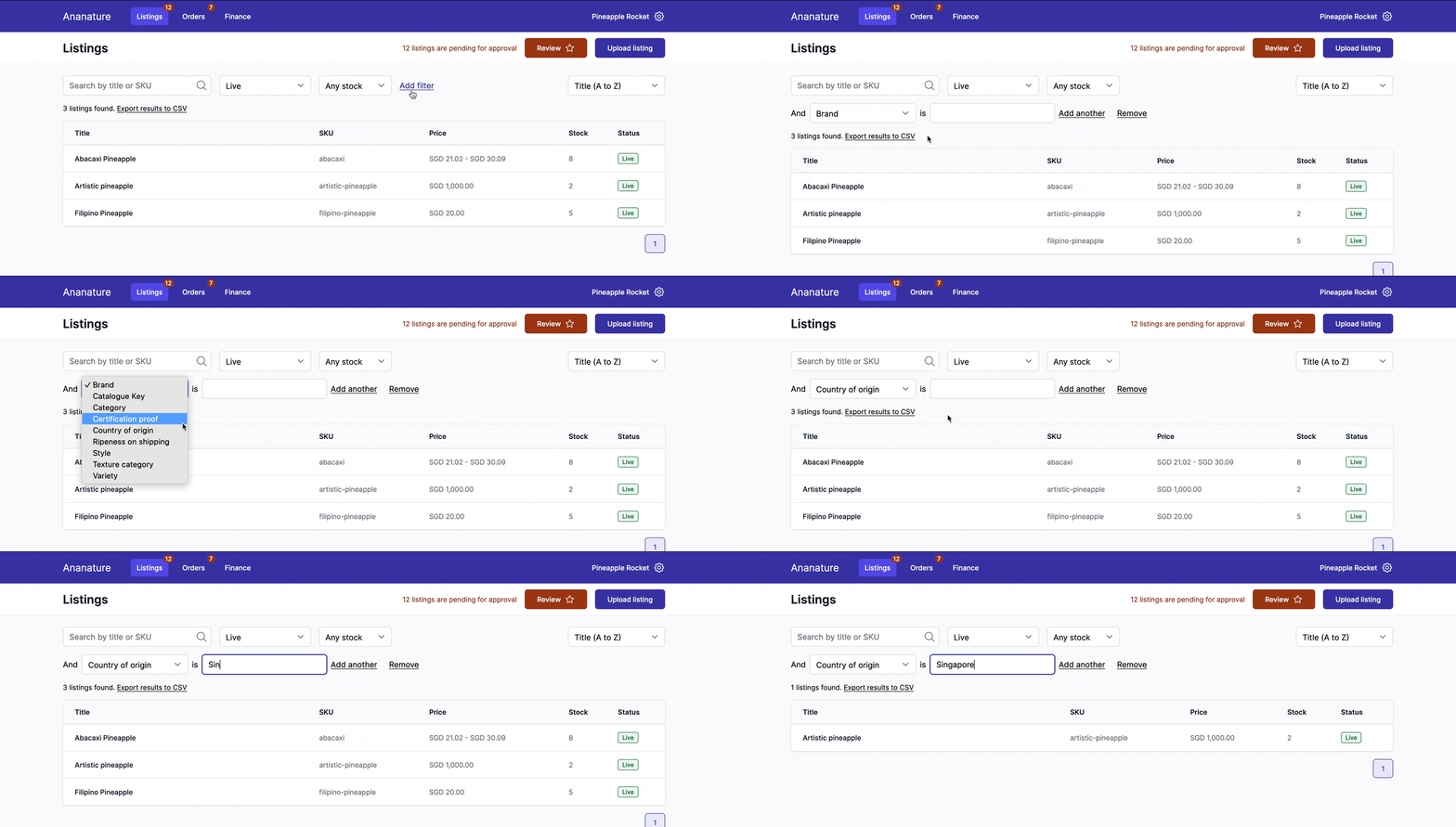
Garnet can filter on all your product fields. Enter the advanced filters view by clicking on (4) Add filter.
As of now, the advanced search only supports exact matches.
Share a search view
The search information is encoded in the URL. Hence to share your view, you can simply share the full URL with your recipient.
You can also bookmark the view in your web browser for quick access.
Warning on submissions
When a product does not comply with the marketplace's constraints, the submission is annotated with a warning sign. Clicking the submission will show the error details.
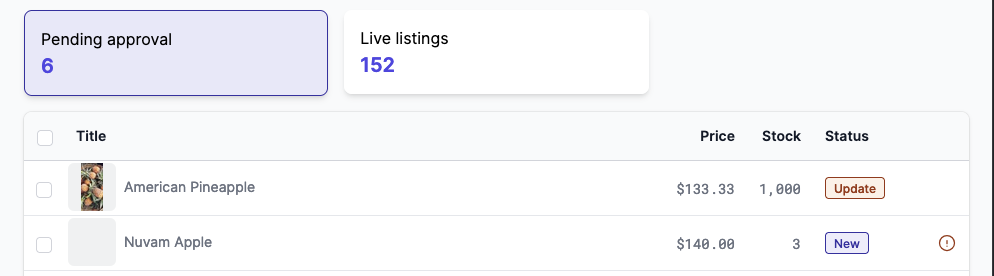
Usually warnings happen for submissions added via automated integrations or CSV uploads.
Mobile view
As all Garnet features, the search view is also available on mobile.
CSV export
You can export all products from Garnet Marketplace using the Export to CSV button below the search. Based on the number of products to be downloaded, it can take up to one minute for the export to complete.
Print barcodes
The action is available once Enable GTIN/EAN/barcode is turned on in Admin Panel > Products > Product form > Sales configuration. Then select products in the list and click Print barcodes. Pick the label format and how many labels to print:
One barcode per variant: one label for each variant.One barcode per variant in stock: as many labels as units in stock. A variant whose stock isn't tracked gets one.Custom per variant: lists the variants with their SKU, barcode and stock, to set the number of labels for each one. It starts at one label per unit in stock. Variants without a barcode are hidden unless you pickShow variants without barcode.
The labels open in a new tab, ready to print. Supported formats are Avery 94103, 5167 and 5160 sheets, Dymo 30252, 30336 and 30332 rolls, and Zebra 10010038, 10010039 and 10010044 rolls. In the print dialog, set the margins to "None" and the scale to 100% so the labels line up with the sheet.
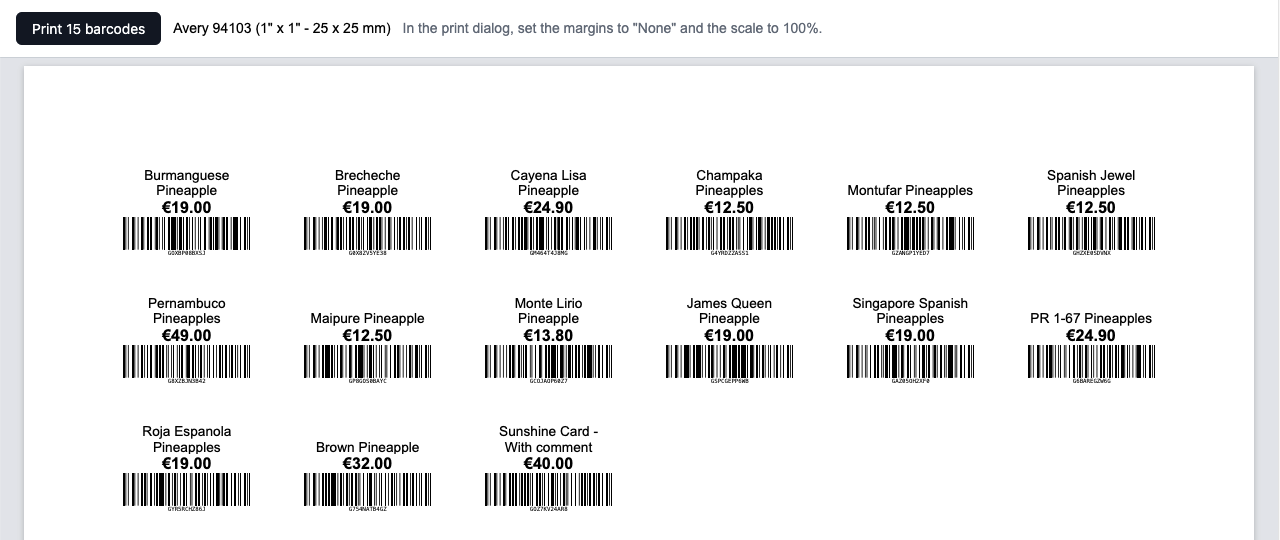
Each label shows the product and variant name, on up to two lines, and the price above the barcode. EAN-13, UPC, EAN-8 and GTIN-14 codes print in their retail format so tills recognize them; any other barcode, including the autofilled ones, prints as Code 128. Variants without a barcode are skipped.