
Product form
Listings by default only request a handful of information. Even though the marketplace can set business-related fields with product fields, they can also turn on and off specific core functionalities related to listings. These settings are in Admin Panel > Products > Product form. Defaults such as units, theme template and sales channels are in the product settings.
Sales configuration
These settings are in Admin Panel > Products > Product form > Sales configuration. Turn a setting on or off, then click Save.
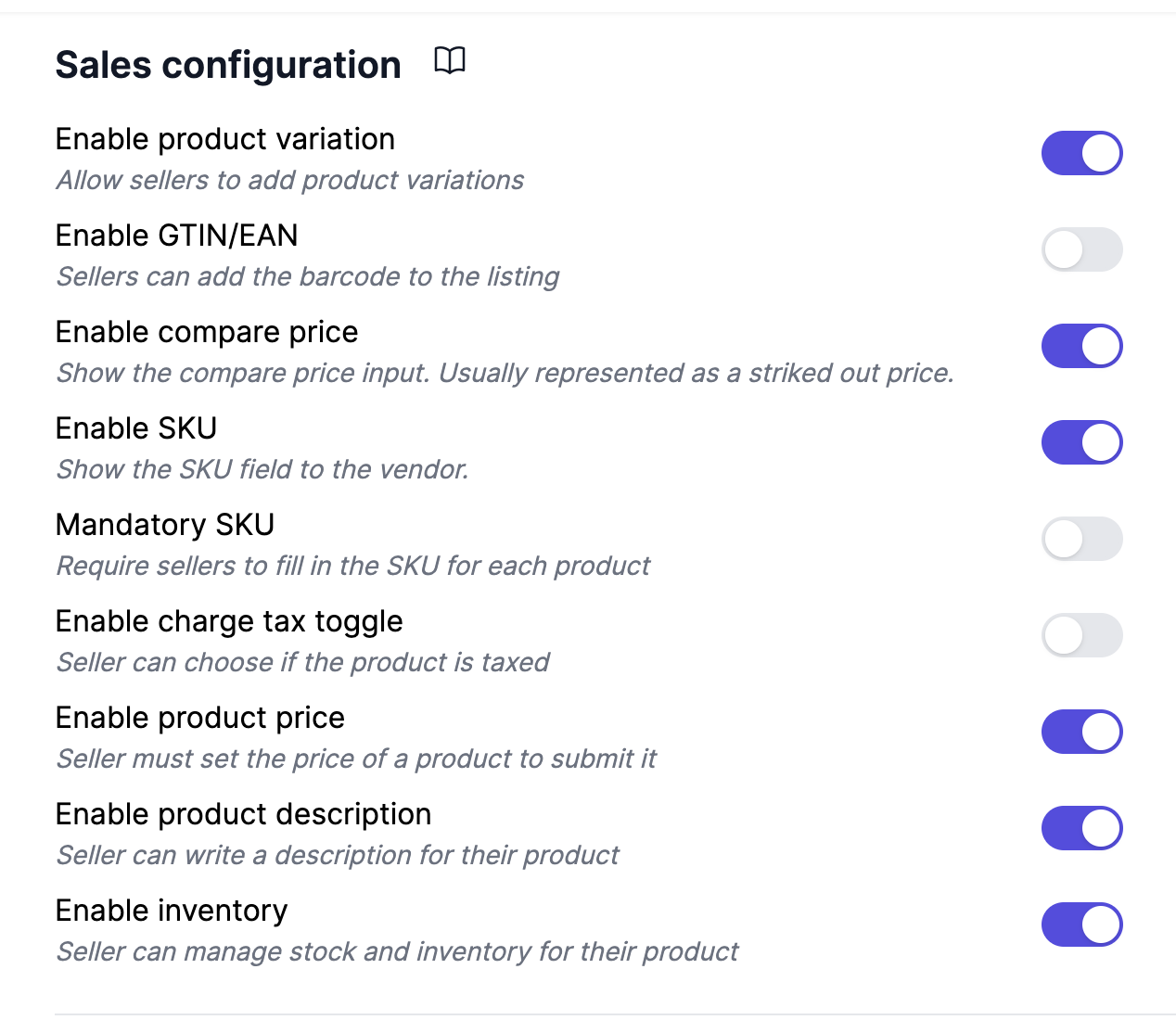
Allow product variations
Allows the vendor to use variations. For instance a T-shirt can come in different sizes or colors. A product can have up to 250 product variations and up to 20k variations under Shopify Plus. If the configuration for SKU, weight, or GTIN is turned on, they will apply for each variation of the product.
Enable GTIN/EAN/barcode
If your vendors know the GTIN of their product, you can request it with an additional field. It can boost the product's SEO if it is entered correctly.
Turning it on also adds the Print barcodes action to the product list, to print barcode labels for the selected products.
Autofill GTIN/EAN/barcode when missing
Any product or variation without a barcode gets one filled in when a vendor opens it in the product form, such as G7K2M9XQ4TR: a G followed by 10 random letters and digits. Vendors see it in the barcode field and can replace it with their own before saving. Barcodes already set are never changed.
These barcodes are unique, so you can print them on labels and scan them in store or at the warehouse. They are not official GTINs: Google Shopping or Amazon may flag them, so leave this option off if your products are listed there and vendors can provide their real GTIN.
To turn it on, first turn on Enable GTIN/EAN/barcode in Admin Panel > Products > Product form > Sales configuration. The Autofill GTIN/EAN/barcode when missing toggle then appears right below it: turn it on and click Save.
Enable compare price
Also named strike-out price, it is usually done to display a save %XX tag next to the product.
Plain text description only
All product descriptions will be displayed and saved as text only.
Enable SKU
SKUs are important for businesses and less important for individuals as they don't usually track inventory.
If disabled, Garnet will autogenerate a random SKU such as AJKDO4P for each product created. In such cases, you can consider the SKU to be unique across your whole store.
Mandatory SKU
When enabled, vendors must fill in the SKU for every product and variant before submitting. This option is only available when Enable SKU is turned on.
Enable price
Vendors can manage and set the price for the product. If disabled, the marketplace controls pricing centrally.
Enable description
Vendors can write a description for the product. If disabled, the marketplace manages product descriptions.
Mark product as taxable
Vendors can mark the product to be taxable or not. If the product is not taxable, no tax will be computed by Shopify at checkout.
Enable inventory
Vendors can manage and set the inventory for the product. If disabled, the marketplace controls stock levels centrally.
Product configuration
Default quantity to 1
When most of your vendors have one item to be sold, simplify their product entry by prefilling the quantity to 1 every time. By default the quantity is missing and must be set.
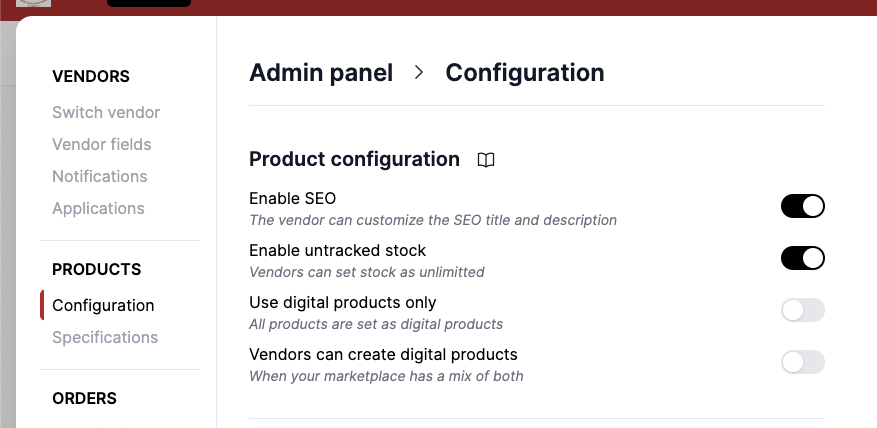
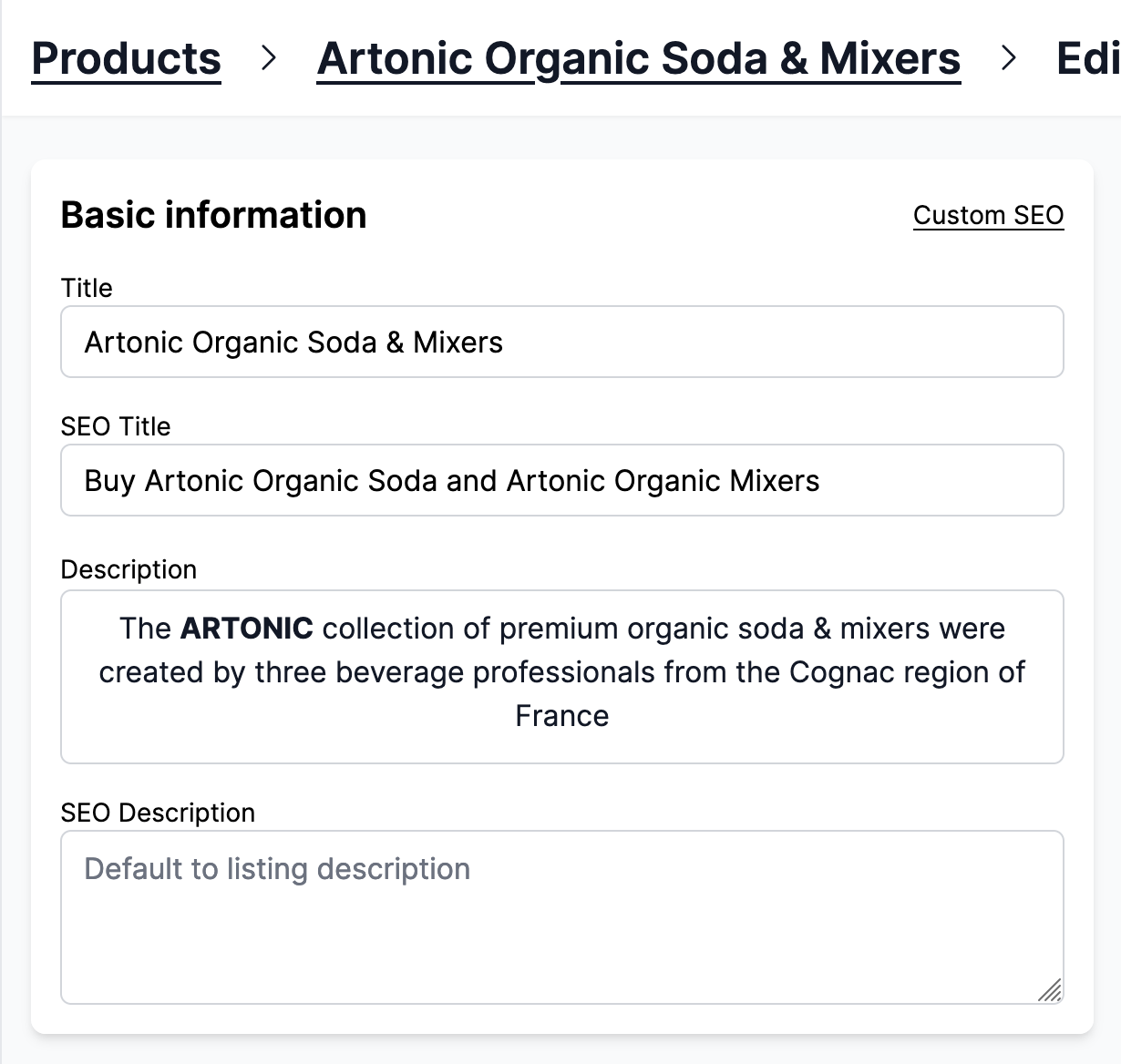
Enable SEO
Vendors can set the product's SEO title and description. By default, they take the value of the product's title and description.
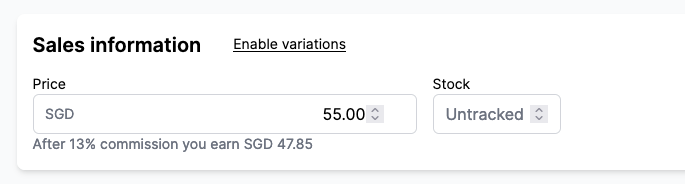
Enable untracked stock
Some vendors have a high or infinite (for digital products) stock for a product and they do not keep track of the stock. Enable them to mark the stock as Untracked when creating a product.
Use digital products only
Remove the option to create physical products. None of your products will need physical fulfillments. Check our guide on digital assets to offer downloadable assets to customers. You might be interested in auto fulfilling digital orders as well.
Vendors can create digital products
Vendors can create digital products. Useful when your marketplace is selling both physical and digital products.
Always show weight input
Products always have a weight input, even when the marketplace does not use live shipping rates. With variants, the weight is edited on each row of the variant list.
Mandatory weight
When enabled, vendors must enter a weight above zero for every physical product and variant before saving. Digital products are not affected. This option is only available when Always show weight input is turned on: the Mandatory weight toggle then appears right below it.
Use it when shipping rates or fulfilment depend on the weight, so no product reaches the storefront without one.
Field Guidelines
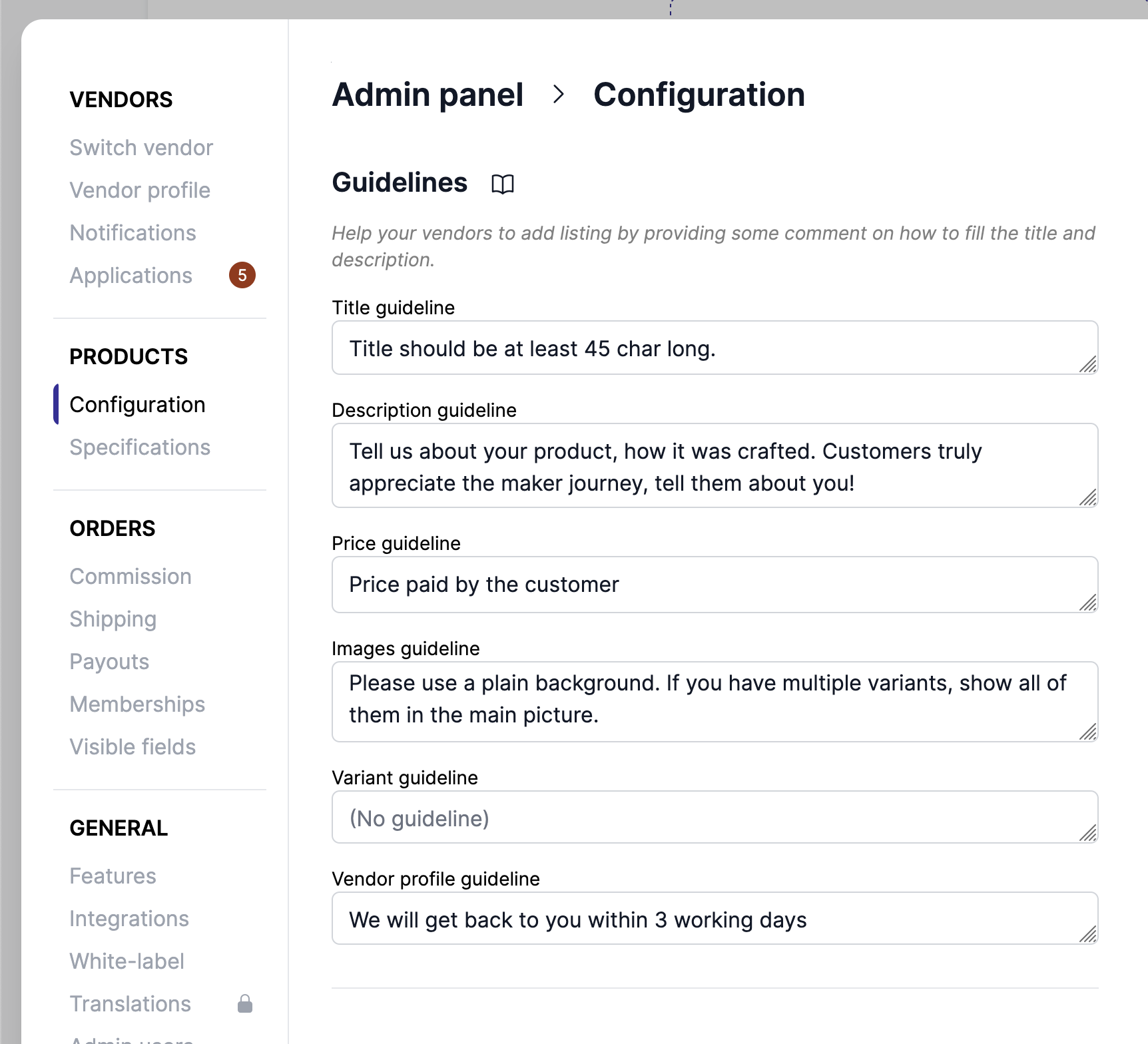
The marketplace can guide the vendors to fill the product listing by adding guidelines and constraints to the listing page. These guidelines will show below the fields on the product page.
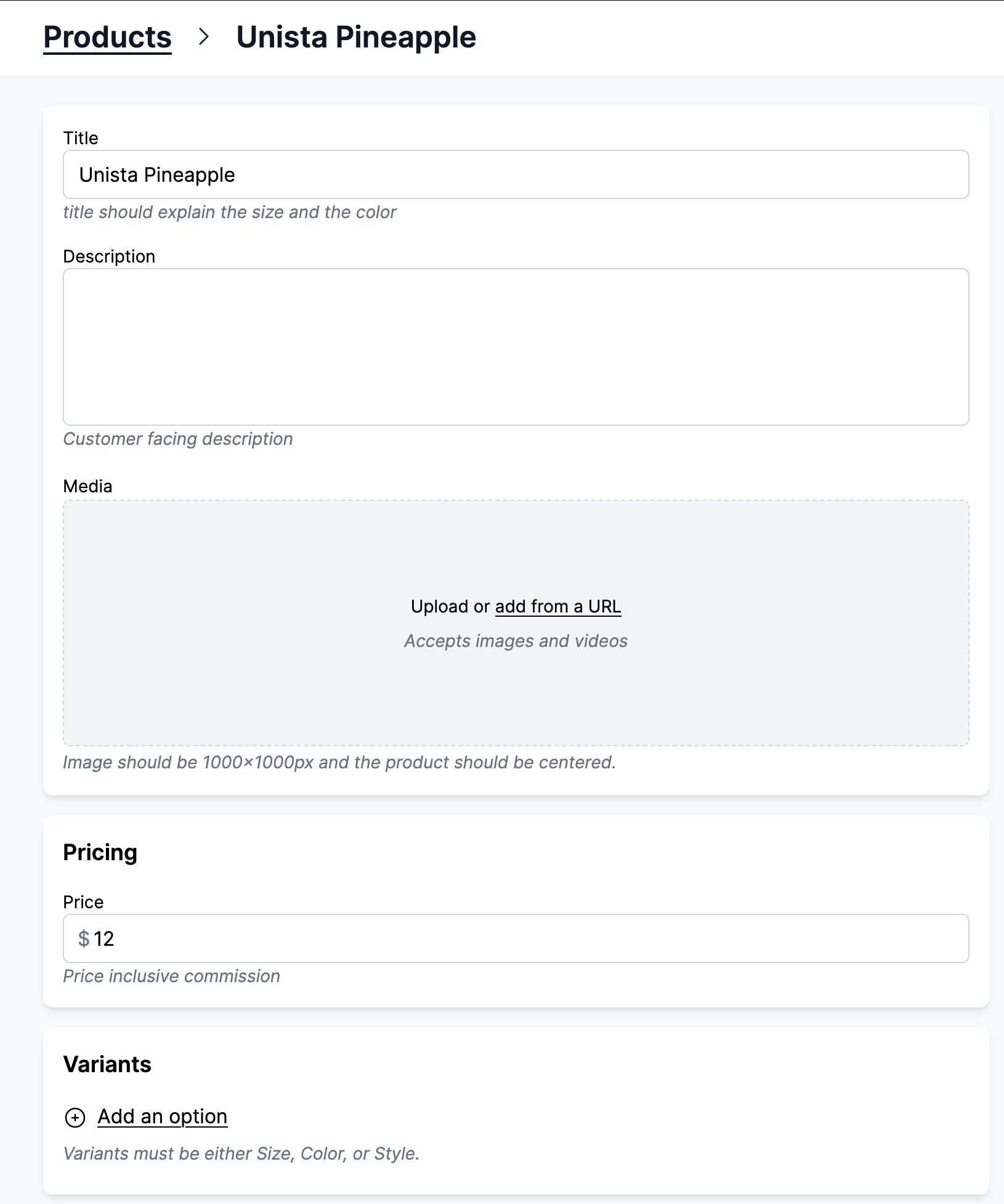
Here the guidelines are in lighter colors below the title, description, image, and variant fields