
Flat shipping rates
Overview
Garnet flat shipping allows vendors to create predictable shipping cost based on the order value, order weight, and customer address.
Blog article
Refer to our blog post on marketplace shipping to choose your type of shipping.
Admin settings
To enable the flat shipping rates, go to Garnet > Admin Panel > Shipping > Settings and turn on Flat shipping rates.
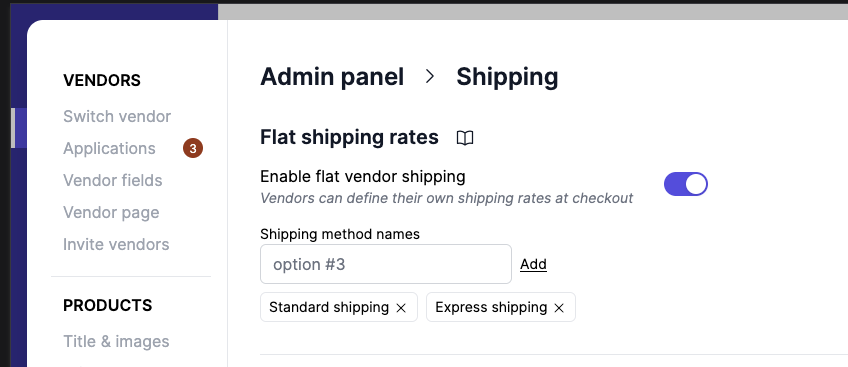
If you are unsure, set the vendor shipping names to Standard shipping and Express shipping. Learn more about them below.
Vendor settings
Vendors can set all their shipping rates in Garnet > Settings > Shipping.
Shipping zones
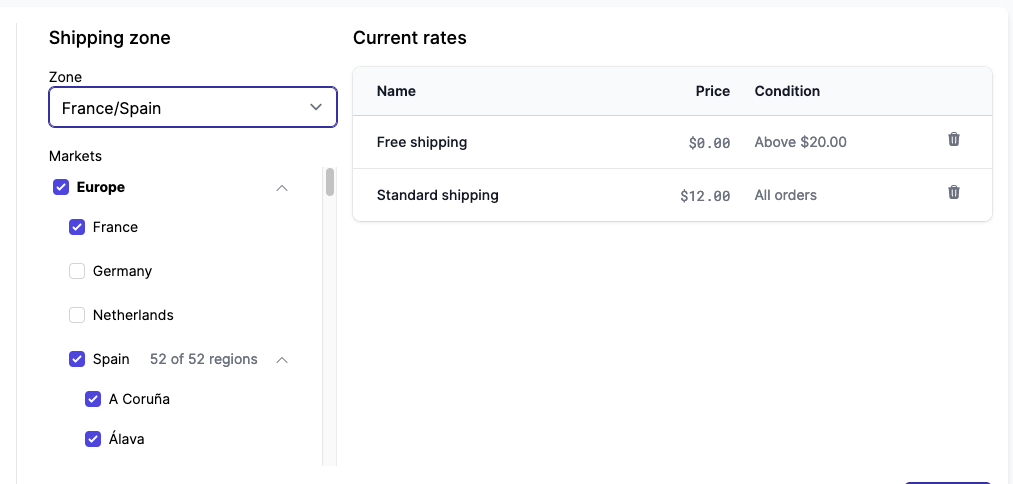
By default, the vendor will create a shipping rate for the default marketplace's market. If the market contains a sub-region, the vendor can narrow down their fee for a subregion.
A country or a sub-region can only appear in one shipping zone to avoid conflicts. Unavailable countries are greyed out and cannot be selected.
Currency
Each shipping zone has a currency, the marketplace's currency by default. Pick another one, for instance USD, when the vendor thinks in their own currency: prices and price conditions of the zone's rates are then entered in that currency.
At checkout, Garnet converts the rates to the customer's currency with the day's exchange rate, so a $12.40 rate shows as its equivalent in pounds on a UK marketplace.
Shipping rates
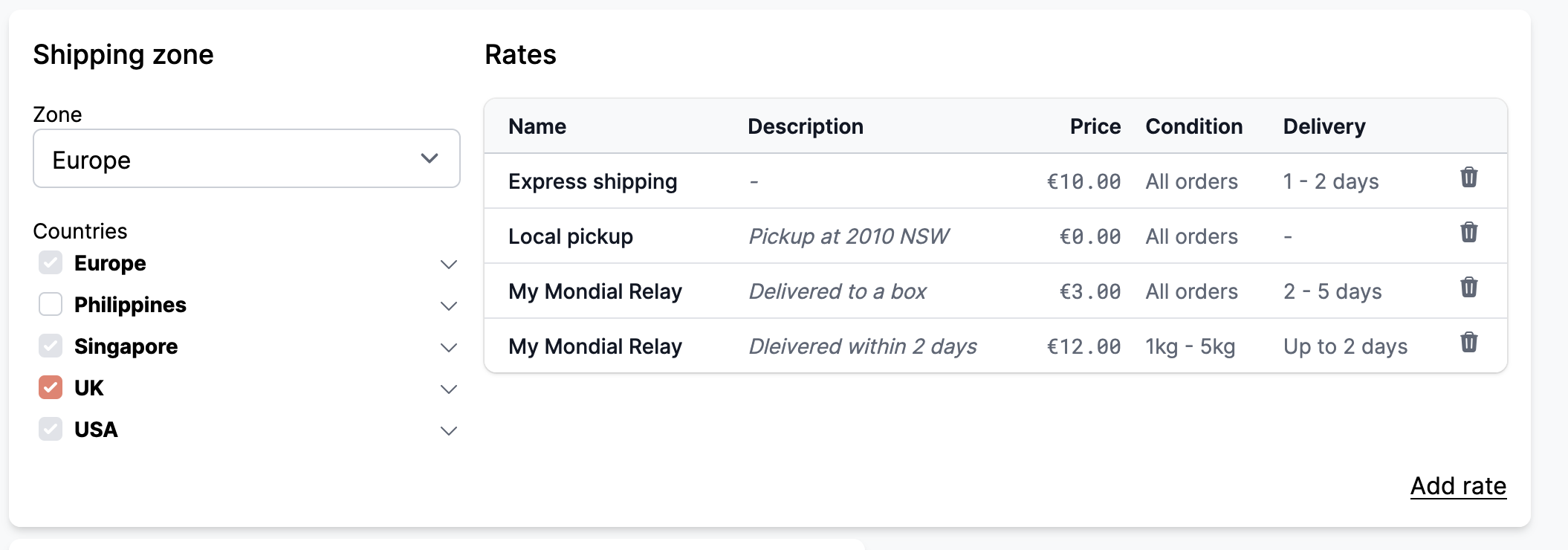
When a shipping zone is selected, the vendor can add shipping rates. A shipping rate has:
- a name, based on the shipping method names provided by the marketplace,
- a description (optional), that will show on the checkout page,
- a price, the price of the rate,
- a condition, either based on the order price or order weight,
- a delivery time (optional), a minimum and maximum number of days.
WARNING
Any use case not covered will prevent the customer from purchasing the item. i.e. If there is no rate for 20kg and above, a customer will not be able to complete their purchase.
Create or edit a rate
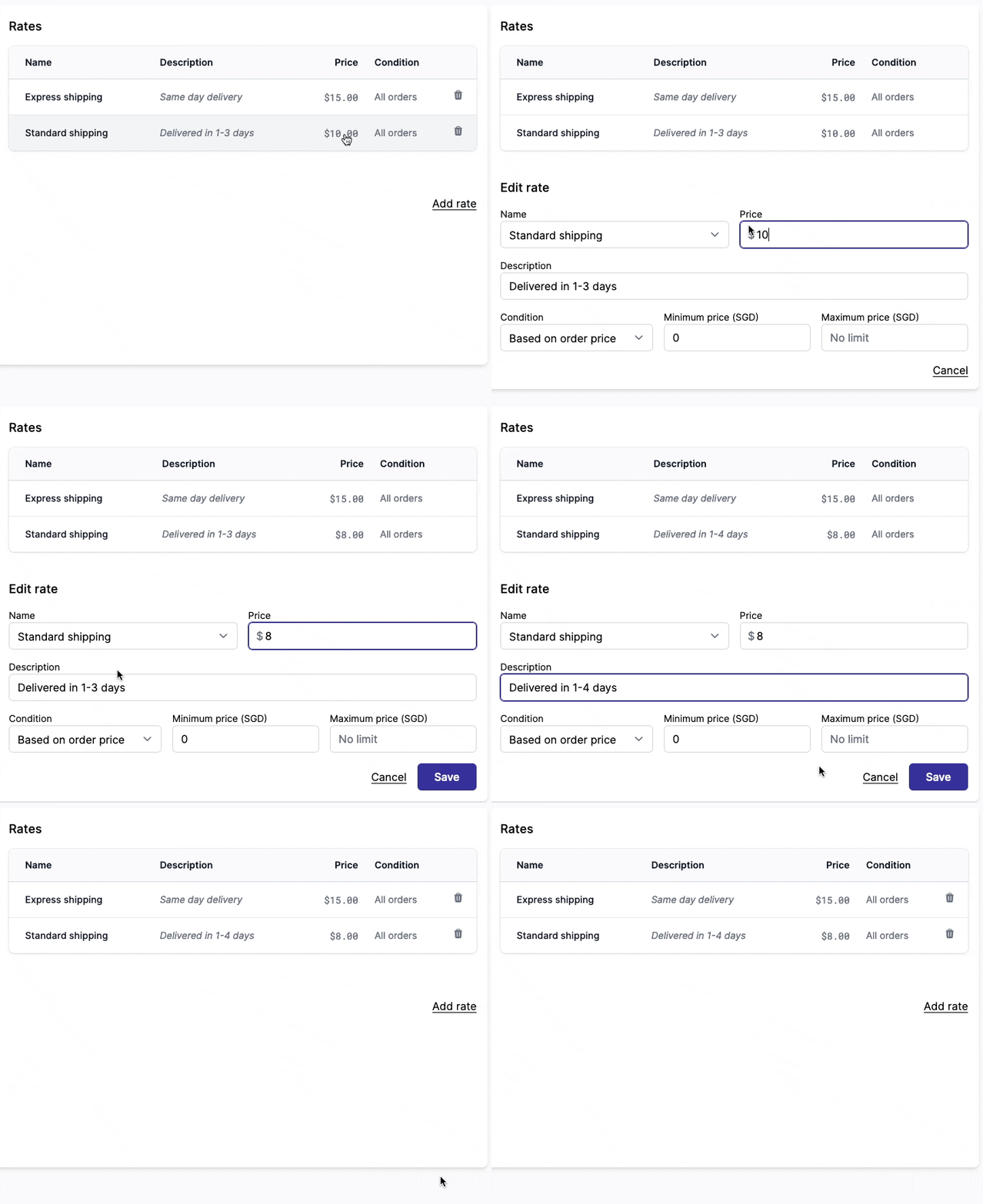
Click a rate to edit it, or click Add rate to create a new one.
Delivery time
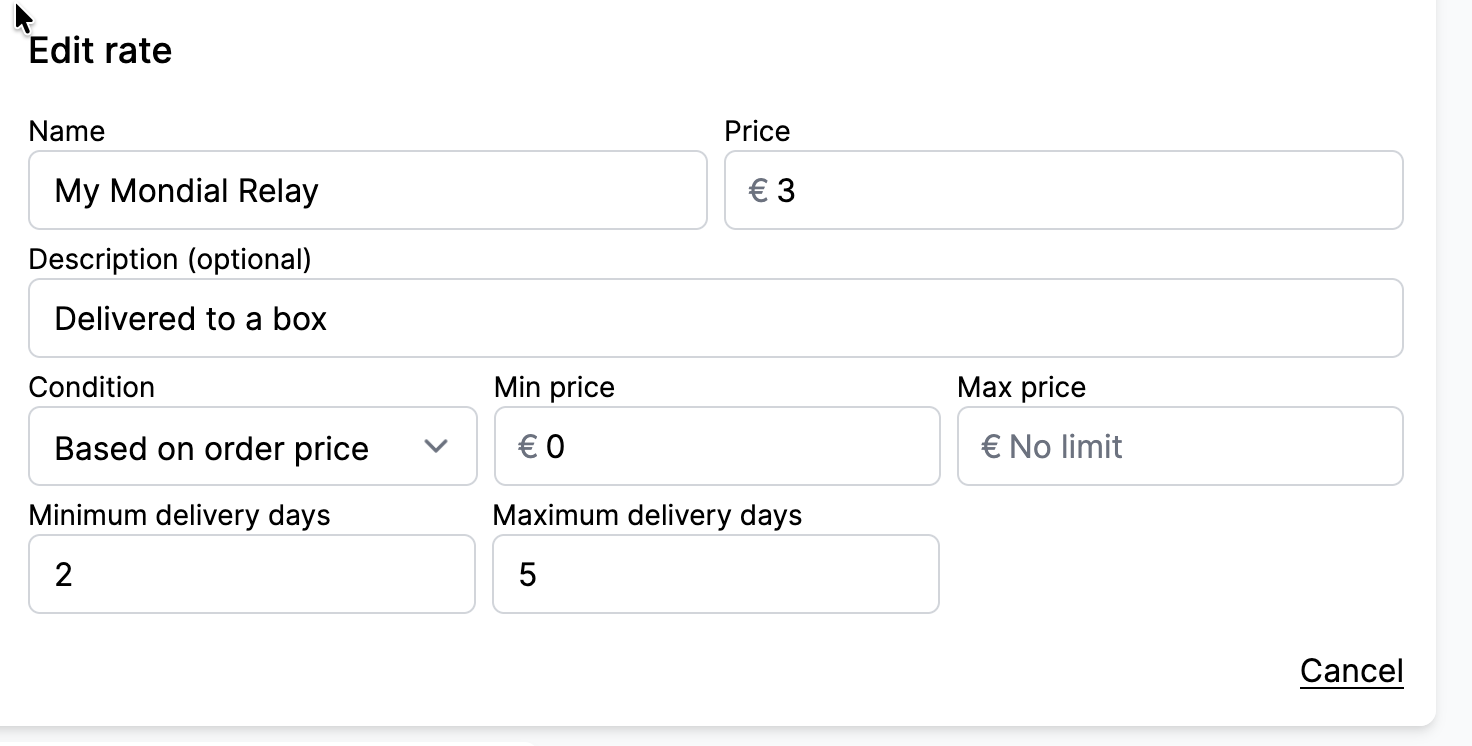
The minimum and maximum delivery days are optional. When set, the checkout page shows the customer an estimated delivery date, counted from the day of the order.
Delivery times also change how rates combine when a cart holds products from several vendors. Without any delivery time, Garnet adds up the rates that share a name, such as Express shipping (x2). As soon as one rate in the cart has a delivery time, Garnet shows the sum of the cheapest rates and the sum of the fastest rates instead, like for live rates. A rate without a delivery time then counts as the slowest. See combine shipping rates.
Rate names
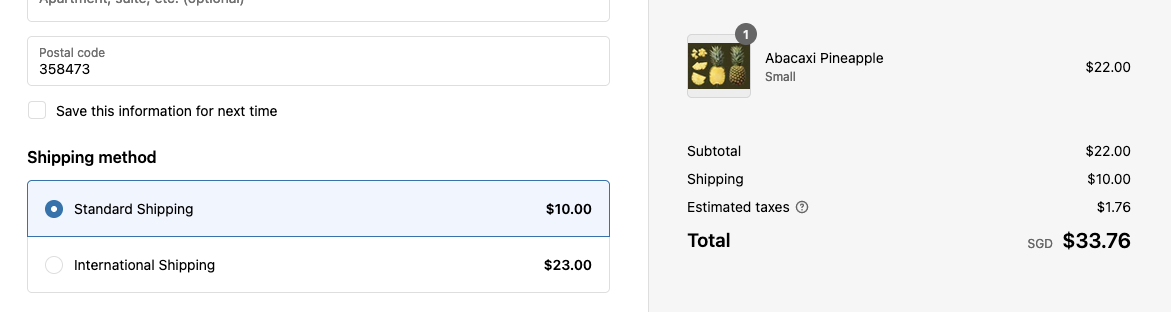
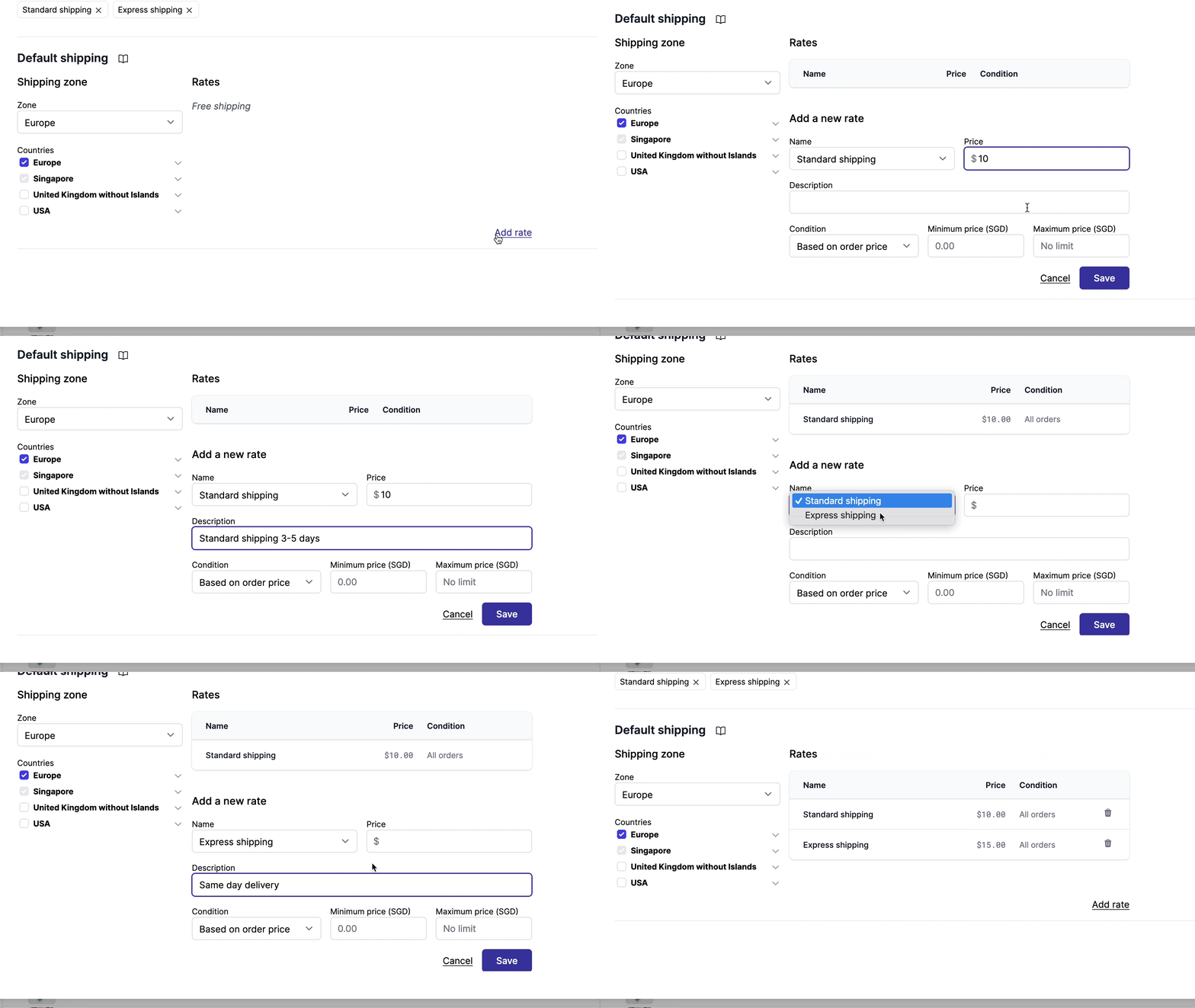
When shipping is enabled, the marketplace can specify shipping method names. These names allow the vendor to add shipping rates based on these names.
Ultimately, these names will show as options when a customer checks out their cart:
Conflicting rates
If a vendor have 2 rates that apply, for instance:
Standard shippingof $10 when the order total is< $100Standard shippingof $8 when the order weight is< 5kg
In that case, Garnet will always pick the most expensive of the two to avoid the vendor loosing money.
To learn about conflicting rates between vendors, see combine shipping rates.
Default shipping rates
The marketplace can define default shipping rates. If a vendor does not change the shipping rate, the default shipping rate is applied.
The shipping rate logic is the same as the vendor shipping rate.
Test your shipping
See your dedicated section shipping rate tester to simulate the exact rates displayed at checkout.