
Shopware integration
Vendors selling on Shopware 6 connect their shop with Garnet Seller, our app for Shopware: the vendor installs it, pastes an integration key, and the shop is connected.
Integration scope
- ✅ Easy install with Garnet Seller
- ✅ Connect to several marketplaces
- ✅ Product and stock synchronisation
- ✅ Order synchronisation
- ✅ Tracking synchronisation
- ❌ Partial shipments
- ❌ Order cancellation
The shop needs Shopware 6.6 or later, hosted by the vendor or their agency. Shops hosted by Shopware itself (Shopware SaaS) install apps from the Shopware Store only, so they can connect once Garnet Seller is published there.
1. Get the integration key in Garnet
The marketplace and the vendor can get the integration key in Garnet > Settings > Integrations > Shopware.
2. Install Garnet Seller on the Shopware shop
Garnet Seller is not in the Shopware Store yet: we are working with Shopware to publish it. Until then, the vendor contacts us to receive the app file. The app is free.
In the Shopware admin, the vendor opens Extensions > My extensions, clicks Upload extension and picks the app file. Garnet Seller then appears in the list: the vendor clicks Install, accepts the permissions, then turns the app on. An installed app that is not activated cannot sync.
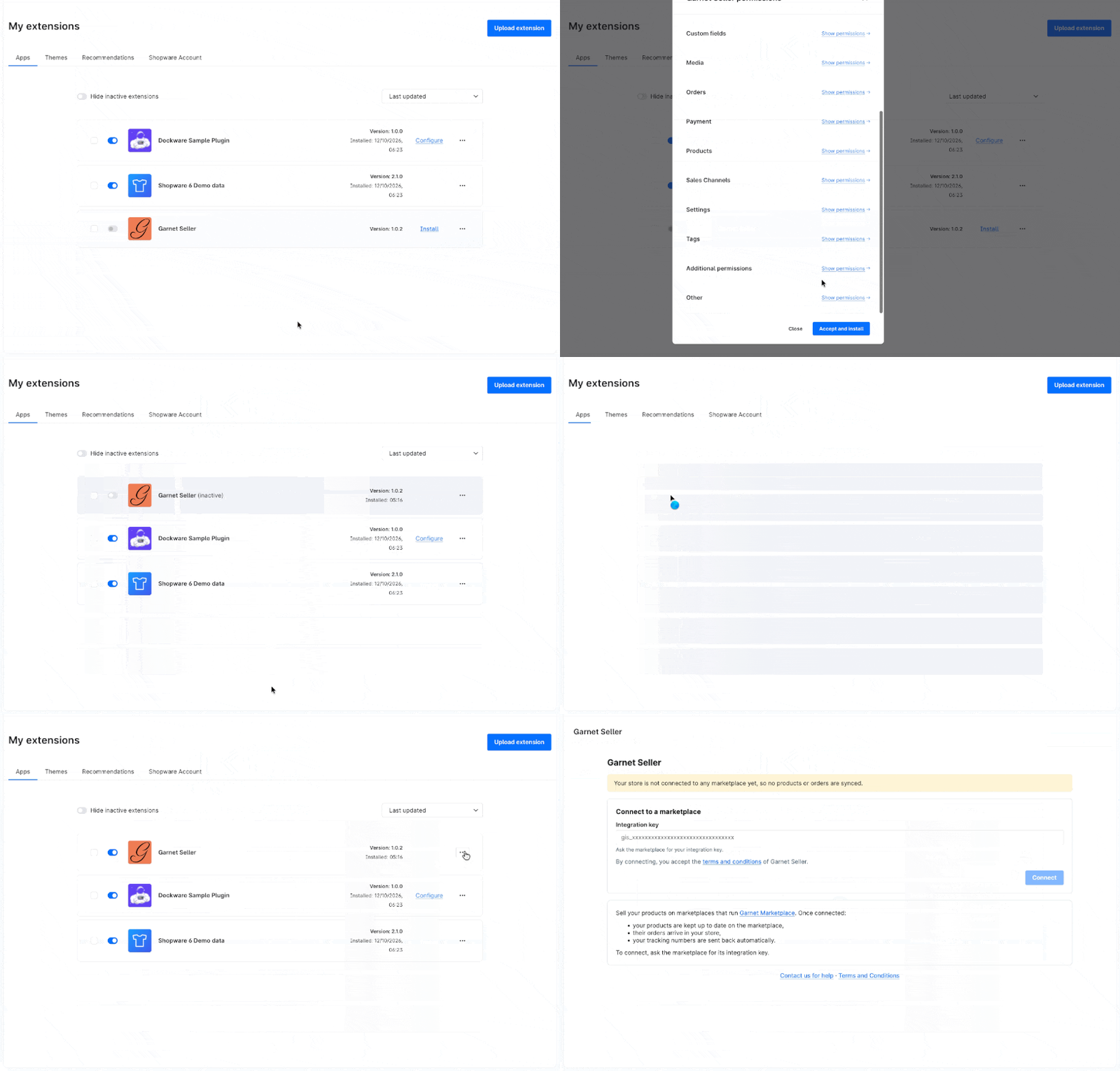
The permissions let Garnet read the products and their stock to send them to the marketplace, and create the marketplace's orders in the shop.
3. Paste the integration key
Garnet Seller opens in the Shopware admin, under Catalogues > Garnet Seller. The vendor clicks Connect marketplace, pastes the integration key and clicks Connect.
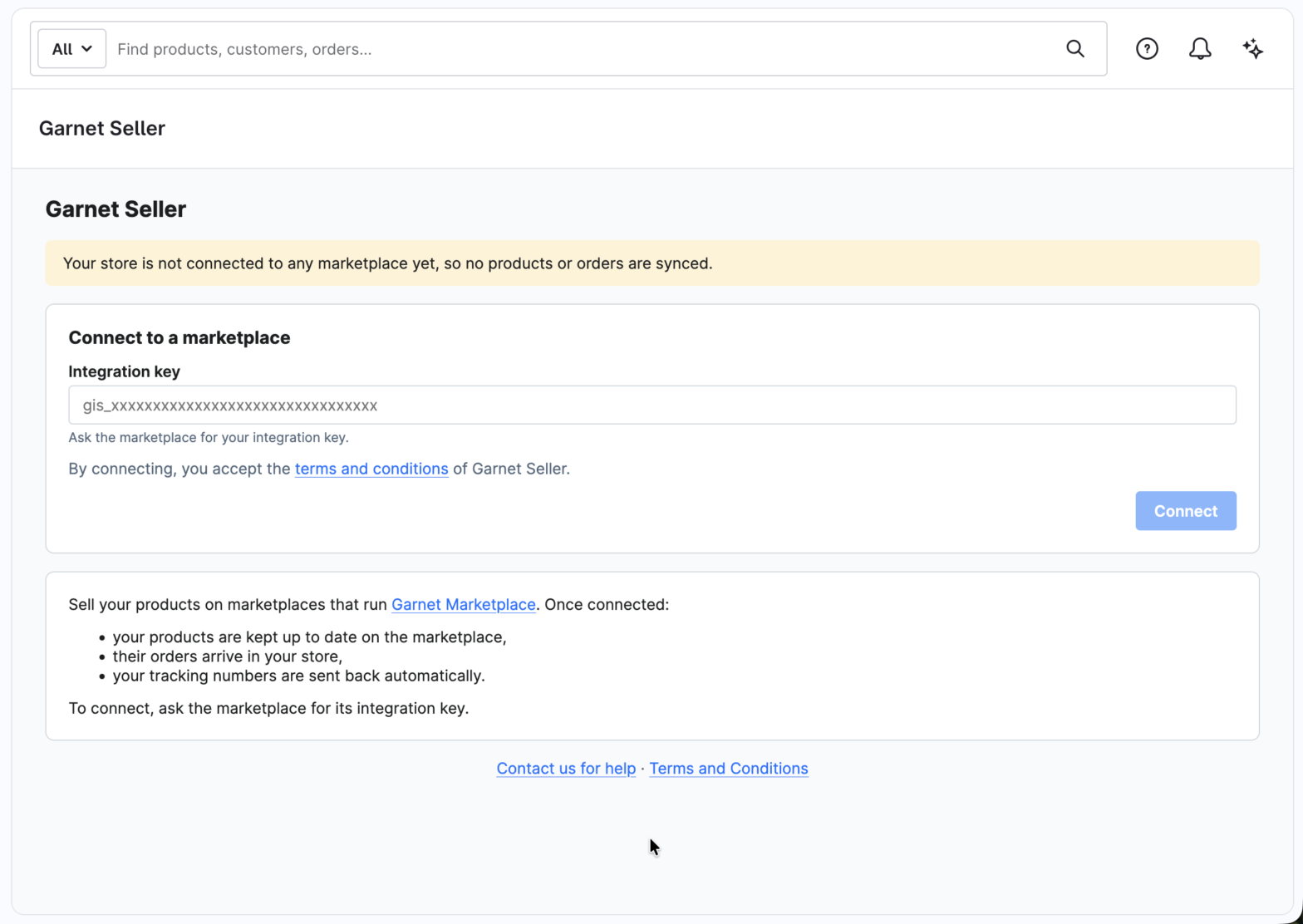
That's it, the Shopware shop is integrated. Its products appear on the vendor's integration page in Garnet within a few minutes.
Manage the marketplace connections
The Garnet Seller page lists every marketplace the shop is connected to.
- Connect another marketplace: click
Connect marketplaceand paste that marketplace's integration key. A shop can be connected to several marketplaces at once. - Edit the price rule: change the multiplier and the amount added to each price. The option is hidden when the marketplace does not let vendors edit their integration settings.
- Disconnect: products stop syncing with that marketplace and its orders no longer reach the shop. The same integration key reconnects it later.
Uninstalling Garnet Seller from the shop disconnects it from every marketplace. Updating it keeps the connections.
Products and stock
Products sync as soon as they change in Shopware: name, description, images, variants and their options, prices, list prices, SKUs (product numbers), weights and stock. A variant shows what it inherits from its main product, as in the storefront. Stock sold in the shop syncs within 15 minutes. Prices are the gross prices of the shop's default currency, and go through the integration's price rule.
Inactive variants are not imported, and a product with more than 3 properties keeps its first 3, the most Shopify takes. Deleting a product in Shopware deletes it from the marketplace.
Orders
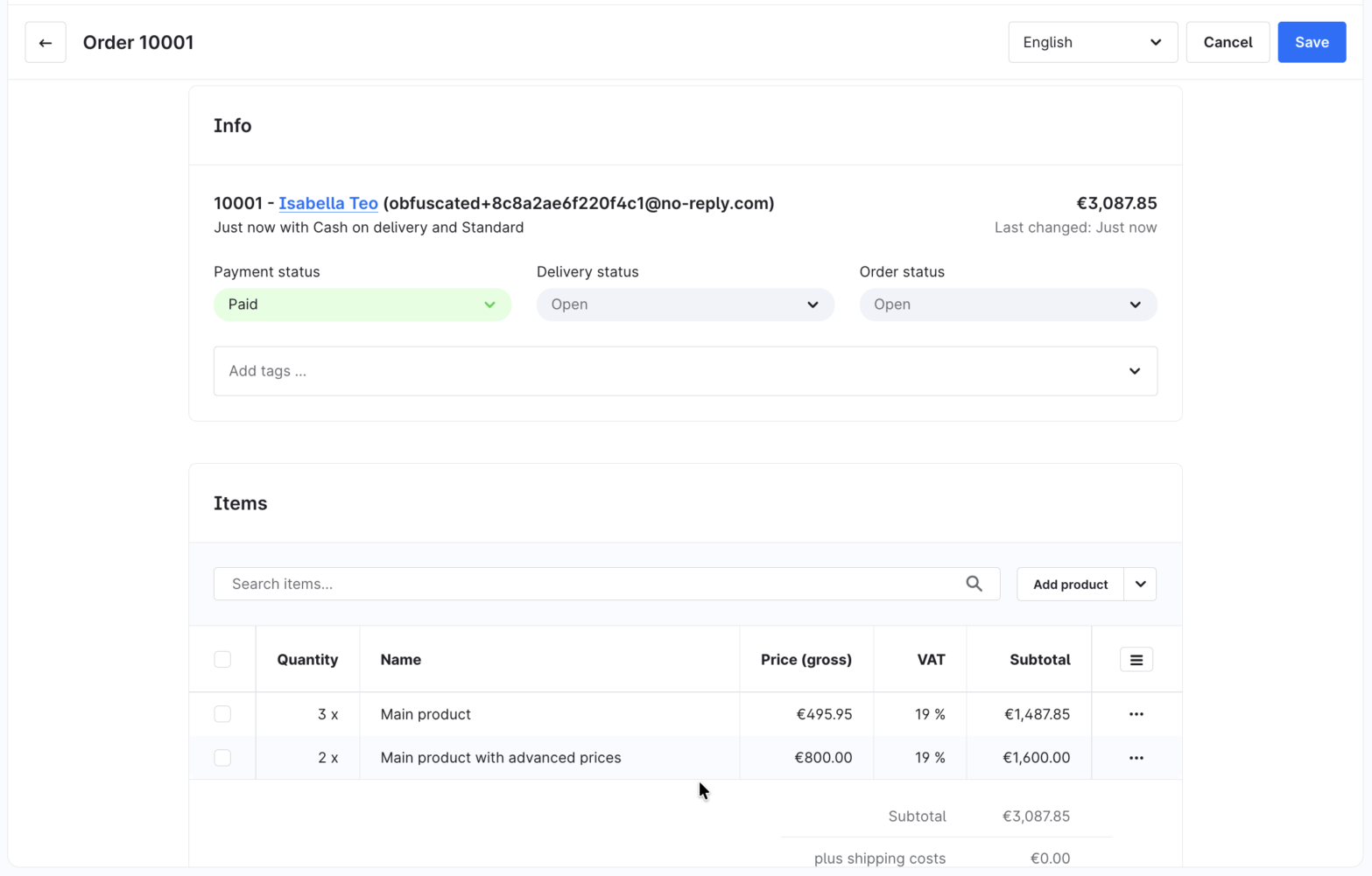
When a customer buys the vendor's products on the marketplace, Garnet creates the order in the Shopware shop, already paid:
- each line is the vendor's Shopware product or variant, priced and taxed by the shop as in its storefront, and Shopware updates the stock as for any order,
- the shipping costs are 0: the marketplace charged the customer for shipping,
- the customer is a guest with the marketplace customer's name and addresses, and the email is obfuscated when the marketplace chose to,
- Shopware does not email the customer about it.
How to locate marketplace orders
Each order created by the marketplace carries two tags: the marketplace name (e.g. MyMarketplace) and the marketplace name with the order number (e.g. MyMarketplace_#1042). Vendors filter their Shopware orders on these tags to find the marketplace's, or one order by its marketplace number. The order page also shows a Garnet marketplace section with the marketplace and its order number, and the customer comment says the same, e.g. MyMarketplace order #1042.
Tracking
The vendor ships from Shopware as usual: they add the tracking code to the order's delivery and set the delivery status to Shipped. The marketplace order is then fulfilled with that tracking code, and the customer receives it. A delivery shipped without a tracking code fulfils the marketplace order without tracking.
The vendor's items ship at once: Shopware records no quantities per delivery, so a partial shipment is not synchronised.