
Shopify shipping rates
Overview
A vendor who connects their store through a Shopify integration already configured their shipping in Shopify. With Shopify rates, Garnet uses those rates at the marketplace checkout, so the vendor does not have to copy them into flat rates or set up live rates.
When a customer enters their address at checkout, Garnet asks the vendor's Shopify store what it would charge to ship the vendor's items to that address. The customer sees the vendor's own rates: price or weight based rates, free shipping thresholds, and rates calculated by a carrier app. Nothing is created on the vendor's store.
View of Garnet > Vendors > (vendor) > Settings > Shipping
Requirements
- The vendor has installed the Garnet Seller app and connected their store.
- The vendor's products were imported through the integration, so each marketplace product is linked to the vendor's product.
Enable Garnet Marketplace shipping in Shopifyis turned on, as for every Garnet shipping option.
Setup
- Go to
Garnet > Settings > Shipping, orGarnet > Vendors > (vendor) > Settings > Shippingas a marketplace admin - In the rate selector, choose
Use Shopify rates - Click
Save
The Use Shopify rates option only appears once the vendor's Shopify store is connected.
Review the vendor's shipping profiles
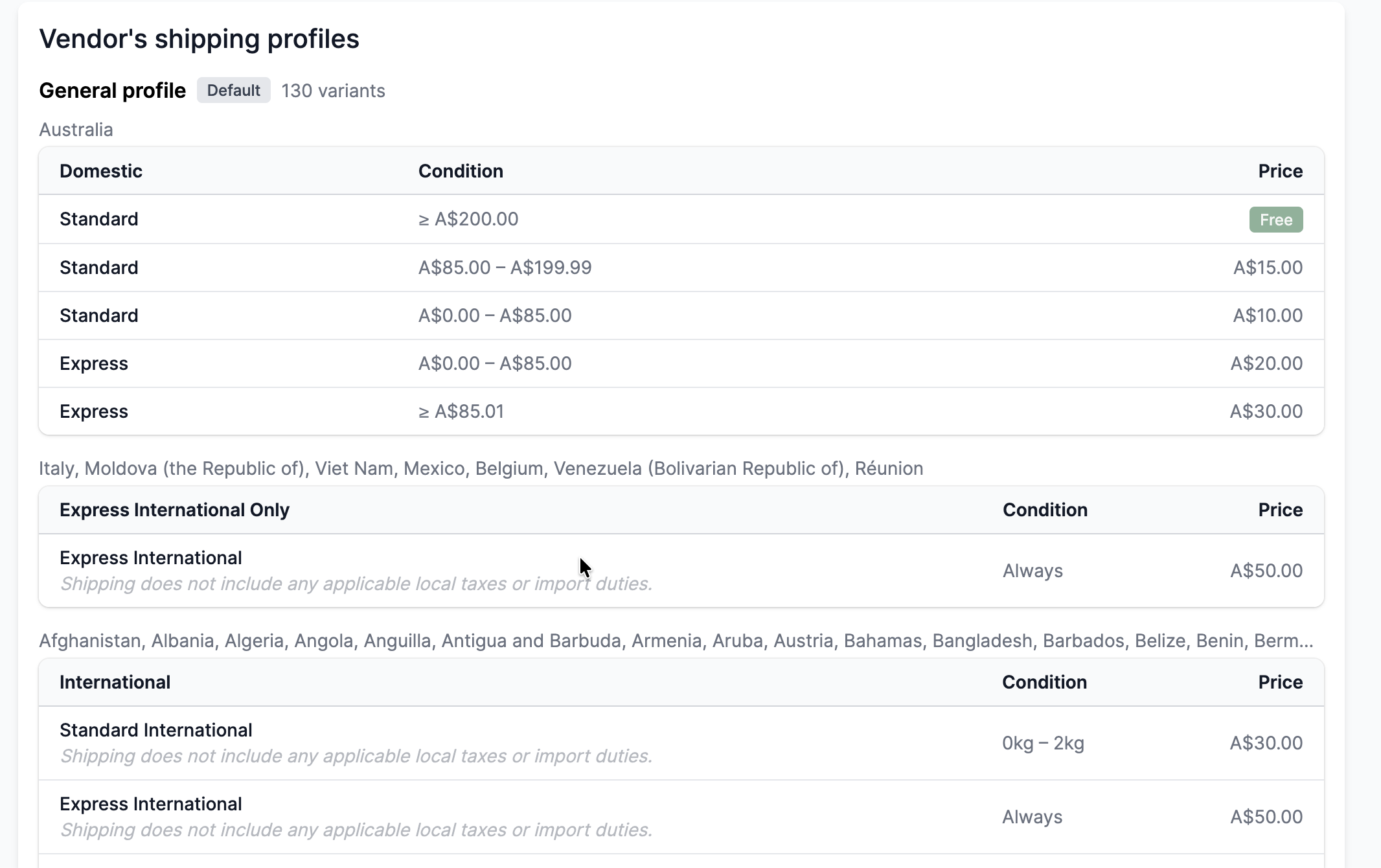
Once Use Shopify rates is selected, the page lists each shipping profile of the vendor's store, with its zones, conditions and prices. You can check what customers will be charged without asking the vendor for screenshots.
Rates quoted by a carrier app on the vendor's store have no fixed price, so they show as Calculated at checkout.
Currency
When the vendor's store sells in another currency than the marketplace, their rates are converted to the marketplace currency before the customer sees them. A rate in a currency that cannot be converted is not shown.
Multi-vendor carts
Shopify rates are combined with the rates of the other vendors in the cart, the same way as flat and live rates. See combine shipping rates.
At checkout, a Shopify rate shows the rate name from the vendor's store, with the vendor's name underneath. When several vendors' rates are combined, the vendors are listed together, for example Combined rates: Vendor A + Vendor B.
Troubleshooting
No rate shows for a vendor
- A product is not linked: if one item of the vendor in the cart was not imported through the integration, Garnet cannot quote it and shows no rate for this vendor rather than undercharging the customer.
- The vendor does not ship to the address: the vendor's store has no shipping zone covering the customer's country.
Test your rates
Use the shipping rate tester to simulate checkout rates and verify the vendor's Shopify rates.