Edit image
Garnet provides several tools to simplify the vendor's experience, such as uploading new listings or editing existing ones.
As per Shopify specifications:
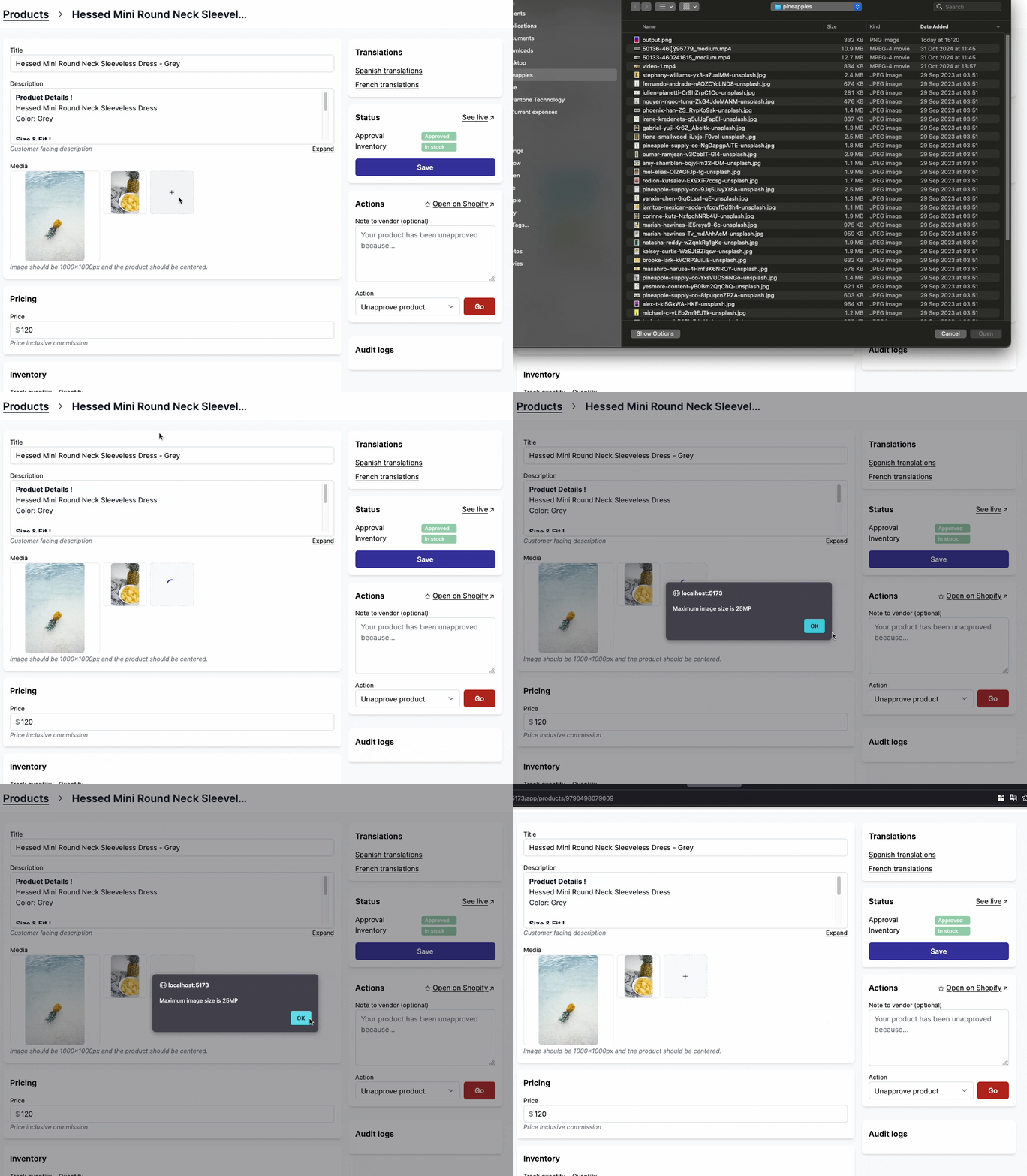
Your product and collection images can be any size up to 5000 x 5000 px, or 25 megapixels. Product and collection images need to have a file size smaller than 20 MB to be added to Shopify.
Supported image formats
Garnet supports images in the following formats: .png, .jpeg, .psd, .tiff, .bmp, .gif, .svg, .heic, and .webp.
Image reorder
You can reorder images with a drag-and-drop.
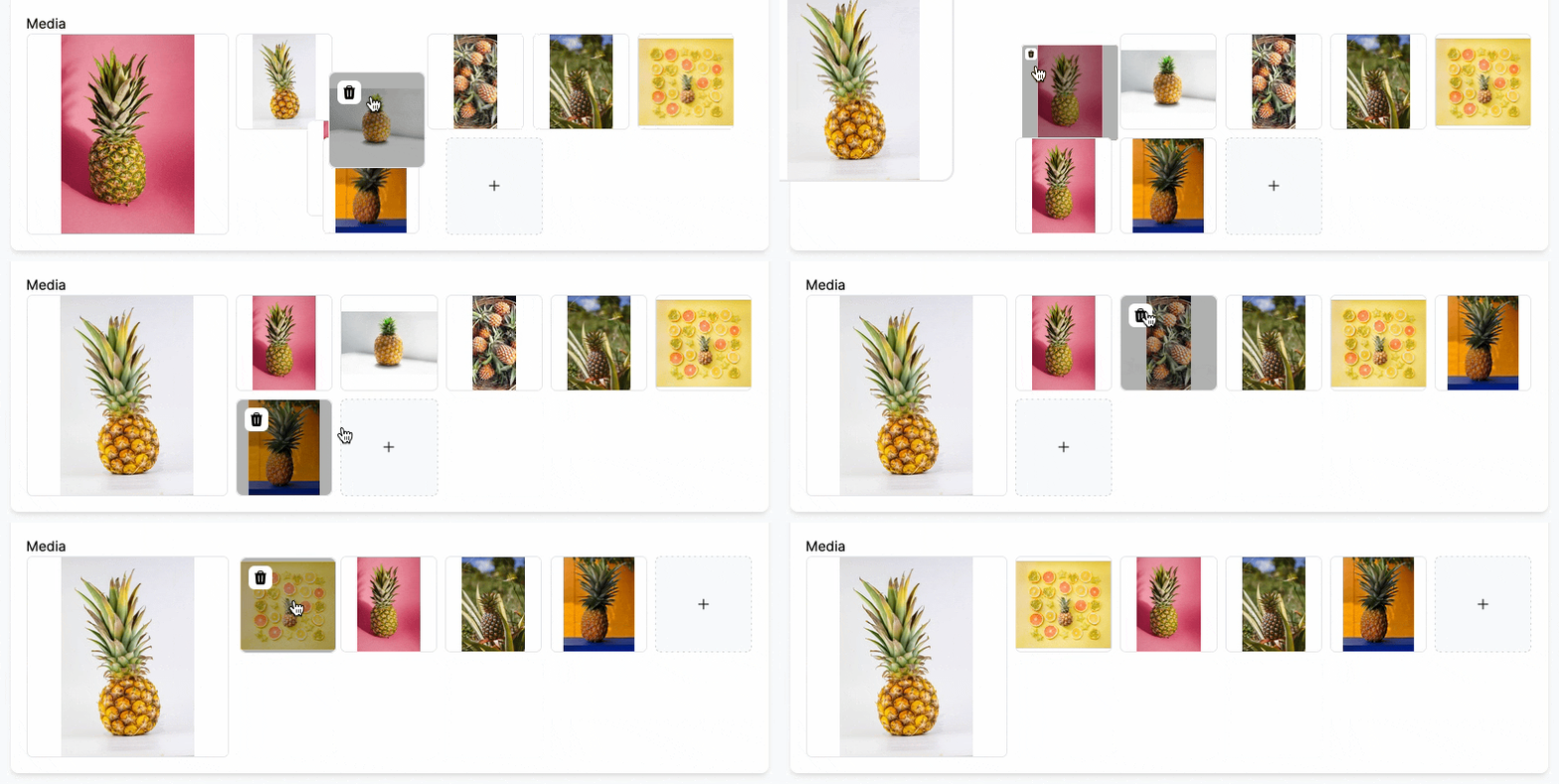
Note that the helper text you see below can be configured in the Admin Panel.
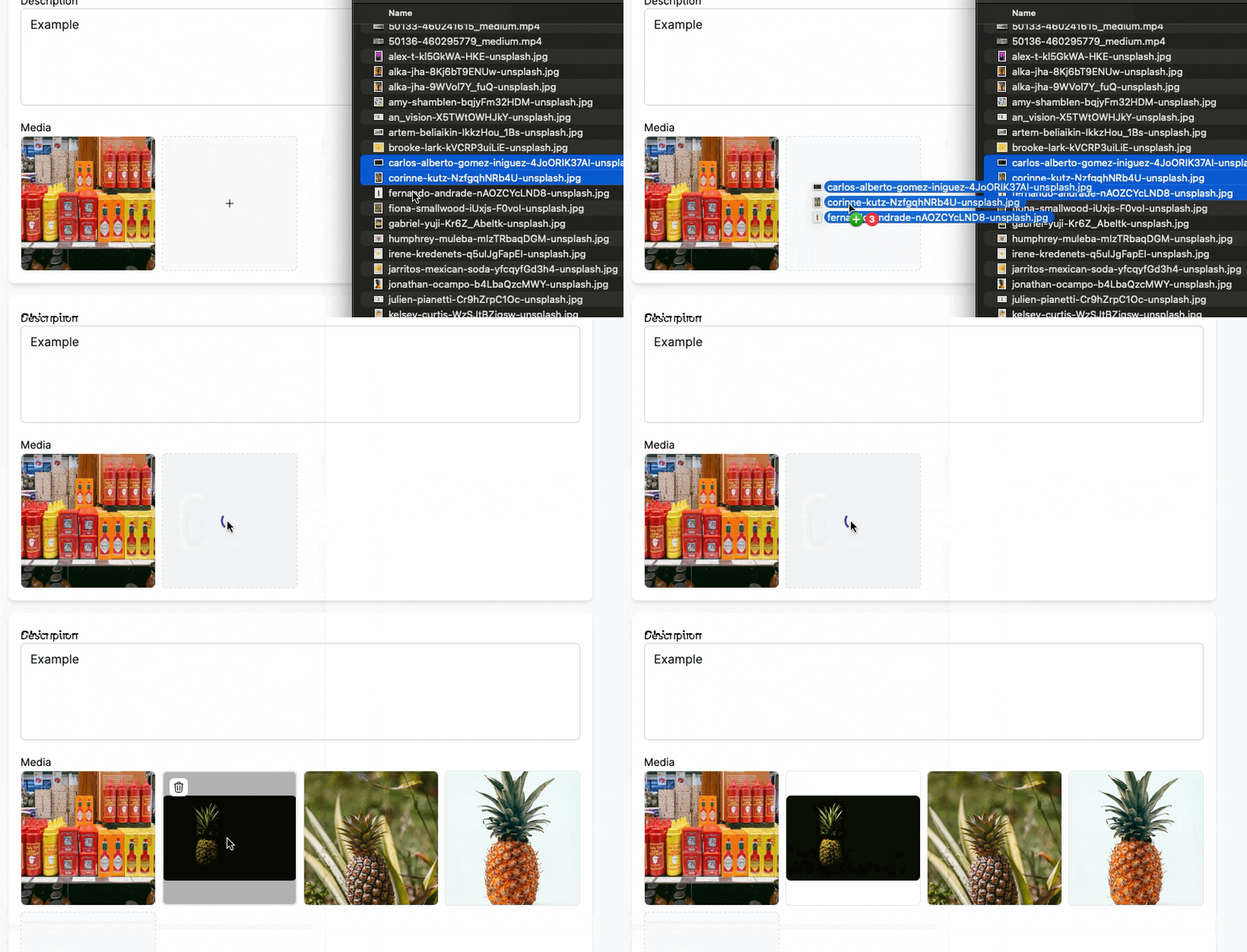
Drag and drop
Images can also be drag-and-droped from the file system to Garnet Marketplace.
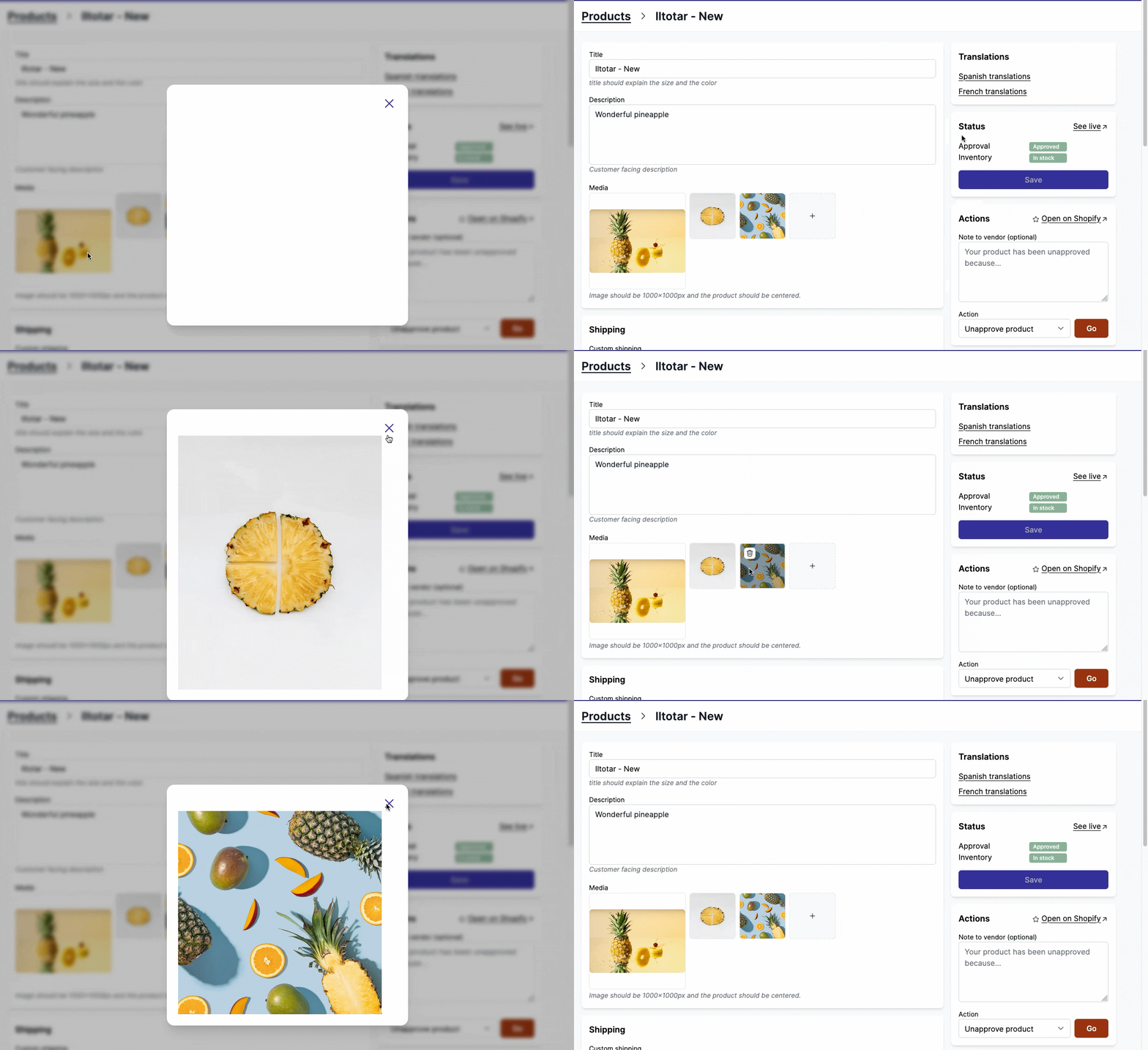
Open image to see in full
Users can click a product image to see it in full resolution.
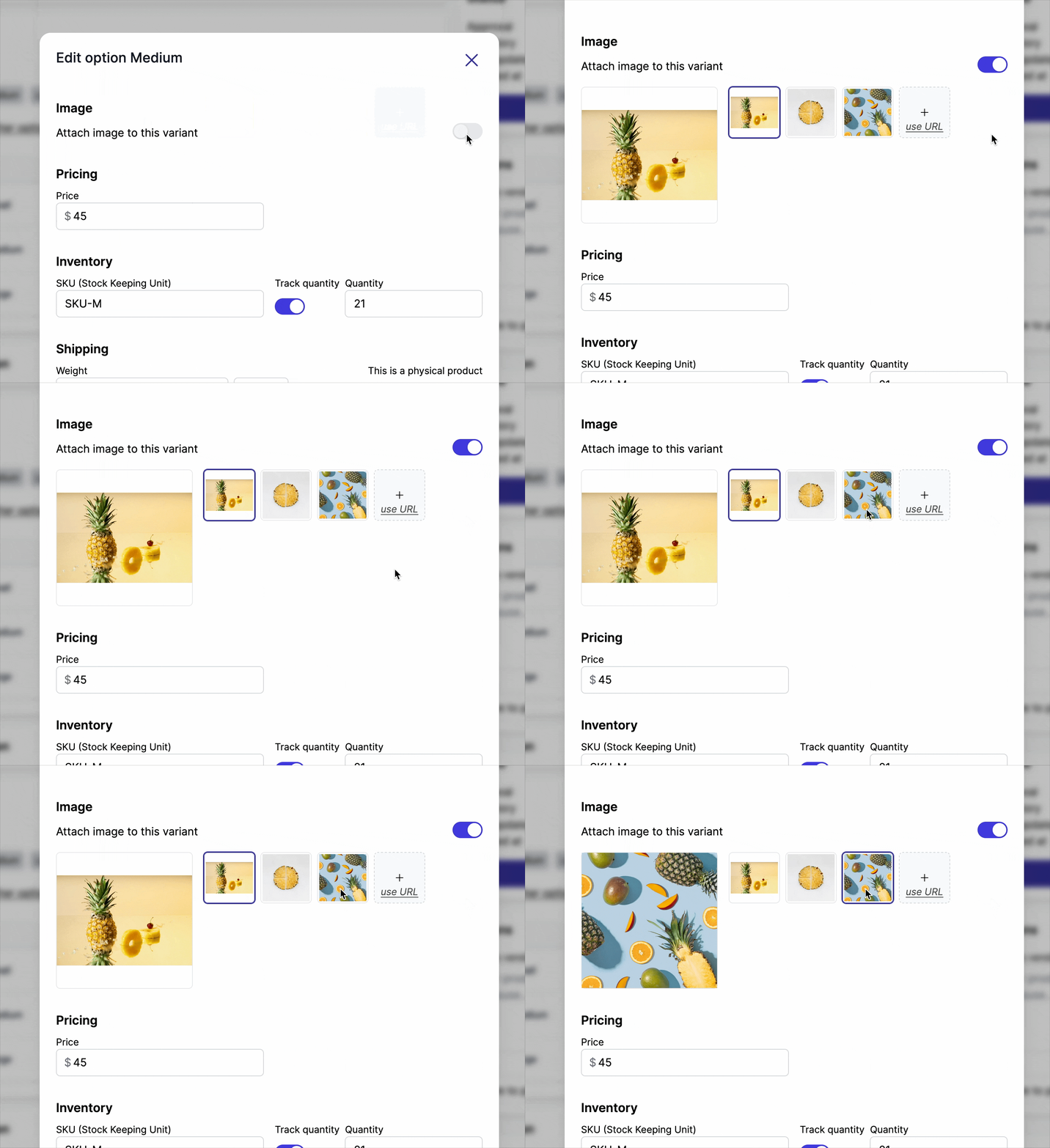
Add images to variants
Images can be attached to variants. An image added to a variant will be automatically added to the product. If the image is removed from the product, it will be remove from the variant as well.
Upload videos
Garnet supports videos in format .mov, .mp4, and .gif.
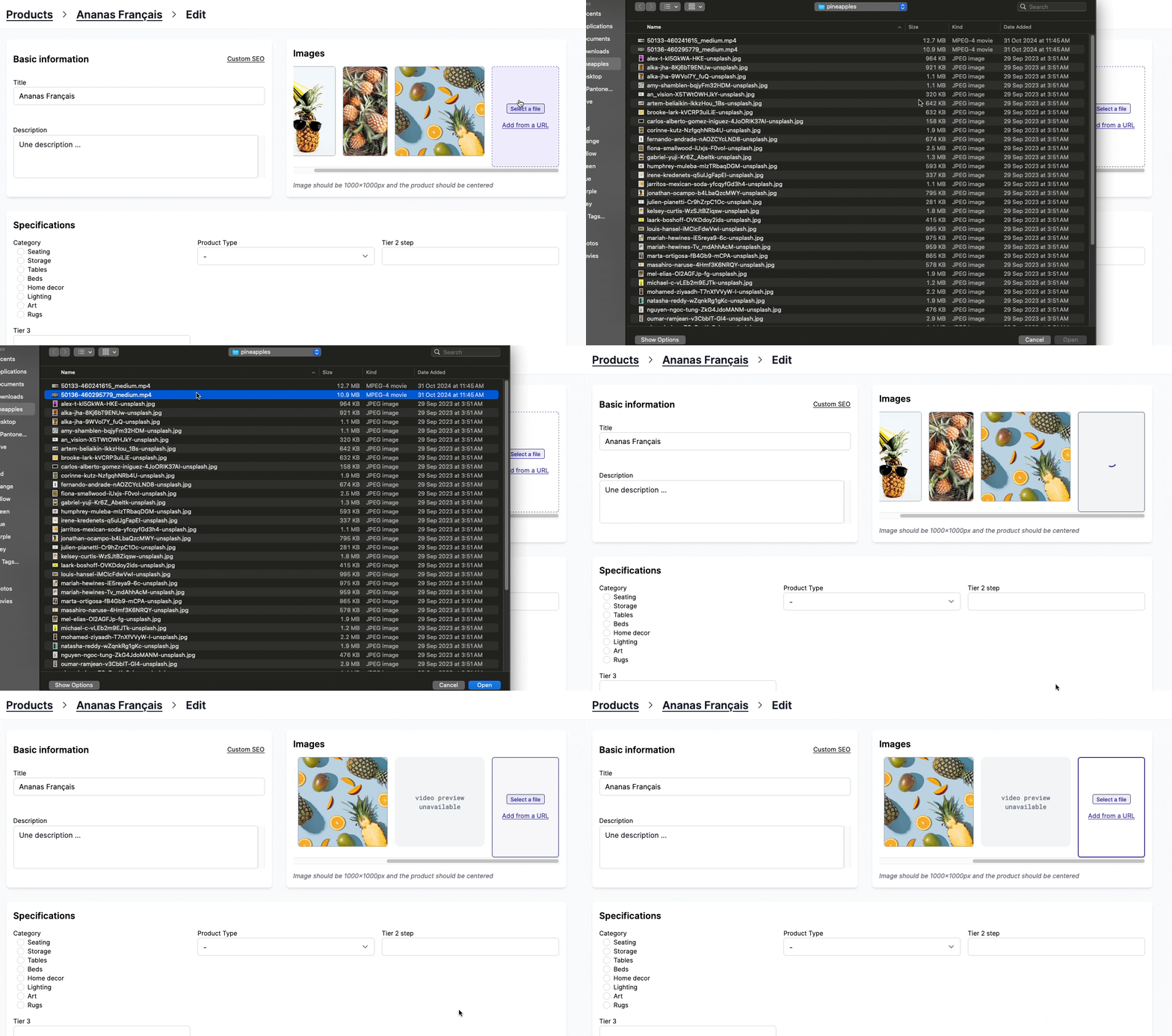
As per Shopify specification, the video must be at most 10 minutes long and 1GB maximum.
Video previews
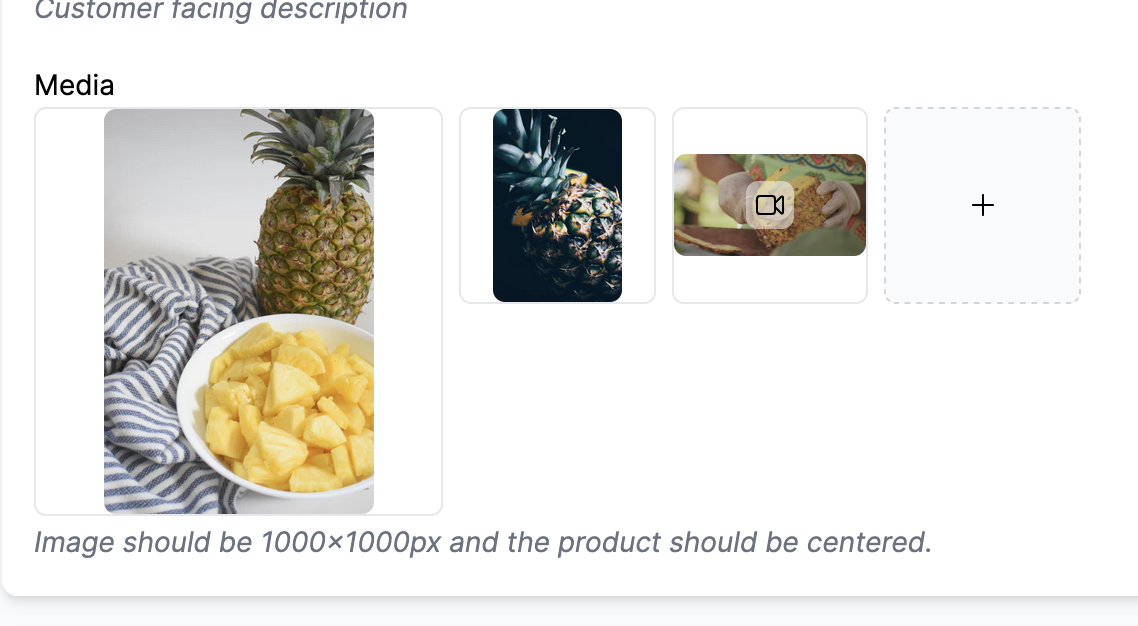
Video previews are available once the product is approved and live on the marketplace.
Once uploaded, videos have a video icon added on top.
Upload from URL
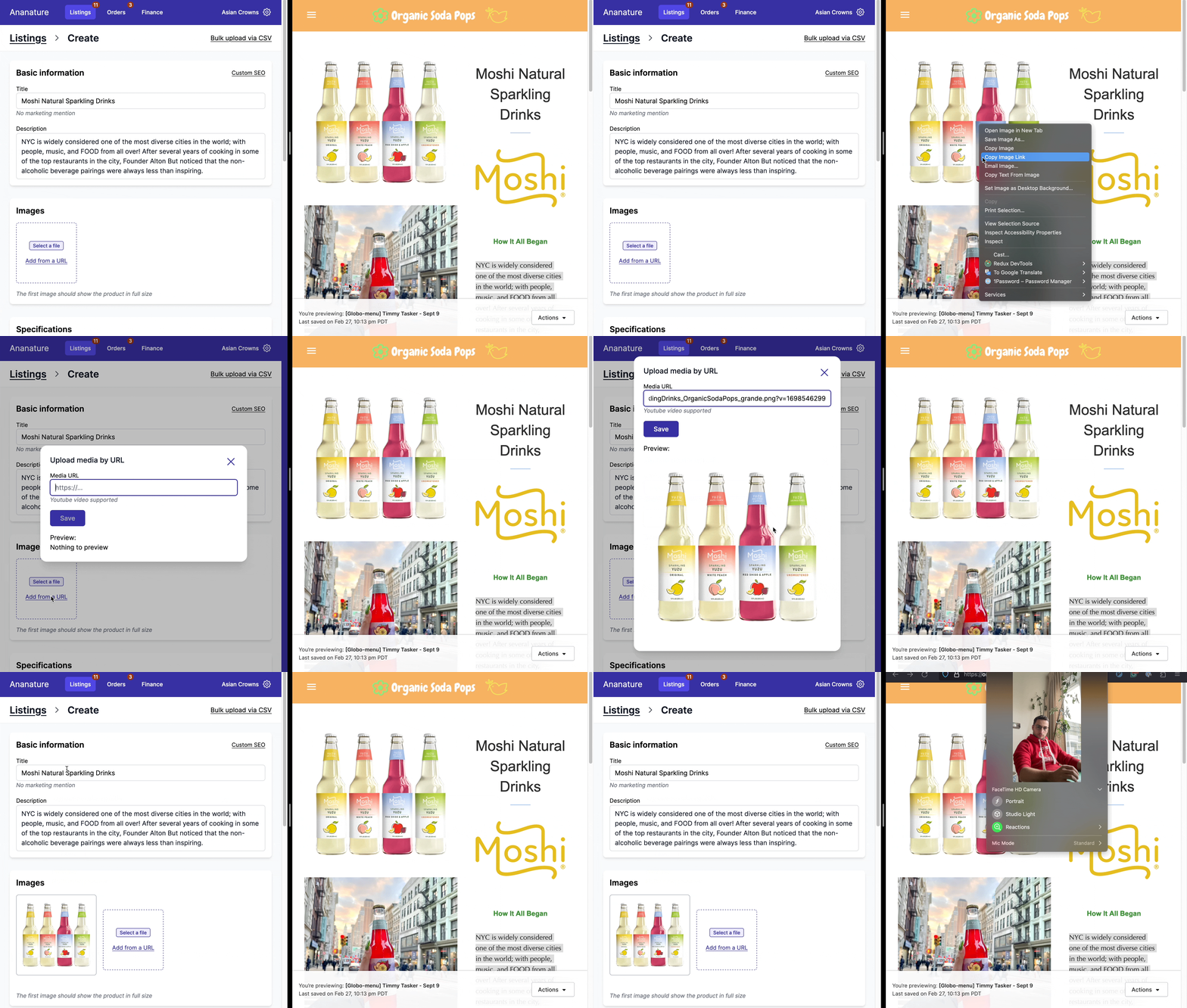
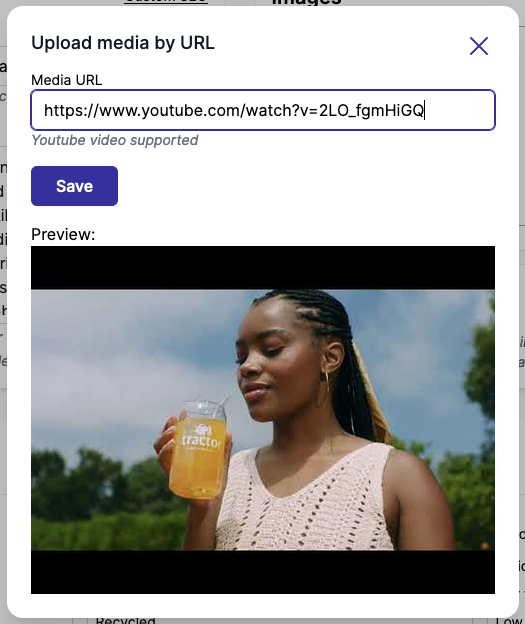
Images can also be imported with their URL. It is convenient when you are copy/pasting image directly from a website.
Youtube videos
Import Youtube video directly inside the product.
Edit image description
Image description is important for SEO, it enables search engines to understand the image. With Garnet you can click the image and set the description on the Zoomed image. Technically, the description is used as the image alt property.
Resize and crop
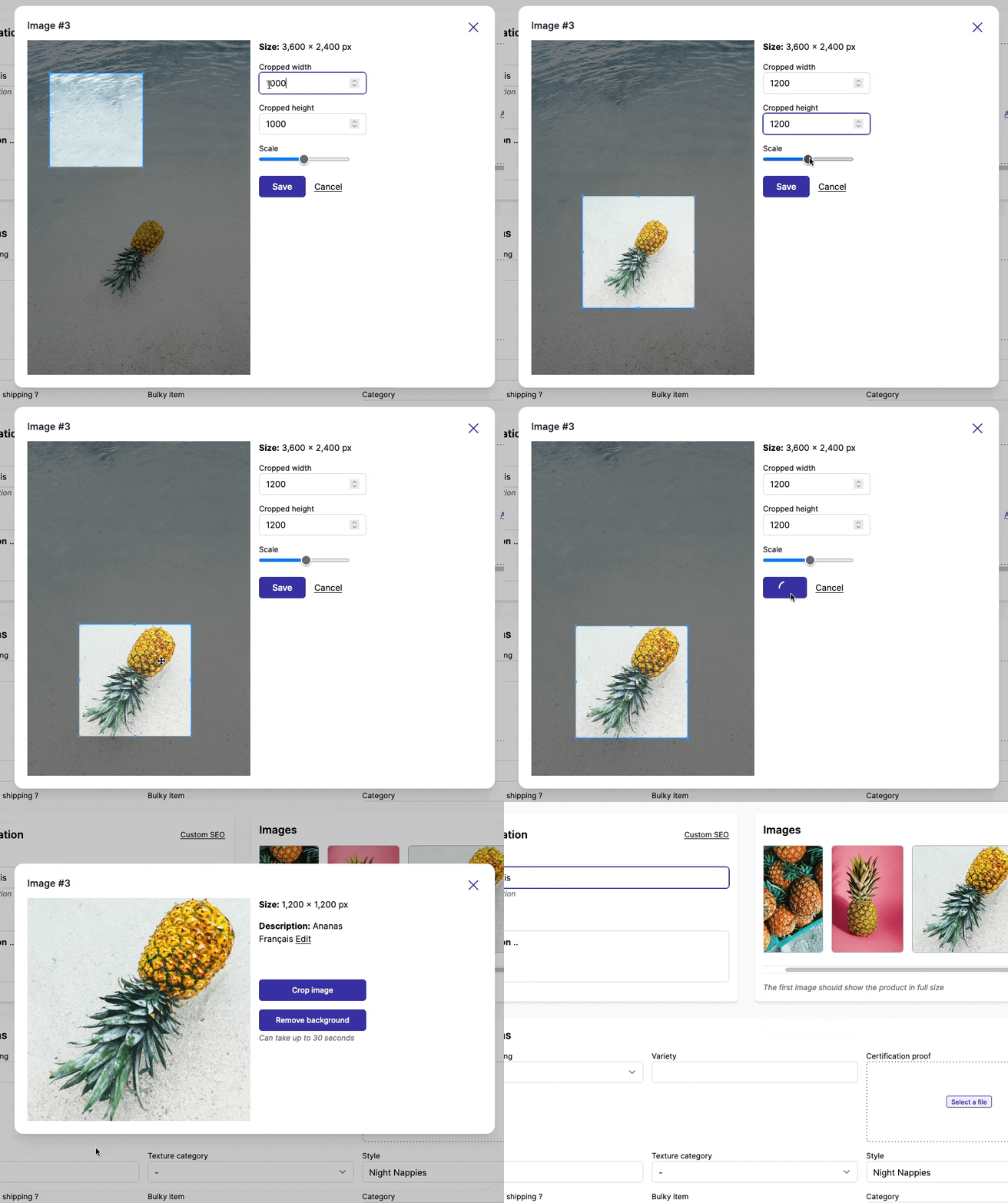
Images can be resized and cropped to a specific size. Drag the crop box on the image and adjust the scale parameter. Once you have the perfect fit, Save the image then confirm your choice.
Remove background
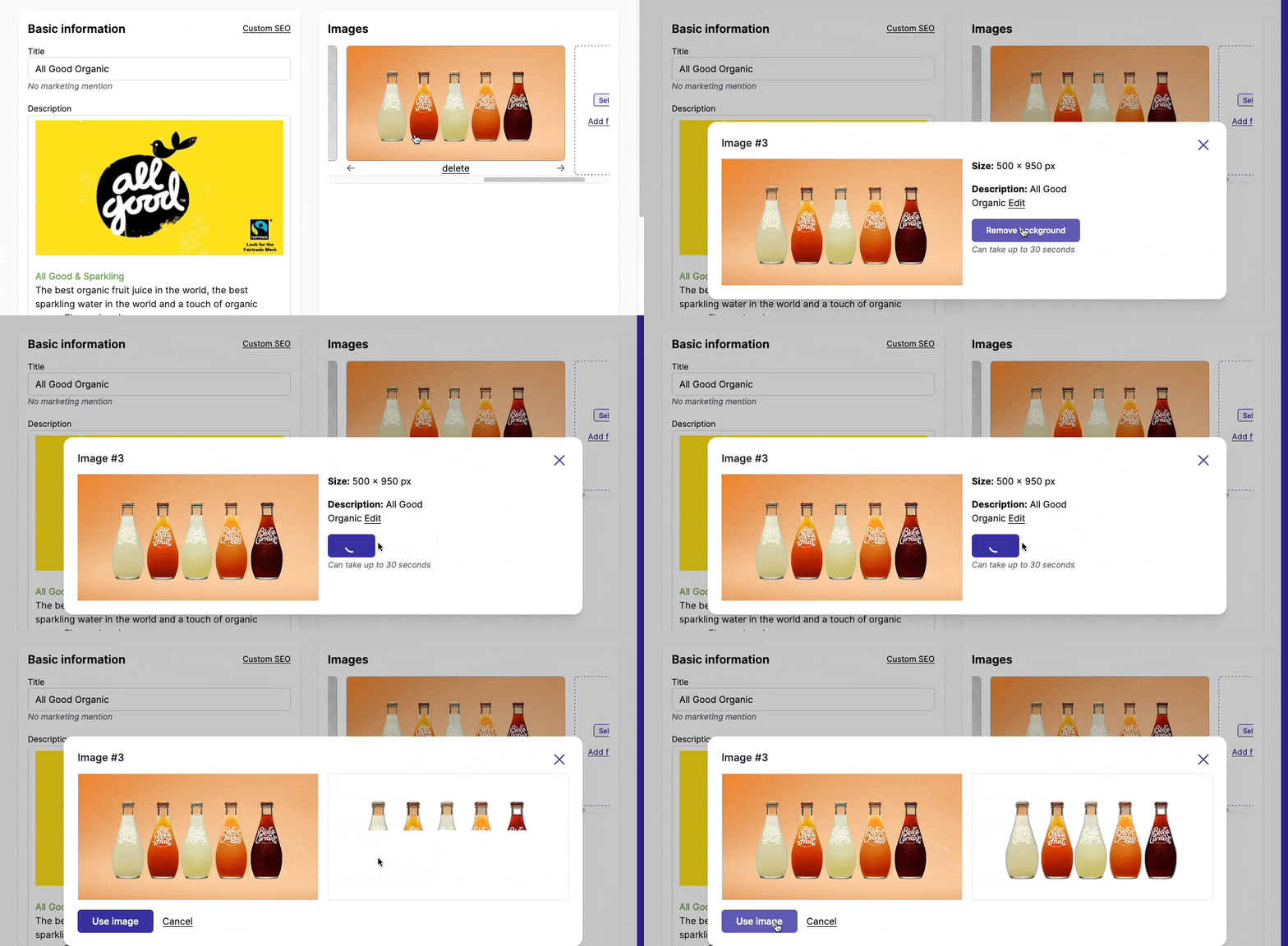
Directly within Garnet, you can remove your background images. Simply click Remove background and wait for a few seconds for the image to be loaded.
Image/Video error
If the video (or image) does no pass Shopify's validation, it will return an error as shown below. The vendor can then re-upload the image or video to fix the issue.
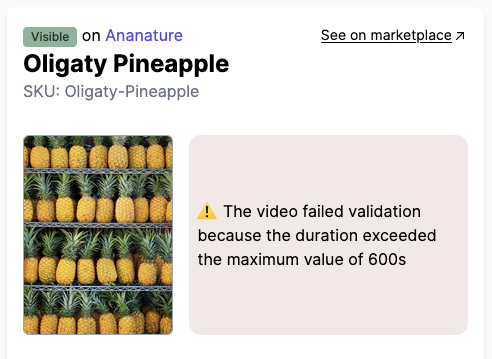
Image too big
Garnet will prevent images heavier than 20Mb, or denser than 25M pixel to be uploaded as they are not accepted by Shopify.