
Shipping overview
Garnet computes the shipping of every vendor at checkout, combines the rates when the cart holds products from several vendors, and splits the shipping per vendor on the order. Vendors set their shipping in Garnet > Settings > Shipping, and the marketplace sets the options and the default shipping in Garnet > Admin Panel > Shipping > Settings.
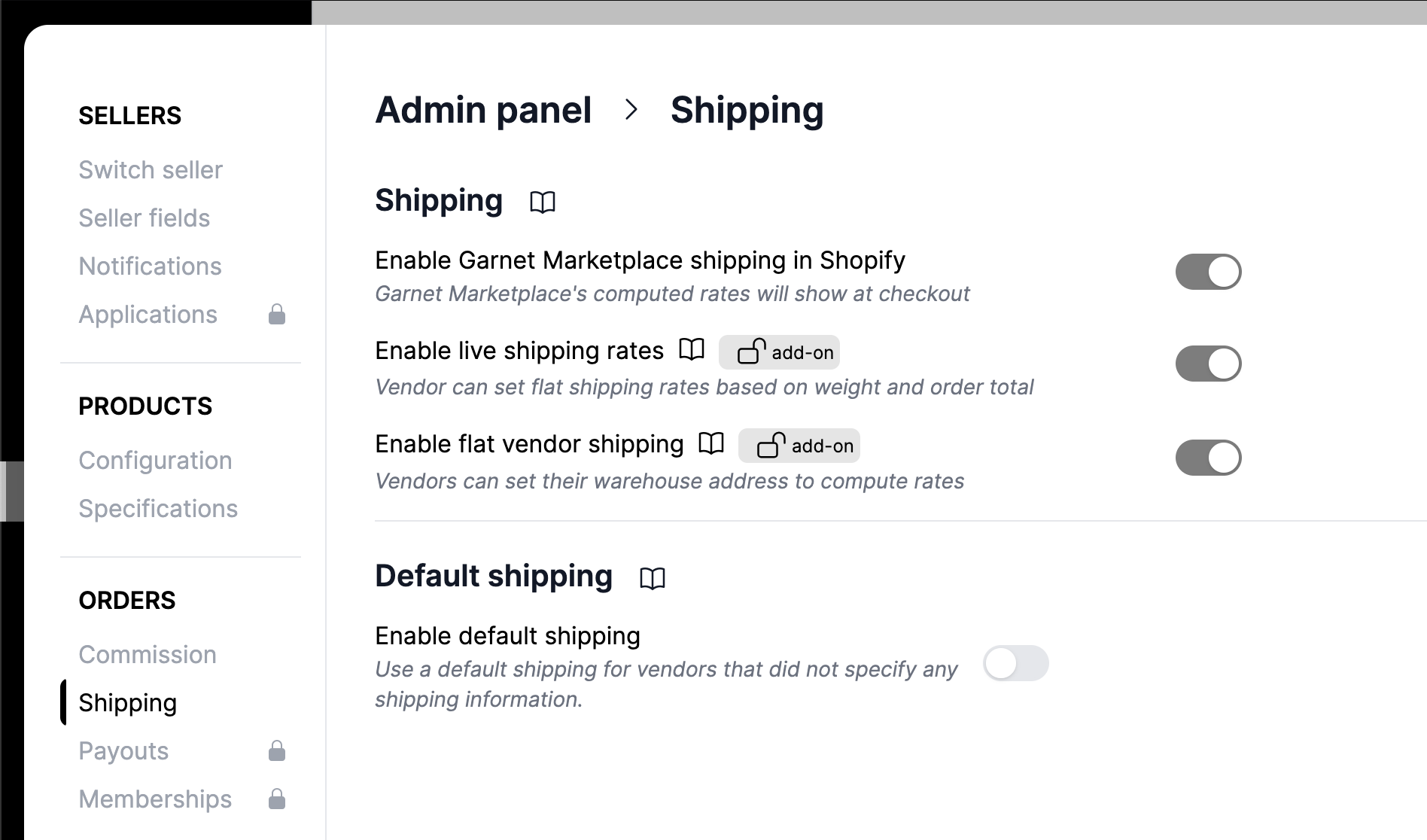
View of Garnet > Admin Panel > Shipping > Settings
Do you need Garnet shipping?
Use it whenever vendors ship their own orders: shipping is then split for each vendor, and finance and vendor payouts include it. You can skip it when your store offers free shipping, when you only sell digital products, or when you ship everything yourself with another app. Garnet cannot split shipping it did not compute.
Choose your rates
Garnet offers three kinds of rates. You can enable several and let each vendor pick one.
| Flat rates | Live rates | Shopify rates | |
|---|---|---|---|
| Rates come from | Rules the vendor sets in Garnet | A carrier, from the warehouse to the customer's address | The vendor's own Shopify store |
| The vendor sets up | Prices by country, cart value or weight | Warehouse address and package sizes | Nothing, once their Shopify integration is connected |
| Shipping labels | Bought outside Garnet | Bought in Garnet, paid by the marketplace | Bought outside Garnet |
| The marketplace needs | Nothing | A carrier account | Nothing |
| Best for | Getting started, simple and predictable prices | Heavy, bulky or international parcels | Vendors who already sell on Shopify |
If you are unsure where to start, go for flat rates first.
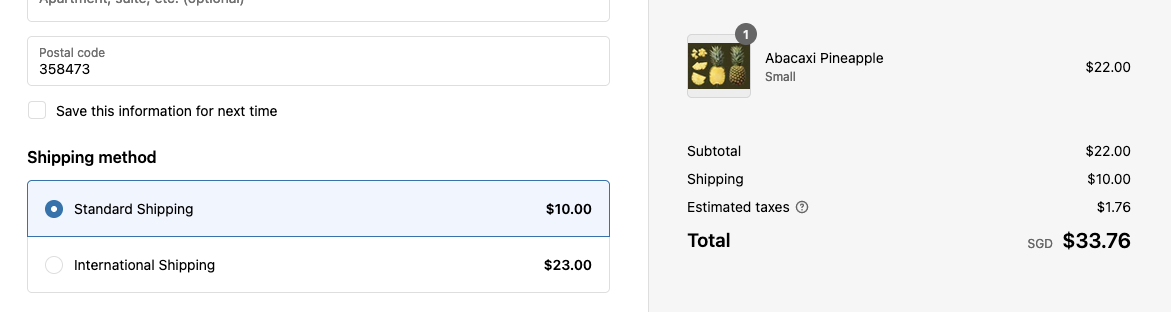
Flat rates
Vendors set rules such as:
- $10 shipping under $50, free shipping above
- $10 for domestic shipping, $20 for international shipping
- $10 when the order is < 5kg, $25 when < 20kg, $50 when >20kg
Live rates
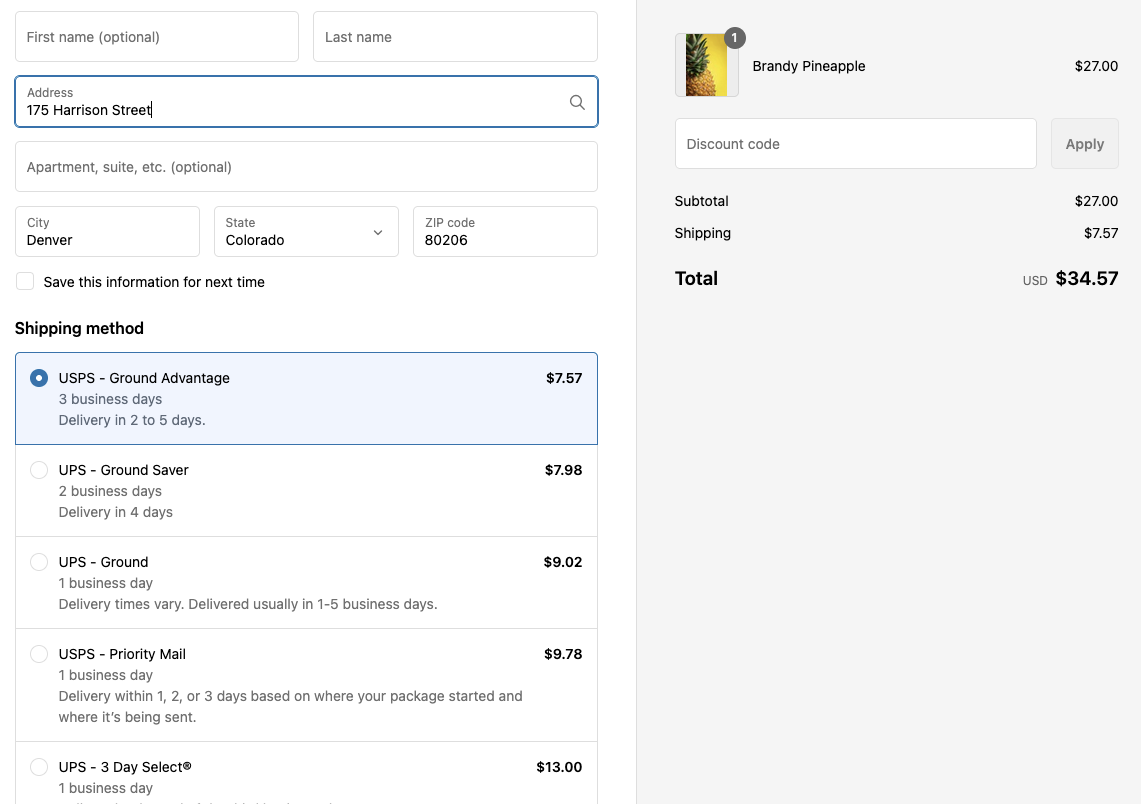
Rates are quoted by a carrier (Shippo, Easyship or Shipmondo) from the vendor's warehouse to the customer's address, and vendors purchase the label from Garnet.
Shopify rates
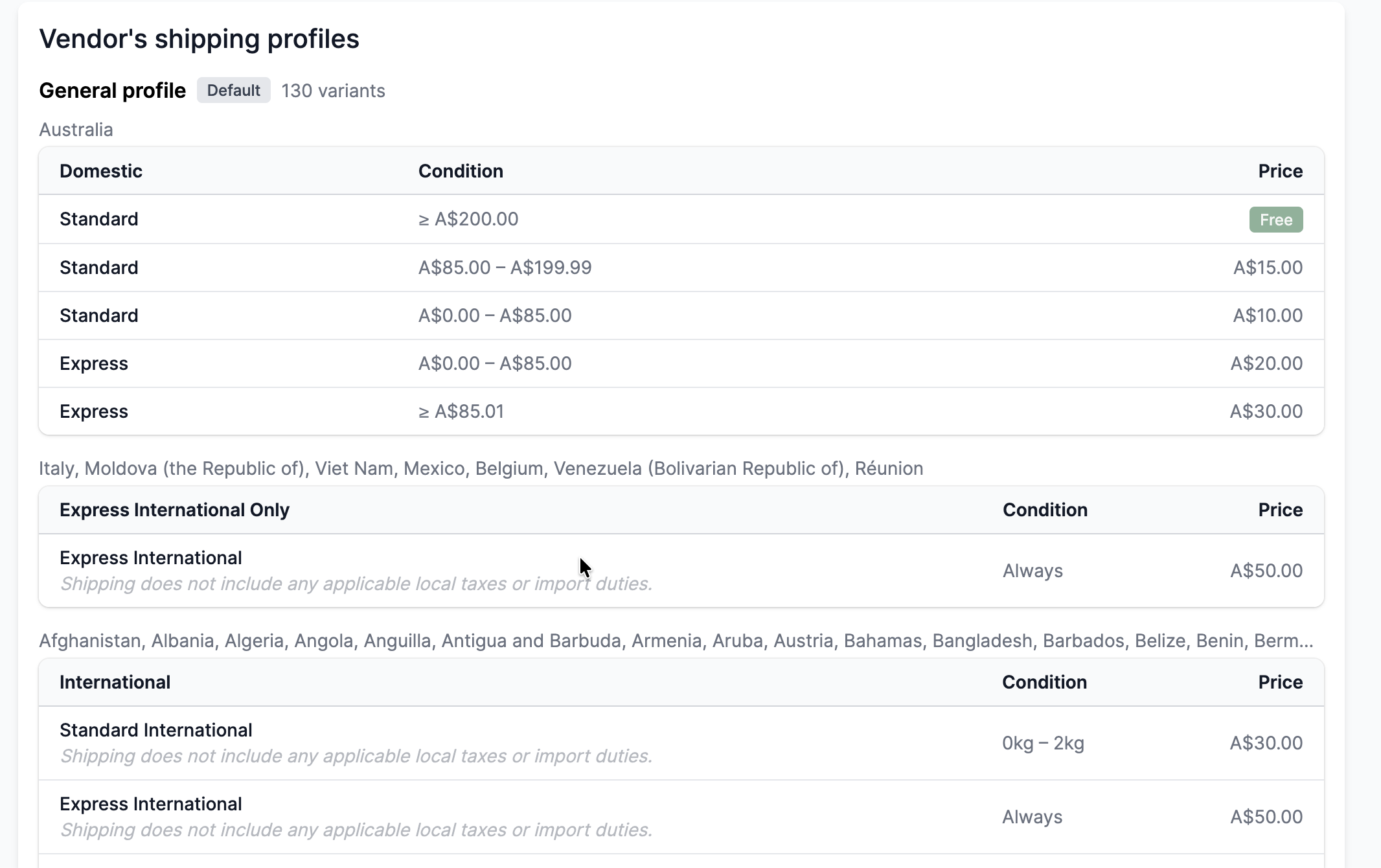
Garnet asks the vendor's Shopify store what it would charge for their items, and the customer sees the vendor's own rates.
The marketplace can turn Shopify rates off when vendors' own rates do not match what it offers, for example worldwide rates on a UK-only marketplace.
Mix several kinds of rates
When the marketplace enables more than one kind of rate, each vendor chooses theirs in Garnet > Settings > Shipping. At checkout, Garnet combines the rates of every vendor in the cart.

Enable Garnet Marketplace shipping in Shopify
Turn on Enable Garnet Marketplace shipping in Shopify in Garnet > Admin Panel > Shipping > Settings. This checkbox is mandatory to have the shipping rates displayed in Shopify. Rates from other shipping apps keep showing next to Garnet's; see troubleshooting to hide them.
Then check the result with the shipping rate tester.
Blog article
Refer to our blog post on marketplace shipping to choose your type of shipping.
View shipping in Admin Panel
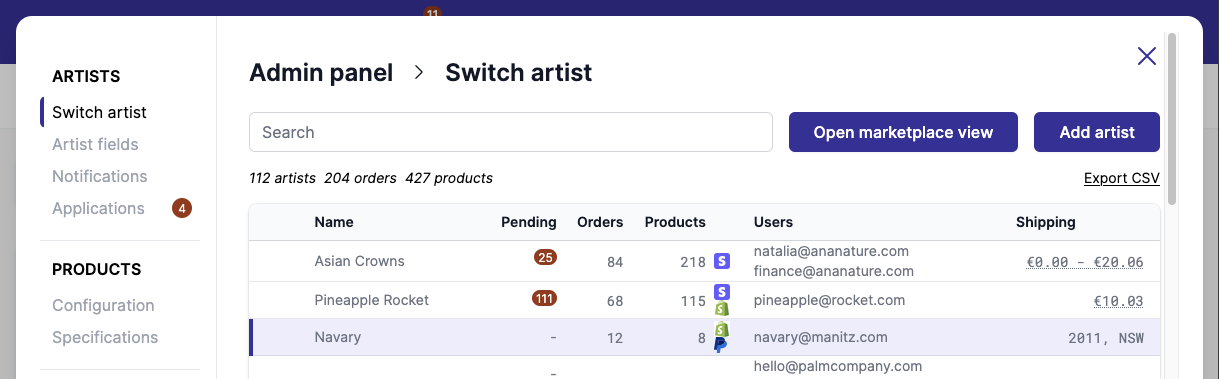
Administrators can see the vendor shipping directly in the Garnet > Vendors list.
Show shipping in the customer cart
If you want to show shipping to the customer, the marketplace can use Shopify's cart API to retrieve the shipping. See their technical documentation.