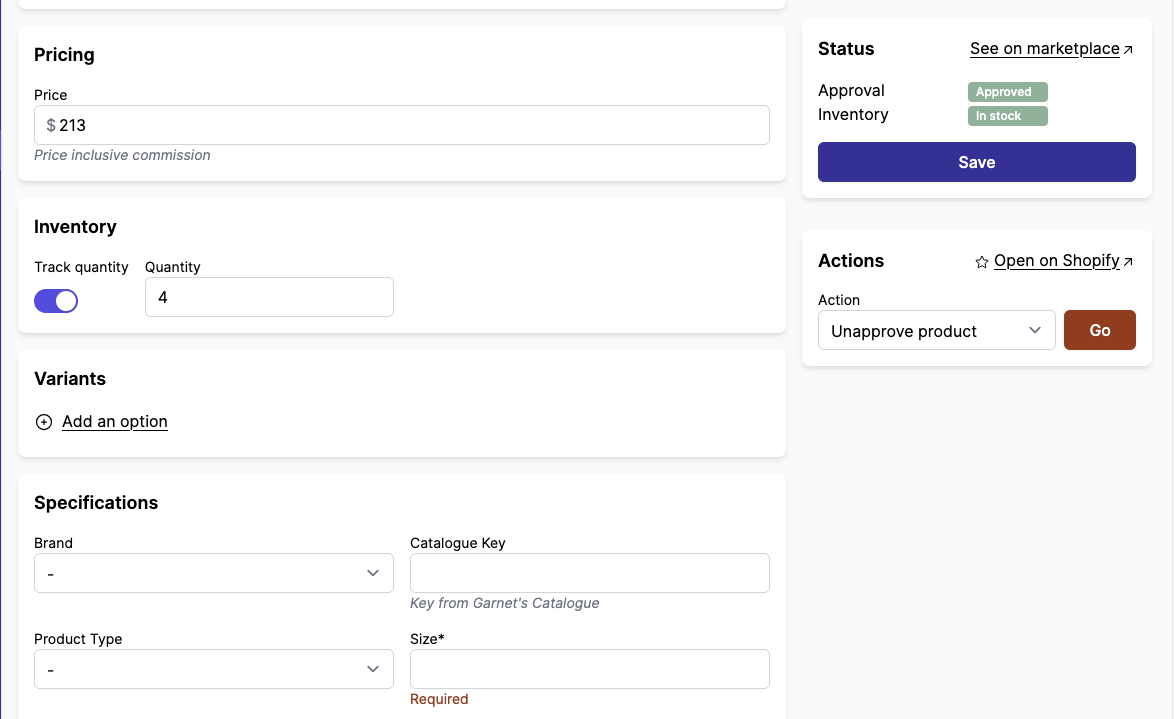
Order and customize product fields
Garnet makes it easy for vendors to add products. Let's see how the marketplace can customize product fields.
Display style
Some product fields can be displayed with various styles. For instance, you can use a text field to upload an image or a video. In the short clip below, you can see how to use a radio button instead of a dropdown for a Short text product field:
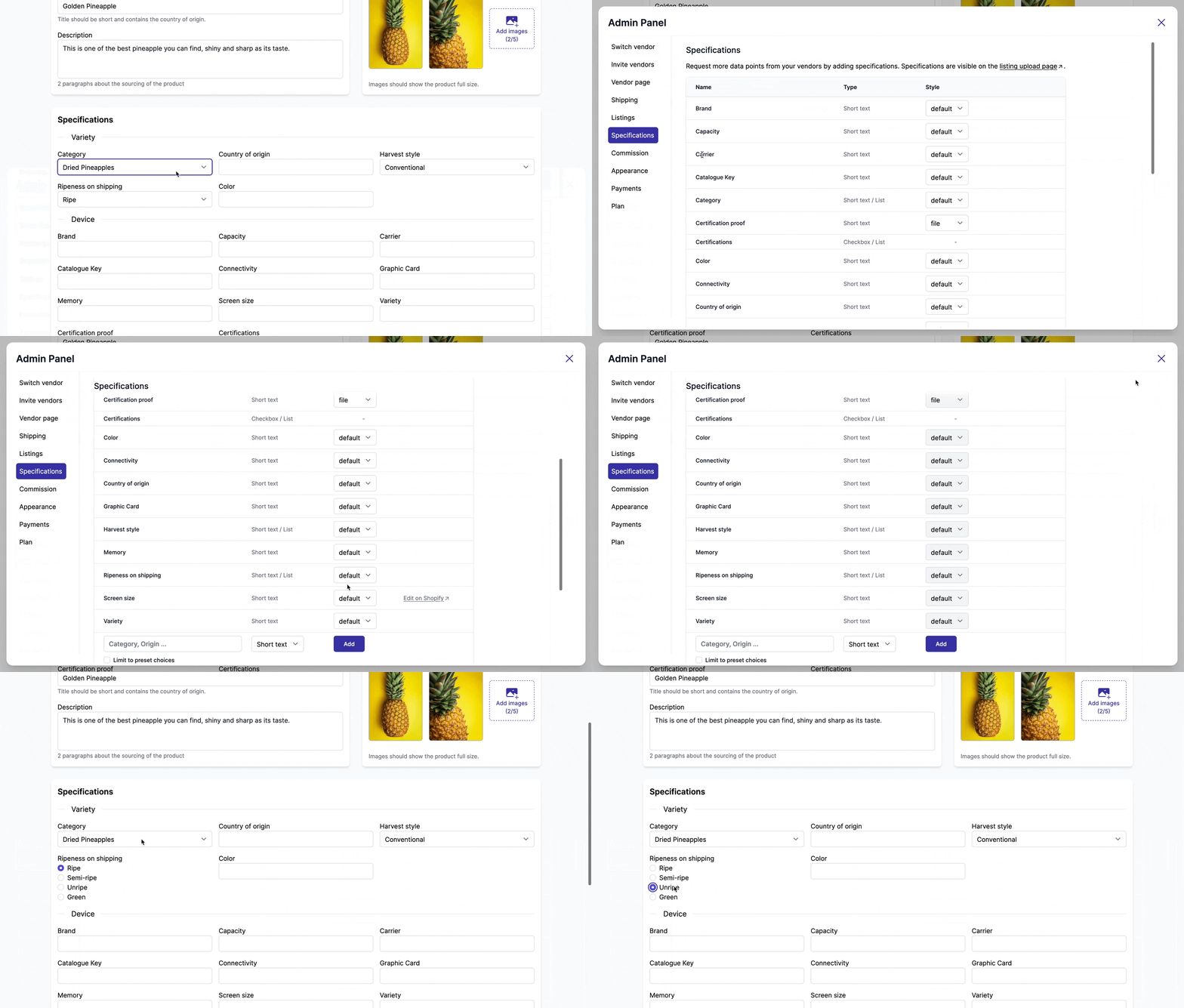
You can show product fields as a file upload, as a link, as radio buttons, and a lot more.
Product field sections
Some marketplaces have dozens of product fields and it can be confusing to navigate through all these fields. Garnet provides Sections you can configure in Admin Panel > Products > Product fields.
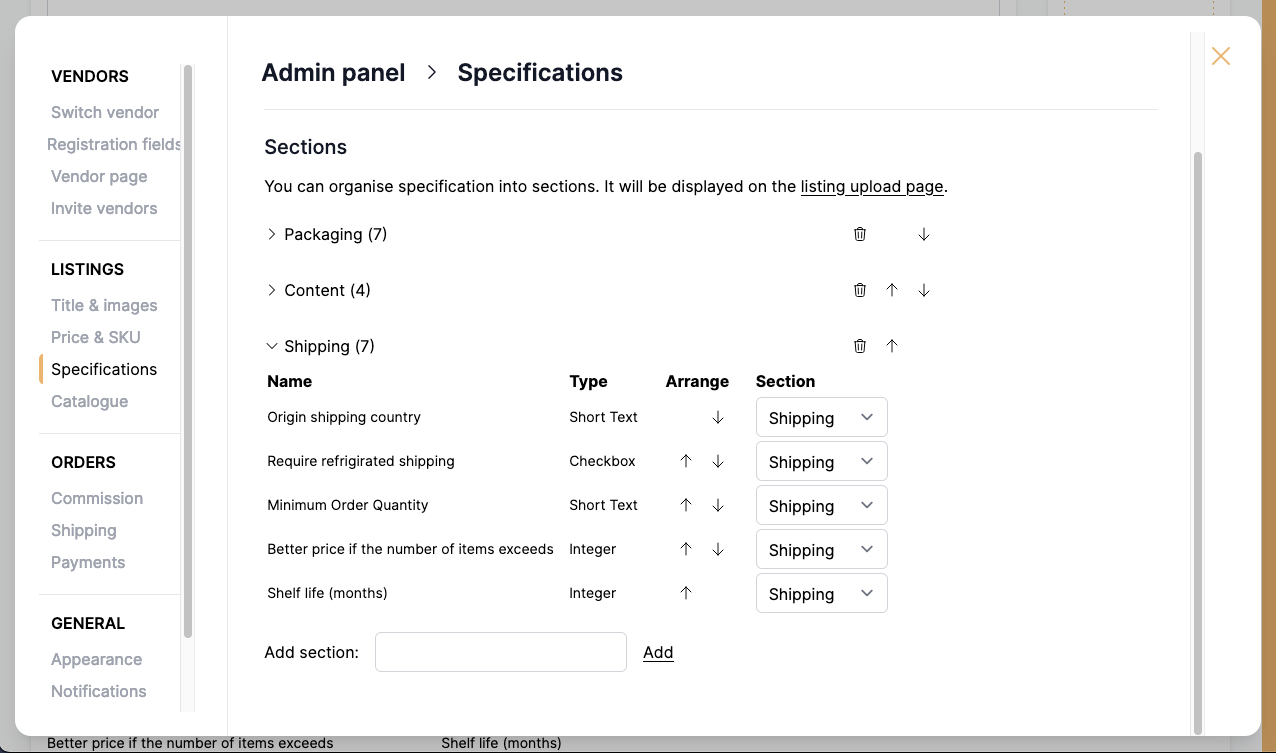
You can reorder product fields and sections from this view. By default, unorganized product fields land in a section called Others.
To create a section, type its name next to Add section: and click Add. Hovering the title of a section shows two buttons on its right: the pencil opens a window to rename the section, and the bin deletes it. Deleting a section never deletes its fields — they move to another section. Sections are only stored once you click Save, whether you added, renamed, deleted or reordered one.
The same sections are available for vendor fields.
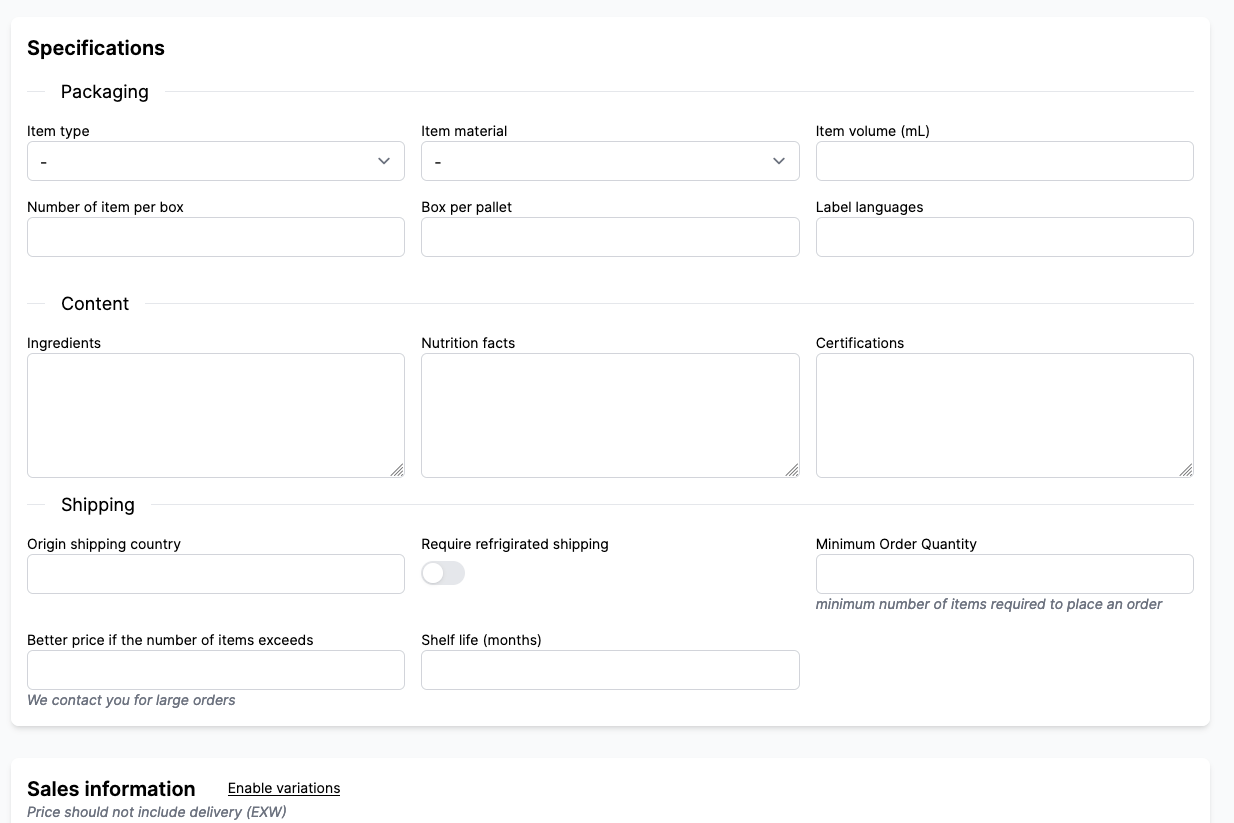
Here's how it looks on the product upload page:
Conditional display
For marketplaces with a lot of product fields, it can be useful to show/hide them conditionally. For instance, you can ask the vendor to Upload the certification proof only when the Certification has been chosen.
It makes the interface lighter and does not bother vendors with fields that they are not concerned with.
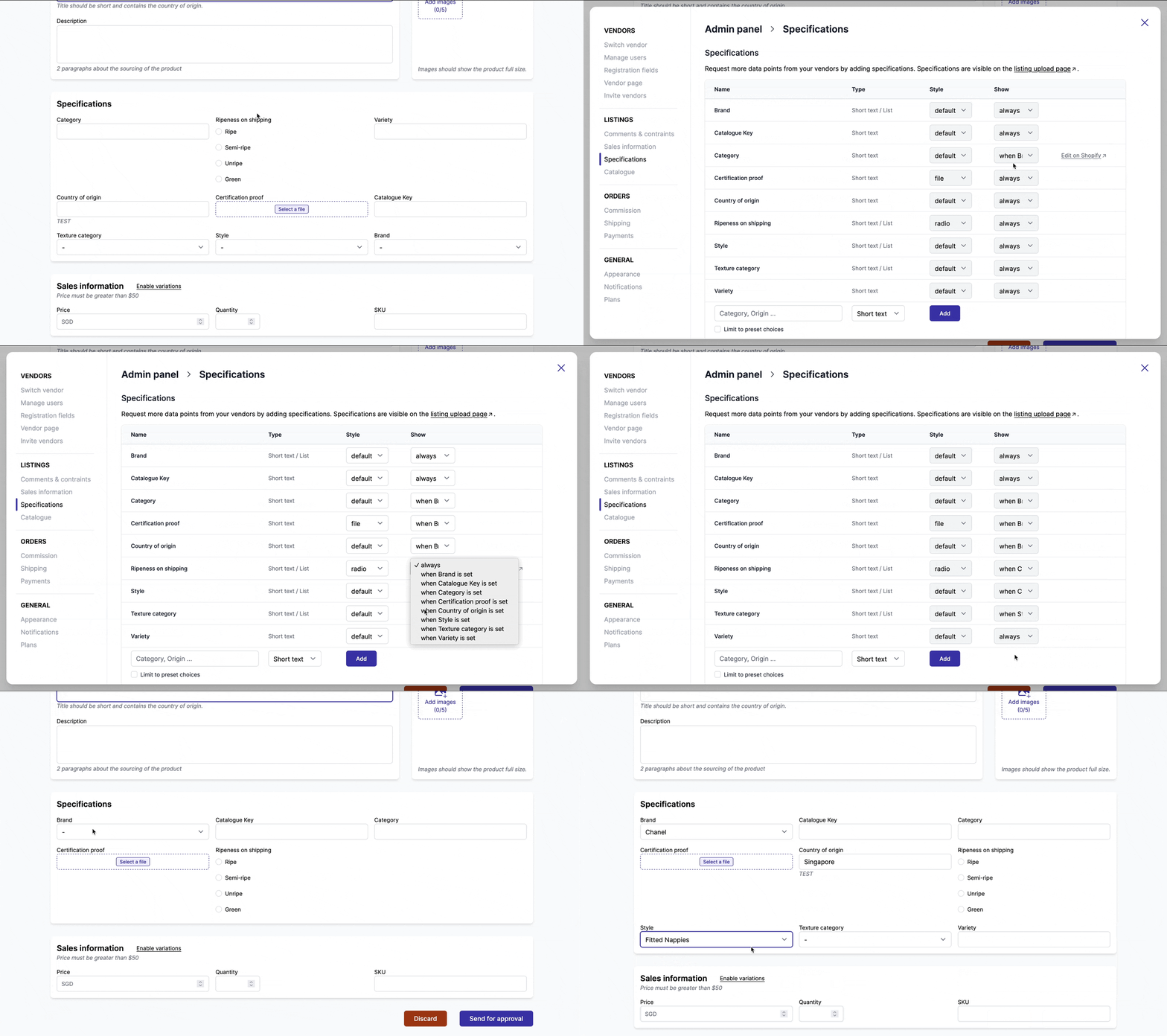
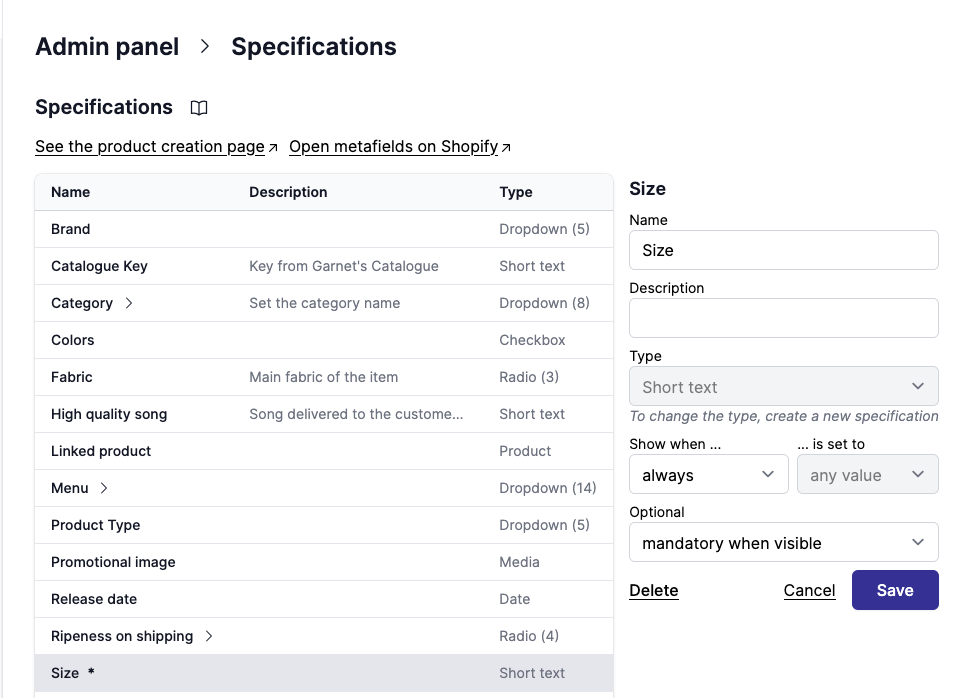
To set the conditional display, go to your product fields and change the value Show to when {another field} is set. If the condition is based on a dropdown field, you can select the conditional value.
Product field cascade
You can create elaborated product field dependencies. How about using it to help vendors set their products in your menu?
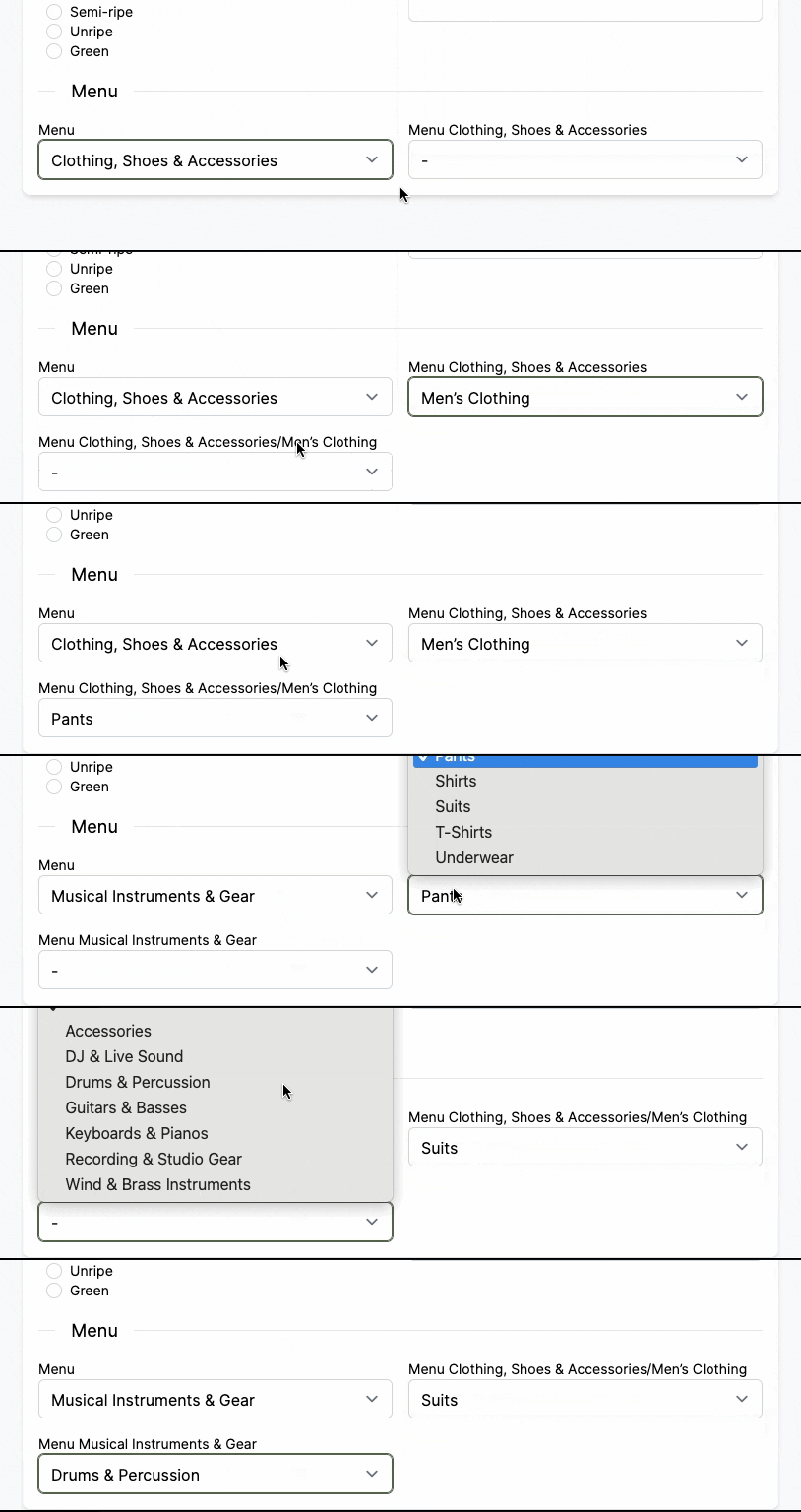
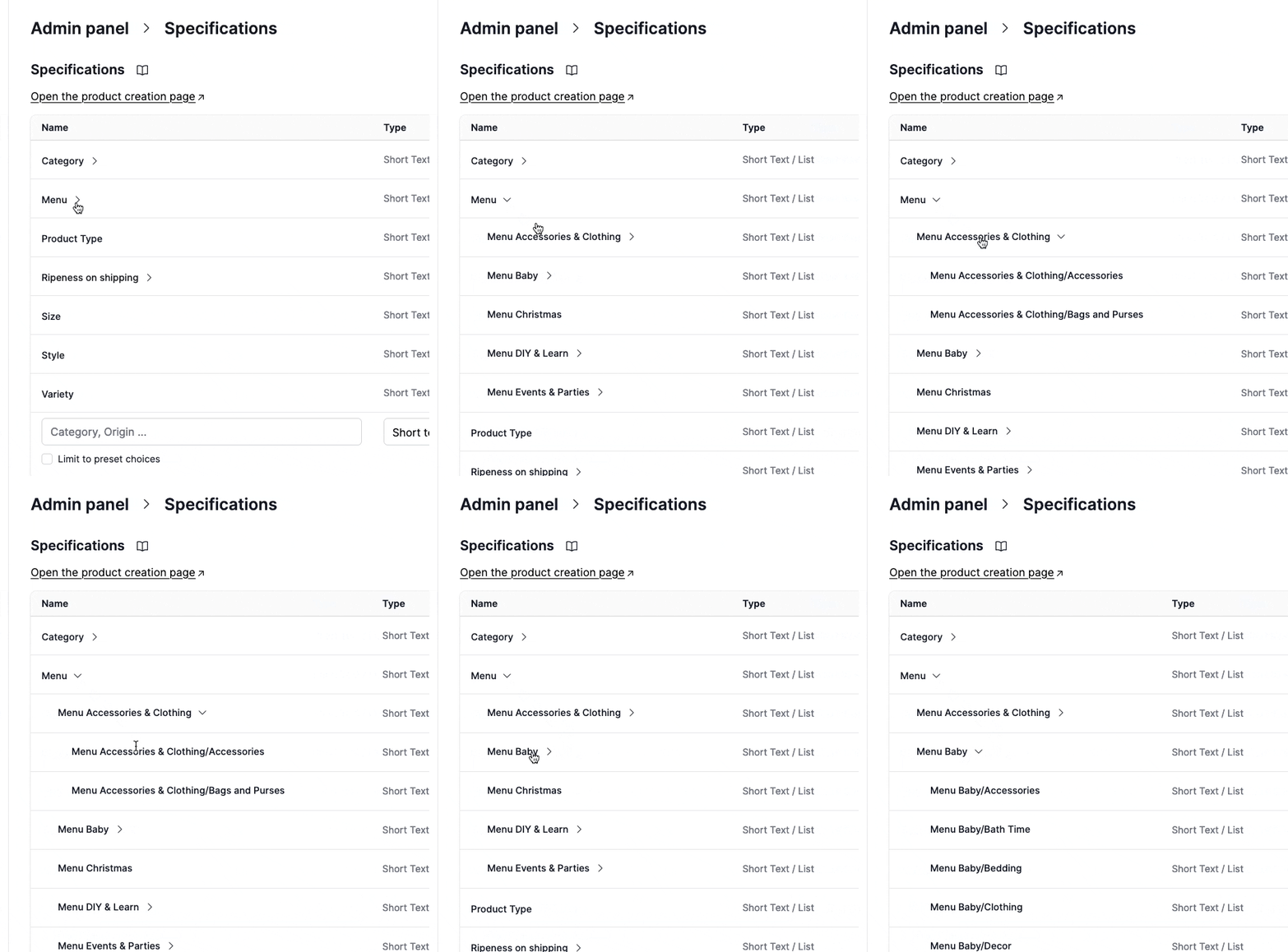
Here is how the configuration looks like from the marketplace point of view. If you have a huge list and you want us to implement if for you. Contact us.
When a vendor changes a field higher up in the cascade, the fields it hides are cleared when the product is saved. A product moved from "Pet Food > Dogs" to "Arts & Entertainment" keeps no trace of "Pet Food" or "Dogs". Fields hidden with Show: never keep their values.
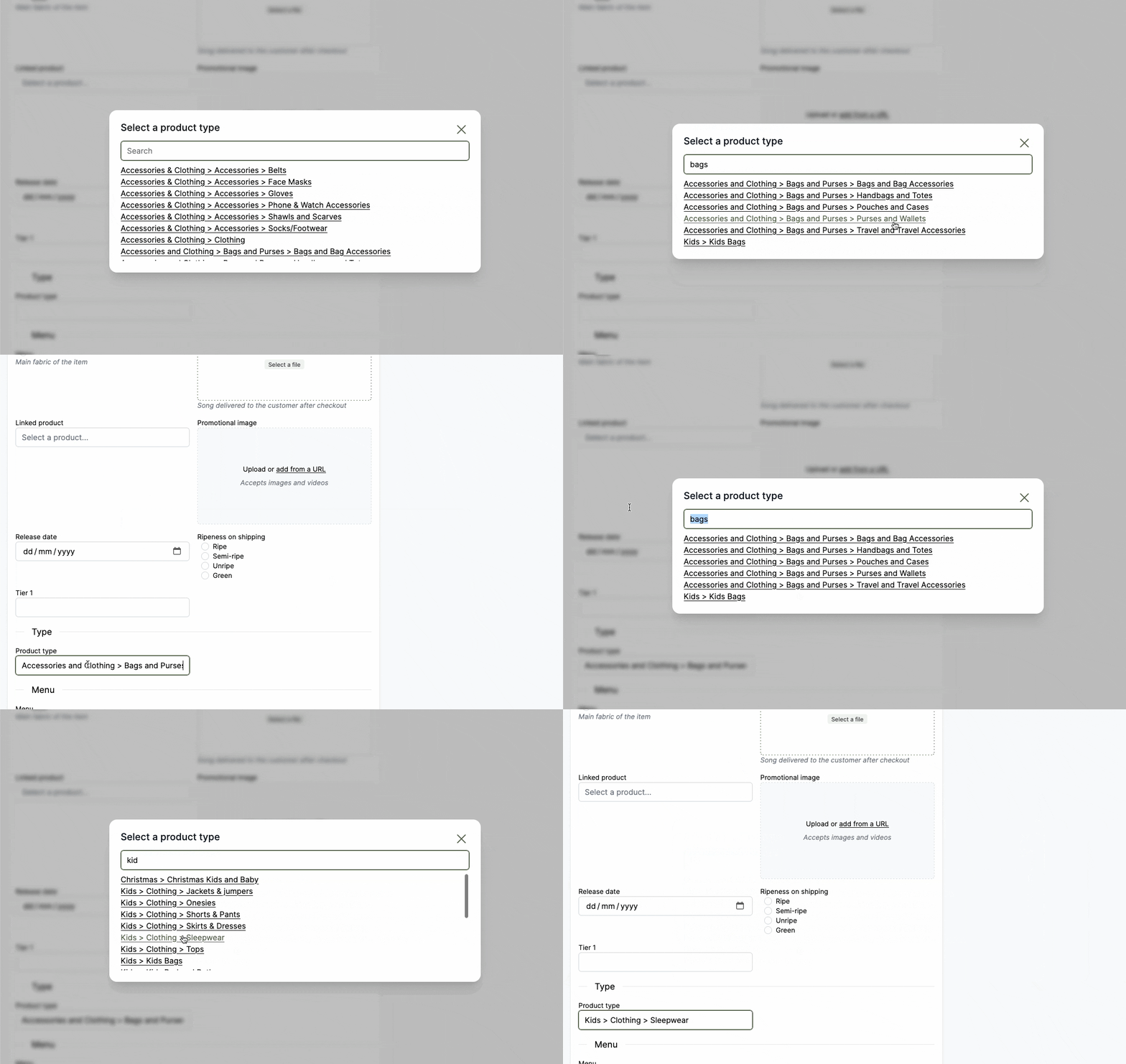
Product type picker
Garnet has a specific picker for product type that gives the vendor a search amoung all options. Contact us to set it up.
Hide a product field
Sometimes the marketplace does not want the vendor nor Garnet to show a product field. You can hide a product field from the vendor interface by selecting Show: never in the dropdown.

Mandatory product field
Product fields can be marked as mandatory when visible. The vendor will have to fill the information to save the product. This is compatible with the conditional disply above.
Here is what the vendor sees: