
Product synchronisation
All eCommerce integrations import the vendor's products into the marketplace. What is synchronised (everything, price and stock, or stock only) is set in the integration settings.
Synchronise specific products
When Auto synchronise is turned off, the user can select which products will be imported. It can then take several minutes for selected products for the changes to be active.
On this list you can see all products from the vendor's store, each with its main image, and search by tag, title, SKU, and more. Based on the eCommerce platform, more search filters will be available.
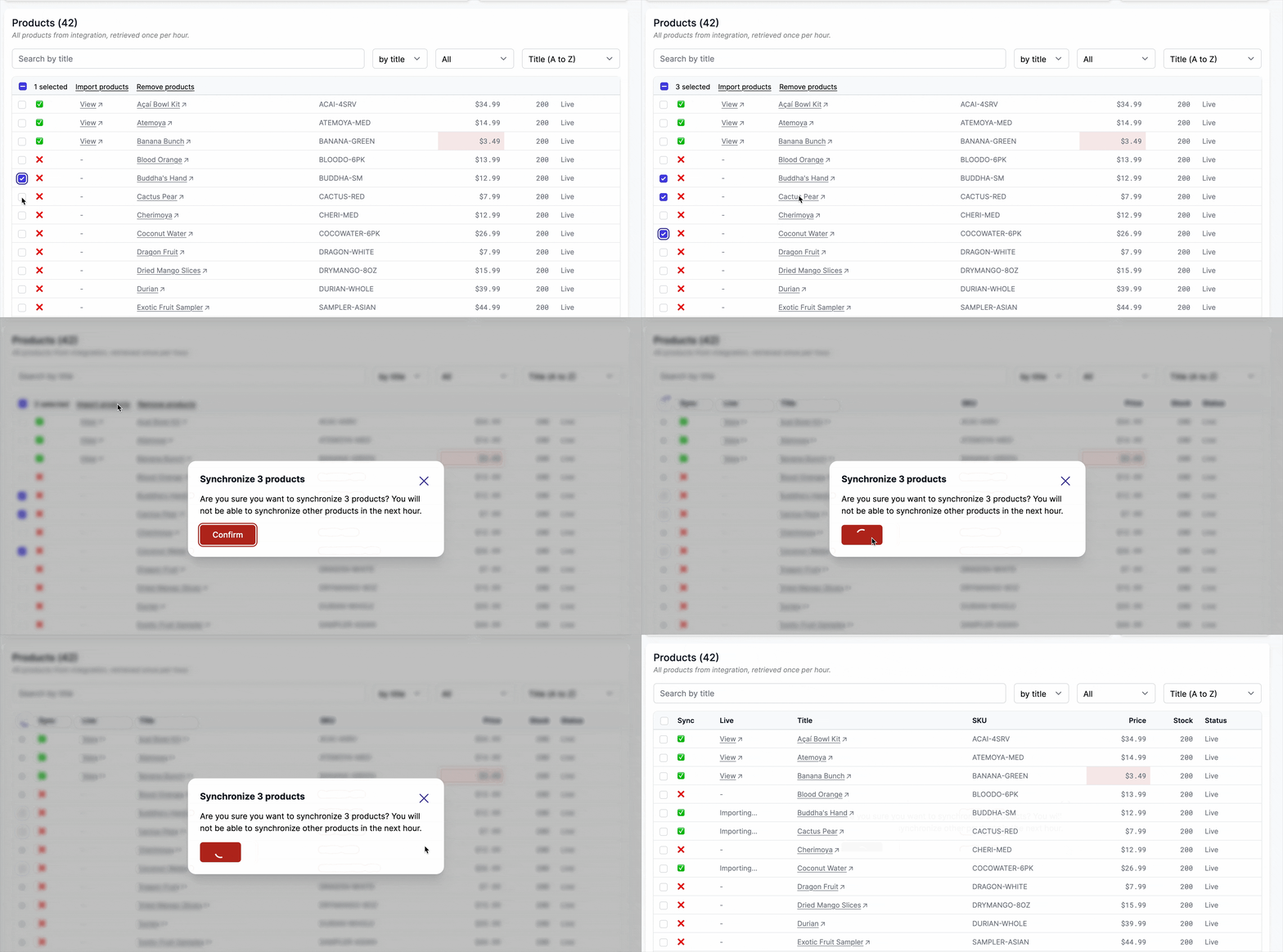
From this view, the user can also select products and click Unsync and move to draft. The products are no longer synchronised and their listings are moved to draft on the marketplace, so customers stop seeing them. They can be imported again at any time.
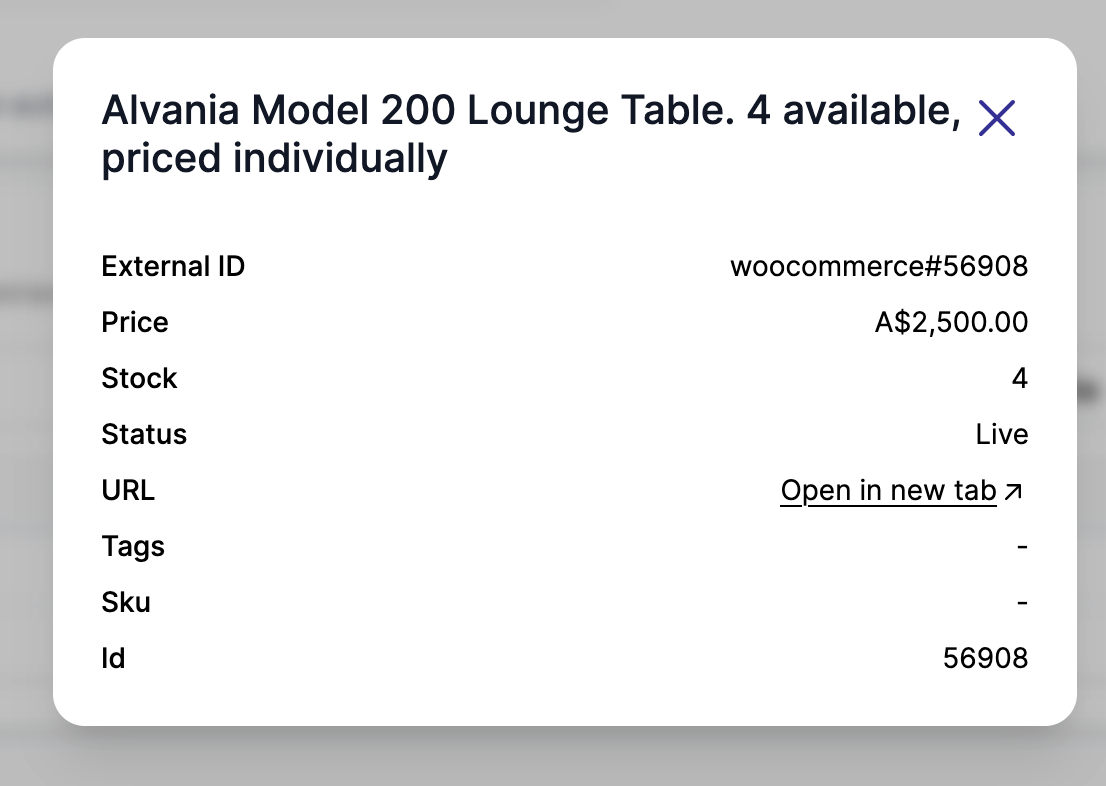
Click "Open" on any product to view its image and all its details including external ID, price, stock, status, and all metadata fields.
The Status column names every reason a product may not belong on the marketplace: Archived or Draft when it is not active on the vendor's store, Out of stock, No image when Require a product image is on, and Low price for anything under 5. A product with none of them reads Active. A row is highlighted in orange as soon as it carries one of these statuses.
Products without images
A product is only imported once it has at least one image. Vendors often save a product first and upload its photos a few minutes later, and a product imported in that gap would arrive on the marketplace without a picture — permanently so when the integration is set to Price and Stock Only, since that scope never updates images afterwards.
Nothing needs to be done: as soon as an image is added on the vendor's store, the product is imported with its photos on the next synchronisation.
If your marketplace sells products that have no photo — services, made-to-order pieces, or a catalogue you illustrate yourself — turn Require a product image off. The setting sits in the Products column of the integration settings and is on by default. Turn it off for a single vendor from Garnet > Settings > Integrations, or for every new integration from the default integration settings.
Applies to all eCommerce integrations
Shopify, WooCommerce, PrestaShop, and Squarespace. Products already on the marketplace are not affected — removing every image from a vendor's product does not remove it from the marketplace.
View integration data on a product
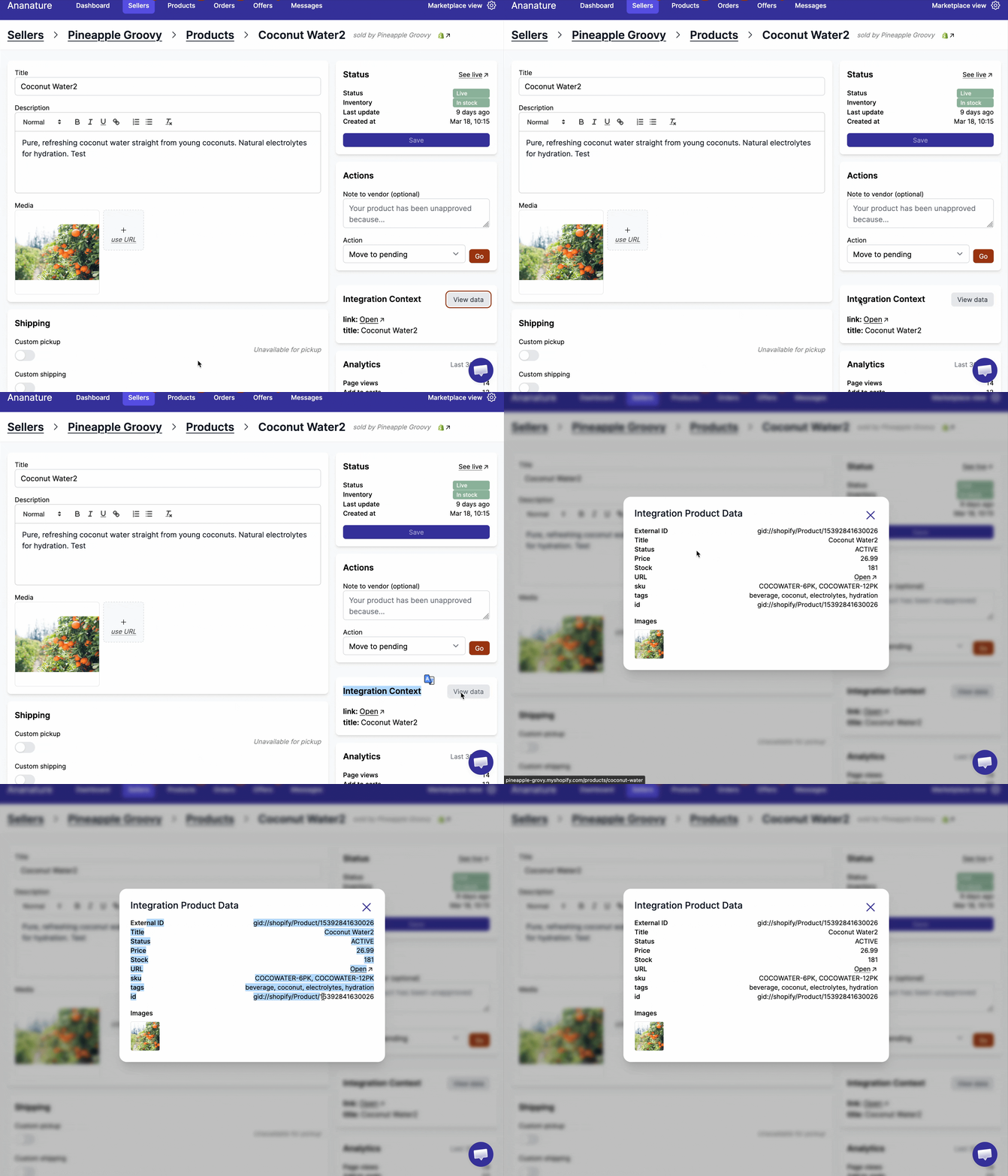
From the product edit page, you can view the raw data fetched from the vendor's integration. Click the "View data" button in the Integration Context card to inspect the product's details as stored in the seller's store.
Once per hour.
To avoid hurting the vendor's eCommerce, any synchronisation update is limited to once per hour.
Reset a product from integration data
If a product's title, description or images have drifted from what the seller has in their store, you can pull them back in one click. From the product edit page, click View data in the Integration Context card, then Reset product. The title, description and images from the seller's store are copied into the edit form — nothing is saved yet, so you can review the changes before clicking Save. Price and stock are left untouched.
