Integration settings
Each connected integration has its own settings, which the vendor and the marketplace can change in Garnet > Settings > Integrations. The marketplace also sets the defaults for new integrations and decides whether vendors may edit them.
Integration settings
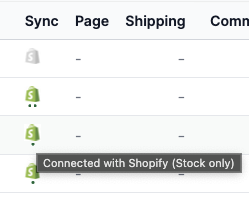
A connected integration opens on two cards: Details describes the connection itself, and Settings summarises the configuration, which the Edit button opens.
Once the integration is live, the vendor and the marketplace can configure what information is sent to the marketplace:
- Price transformation to transform the price with a flat fee, percentage, or both. This is useful if the vendor wants to increase their price to cover for the marketplace commission or to cover for shipping.
- Stock buffer to reserve a number of units from being sent to the marketplace. For example, a buffer of
2means the marketplace will always see 2 fewer units than the vendor's actual stock. - Full Synchronization will synchronise all products from the vendor to the marketplace. Title, description, images, price, compare price, SEO.
- Price and Stock Only will synchronise the price and stock. It is the default settings.
- Stock only, useful when the price on the marketplace can change arbitrarily.
- No product sync will stop all product synchronisation for this integration. Existing products on the marketplace are not affected, but no updates will be synced.
- Auto synchronise is enabled by default. When turned off the marketplace can select which product will be accepted in the marketplace.
- Require a product image is enabled by default. When turned off, products without images are imported too.
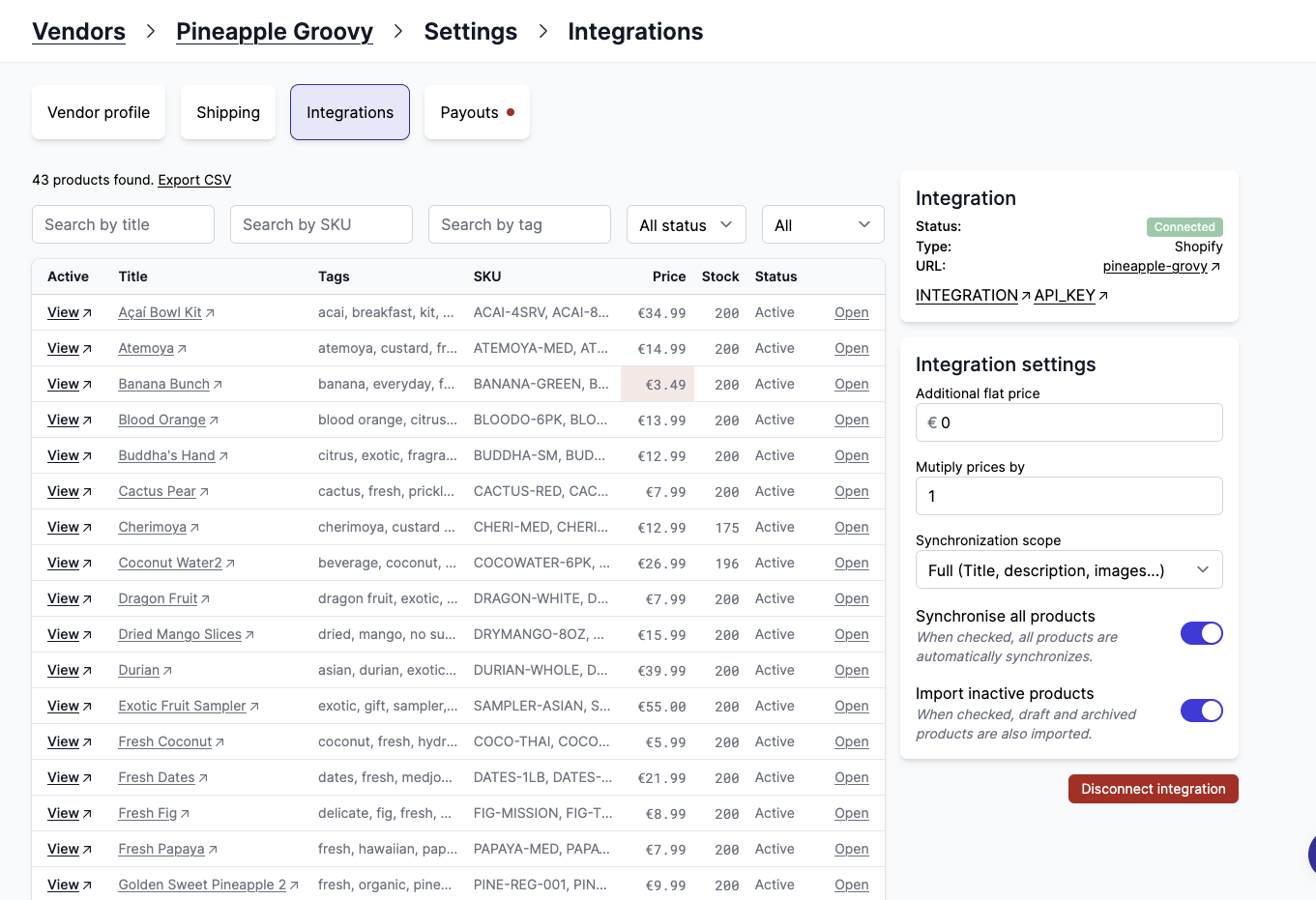
On the vendor list, the sync scope is indicated by dots below the integration icon. Three dots means full sync, two dots means price and stock only, one dot means stock only. When no product sync is active, the icon is displayed in black and white with no dots.
Integration details
The Details card describes the connection: the vendor's platform, a link to their store, and how many products are involved.
- Product count is how many products the vendor's store holds.
- Approved products is how many the marketplace selected for import. It only appears when Auto synchronise is off, since there is nothing to approve otherwise.
- Imported products is how many of them have a listing on the marketplace. Archived listings are not counted, and neither are unsynchronised products, so unsynchronising a product lowers it.
The Settings card beside it reads the configuration back as badges. Synchronize shows Auto or Manual, followed by No orders or No tracking when either is turned off, and Paused when all synchronisation is paused. The synchronisation scope is a badge too, orange when it is No product sync.
Price and compare price transformation
The vendor and the marketplace can change the product price before it is sent to the marketplace. The price transformation can either be an addition, a multiplication, or a combination of both.
This can be configured in Garnet > Settings > Integrations, by clicking on a connected integration.
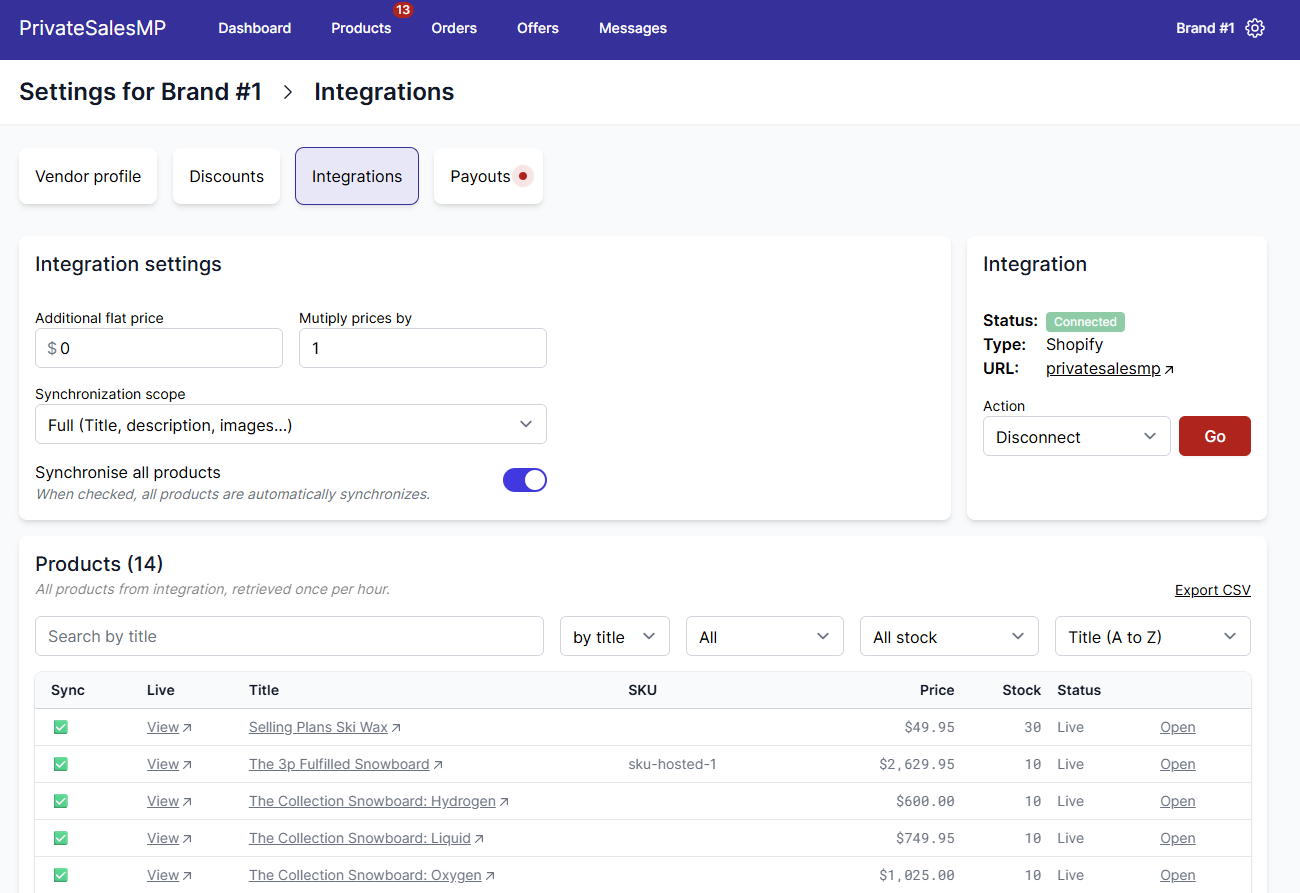
Example 1: a vendor wants to add a flat fee for the marketplace. A product is for sale at $20 and there is a flat $4 increment, the price on the marketplace will be $24.
Example 2: a vendor wants to discount all their products by 20%. A product is for sale at $20 and there is a ratio increment of 0.8, the price on the marketplace will be $16.
Garnet uses the following formula to compute the marketplace price:
Marketplace price = flat + original price * factorOnce changed, it can take up to 10 minutes to update all prices.
Some integrations provide the price transformation interface outside of Garnet as well.
Multi-currency example
When a vendor sells in a different currency than the marketplace, the price multiplier accounts for the exchange rate — and optionally adds a margin on top.
When a vendor connects a Shopify store, Garnet compares the two store currencies and, if they differ and the multiplier is still at its default of 1, fills it in with the live exchange rate before importing the catalogue. A multiplier you set yourself is never overwritten, and the rate is a snapshot taken at connection time: revisit it when the exchange rate moves, or when you want to add a margin.
Example: EUR vendor on an AUD marketplace
Say your marketplace currency is AUD and a vendor sells in EUR. Their product is listed at €85 in their Shopify store. Without a multiplier, it would appear as $85 AUD on your marketplace, which is incorrect.
Step 1: Account for the exchange rate If the exchange rate is 1 EUR = 1.63 AUD when the vendor connects, Garnet sets the price multiplier to 1.63 on its own. The product displays at approximately $139 AUD. For a vendor connected before this behaviour existed, or whose multiplier was cleared back to 1, set 1.63 by hand.
Step 2: Add a vendor margin (optional) If the vendor also wants to apply a 30% margin on top of that, multiply the two factors together: 1.63 (exchange rate) × 1.3 (margin) = 2.12. Set the multiplier to 2.12. The €85 product will then appear at approximately $180 AUD on the marketplace.
You can view and adjust this setting under Garnet > Vendors > Integrations > Price transformations.
Do not synchronise prices
Sometimes the marketplace prefers to not synchronise the prices between the vendor and the marketplace. When this feature is turned on, vendor's product will be created with the vendor price, and all subsequent update will not change the marketplace's price.
This allows the marketplace to price the product the way they like.
Default integration settings
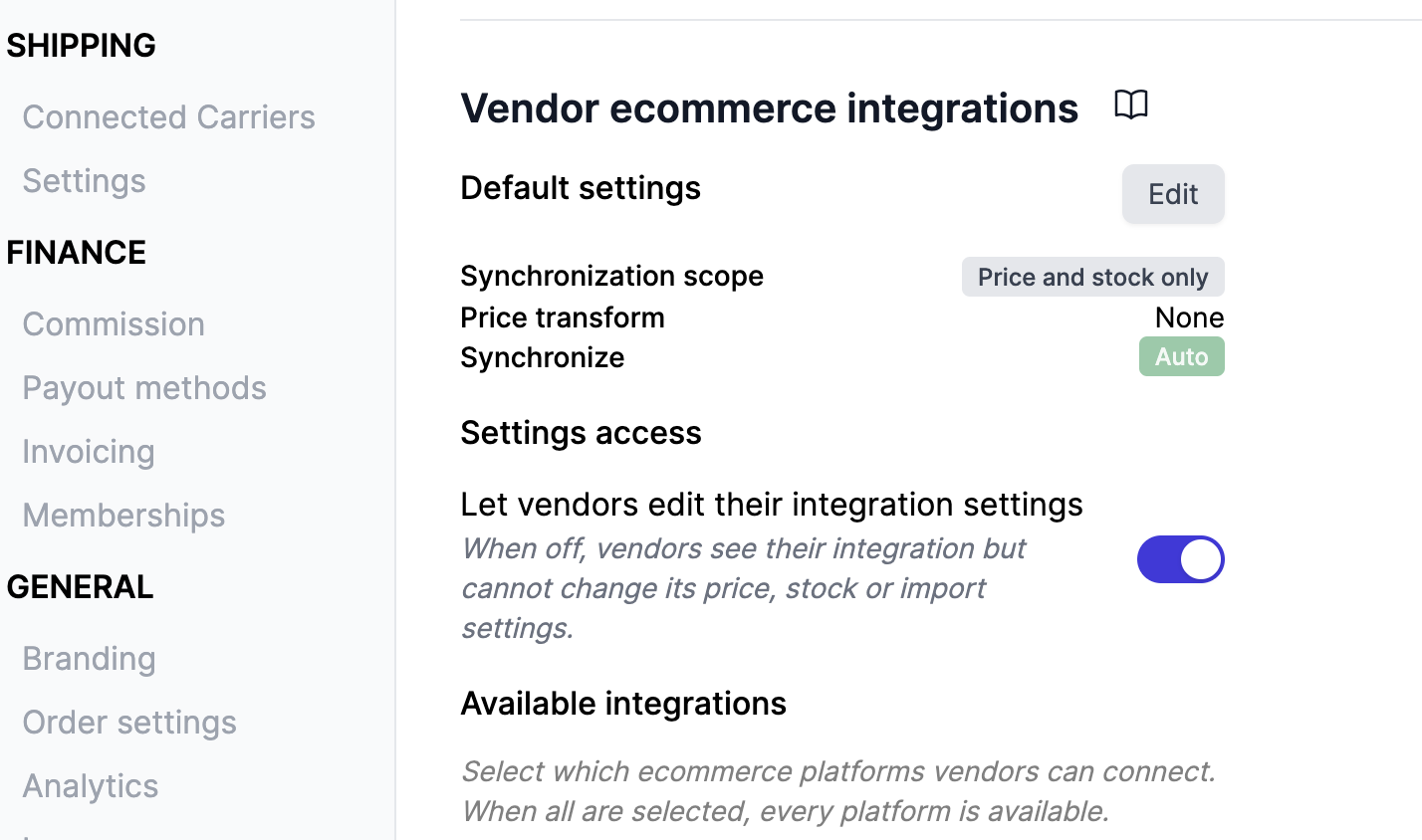
Marketplace administrators can configure default integration settings that apply to all new vendor integrations. This is done in Garnet > Admin Panel > Vendors > Settings.
When enabled, you can set the default values for:
- Additional flat price and Multiply prices by to apply a default price transformation to all new integrations.
- Stock buffer to reserve units from being sent to the marketplace.
- Synchronization scope to choose between Full, Price and stock only, Stock only, or No product sync.
- Auto synchronise to automatically import all active products from new vendors.
- Include inactive products to also import draft and archived products.
- Require a product image to hold back products without images until the vendor adds a photo.
These defaults are applied when a vendor connects a new integration. Changing the default settings only affects future integrations — existing vendor integrations are not modified. Vendors can still override these settings individually from their own integration view.
Leave Multiply prices by at 1 if you rely on the automatic exchange rate: Garnet only fills in the rate when the multiplier of the new integration is exactly 1, so a default such as 1.2 is applied as-is to a vendor selling in another currency.

Settings access
Vendors can normally open the Settings card of their integration and change the price transformation, the stock buffer, the synchronization scope or the order and tracking forwarding. On marketplaces where those values are negotiated rather than chosen — a fixed margin, a catalogue you curate yourself — you can take that away.
Turn Let vendors edit their integration settings off in Garnet > Admin Panel > Vendors > Settings. Vendors keep their integration page and still see what it holds, but the Settings card and the Edit price rule action of the Garnet Seller Shopify app disappear, so only you can change the values. The setting is on by default and applies to every vendor of the marketplace at once.