
Disable a vendor
Disabling a vendor takes it off your marketplace and keeps everything in place, so you can enable it again later. Use it for a vendor on a break, or one you are reviewing. To remove a vendor for good, remove it instead.
Disable
- Open the vendor from
Garnet > Vendors - At the bottom of the page, click
Disable vendor - Pick what to turn off, then click
Disable "<vendor>"
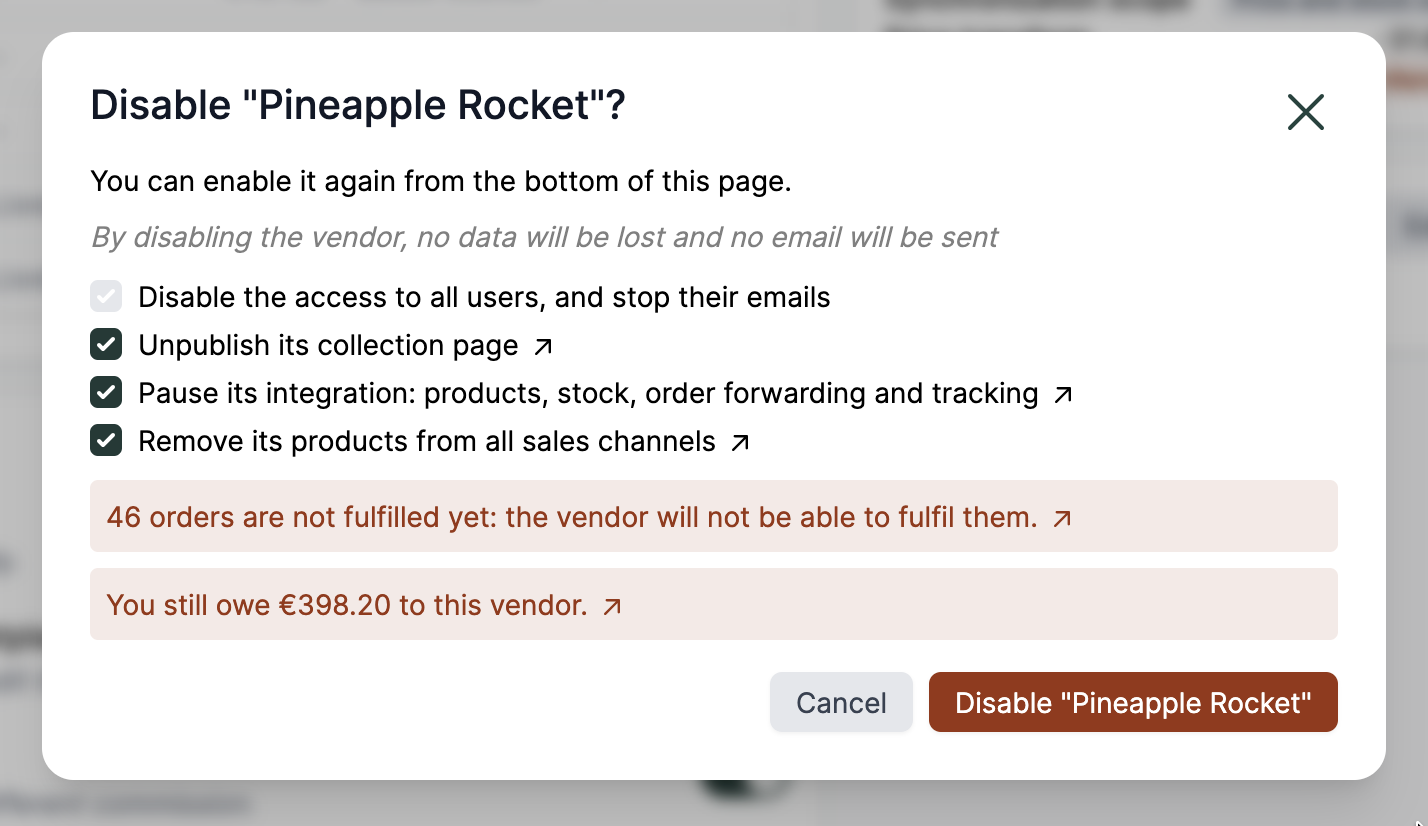
Disabling always stops the access of the vendor's team members: they can no longer log in to this vendor, and the sessions they have open stop working. They no longer receive any email from Garnet either. Nothing is deleted, and disabling sends no email. A team member who also manages another vendor of your marketplace keeps that access. You and your admins can still open the vendor and switch to it.
You choose the rest:
| Option | Default | What it does |
|---|---|---|
| Unpublish its collection page | Checked | Sets the vendor page back to draft, which unpublishes its collection. |
| Pause its integration: products, stock, order forwarding and tracking | Checked | Stops its integration: products, stock, prices, order forwarding and tracking. |
| Remove its products from all sales channels | Checked | Takes all its products off every sales channel. They stay in Shopify with their status, so reports and past orders are unchanged. |
| Cancel its membership now | Unchecked | Cancels its membership in Stripe right away. The line links to the subscription. |
Each option only appears when the vendor has what it turns off, and links to it: the collection page on your store, the integration settings, the product list or the subscription in Stripe. The window also warns you when the vendor still has unfulfilled orders, which its team members can no longer fulfil, and when you still owe it a payout, with a link to each.
INFO
Shopify removes the products from the sales channels a few minutes after you disable the vendor. A large catalog can take longer.
Enable
A disabled vendor shows a Disabled badge at the top of its page, and its row is highlighted in the vendor list. To see only the disabled vendors, or only the active ones, pick it in the list's All vendors filter. To bring it back:
- Click
Enable vendorat the bottom of its page - Pick what to turn back on, then click
Enable "<vendor>"
The team members get their access and their emails back. The window offers to turn back on what is still off: the collection page, the integration, and the sales channels. Resuming the integration catches up on what changed while it was paused.
The products go back on the sales channels your marketplace publishes new products to. Active products only: drafts and archived products stay as they are. A cancelled membership is not restored: the vendor subscribes again.
WARNING
If you edit one of the vendor's products while it is disabled, saving it publishes it again.