
Appearance
Custom options
Beta
This feature is currently in beta. Please read the limitations and contact us with your feedback.
Custom options let vendors add configurable fields to their products — text inputs, single on/off checkboxes, and single- or multiple-choice selectors. Customers fill in these options before adding to cart, and the selections appear on the order so merchants and vendors can see exactly what was chosen.
Custom options can also carry additional pricing. For example, a gift wrapping checkbox that adds +$5, or a premium-material single-choice selector where each choice has a different surcharge. These extra costs are automatically included in the checkout total.
Demonstration
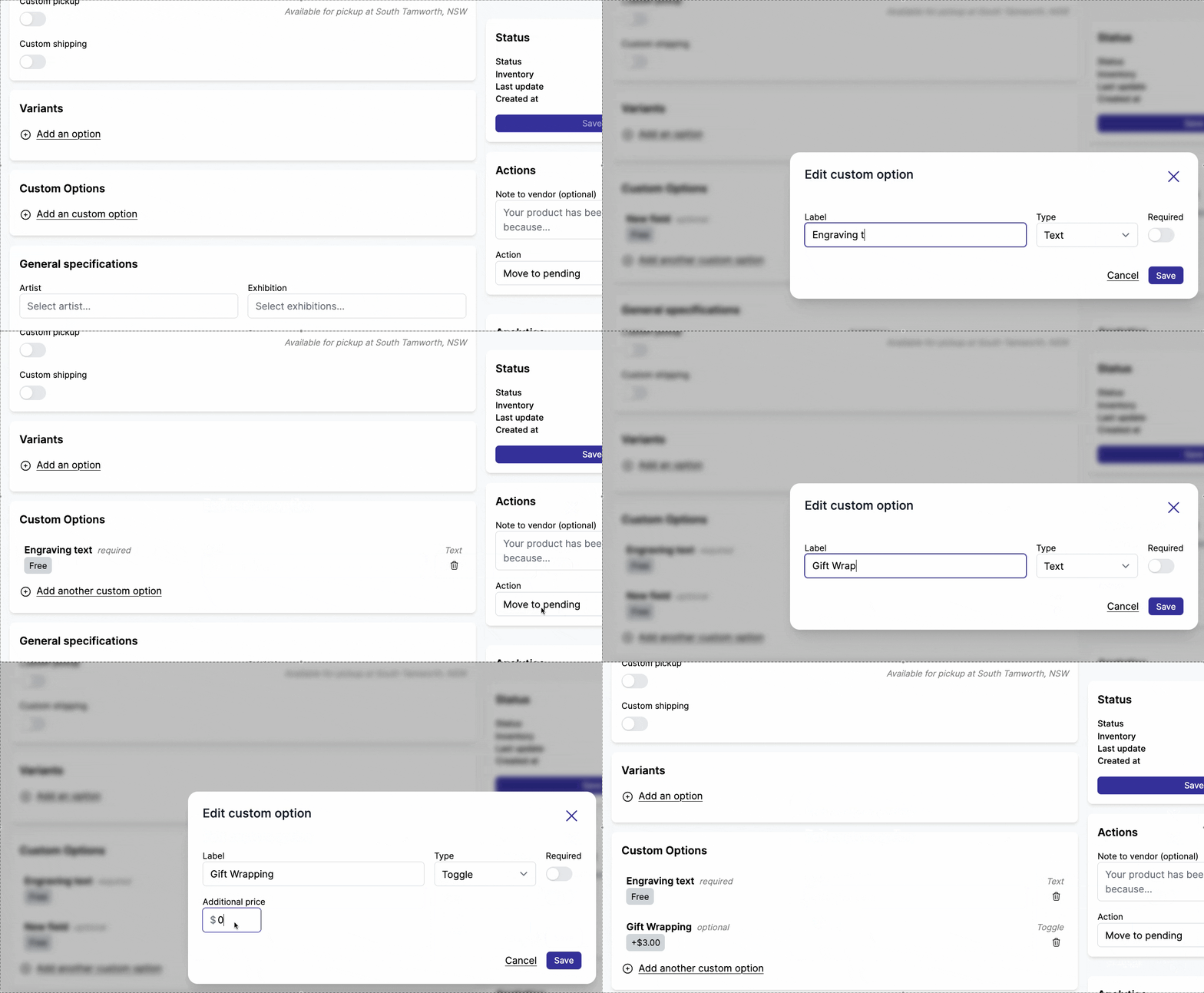
In this example, a vendor adds a checkbox custom option with an extra price to a product. When a customer enables the option and adds the product to cart, the extra cost is visible in the cart and included in the checkout total.
Customer experience
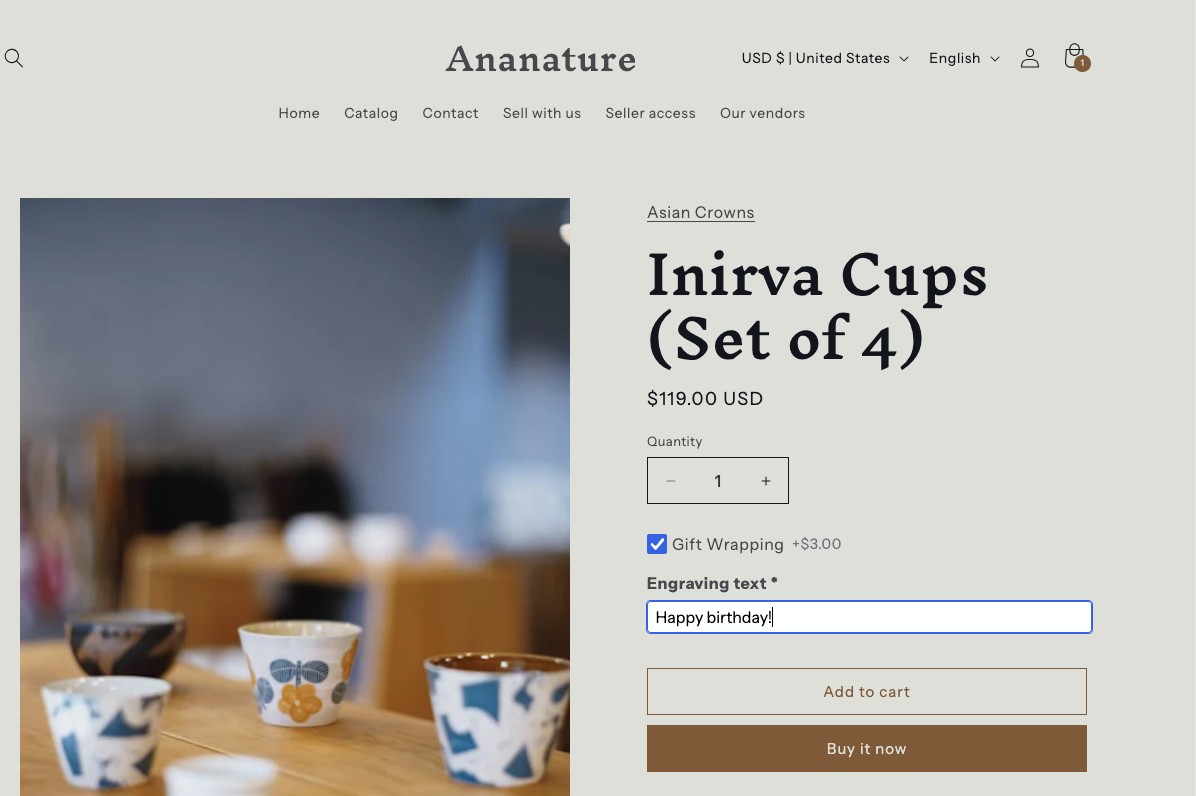
On the product page, customers see the custom option fields below the product details. Options with extra pricing display the surcharge next to the field. The customer fills in or selects the options they want, then adds the product to cart as usual.
At checkout, the total automatically reflects the base product price plus any custom option surcharges.
Custom options in orders
When a customer places an order with custom options, the selected values appear as line item properties on the Shopify order. This means both the marketplace operator and the vendor can see exactly what the customer chose — useful for fulfillment, custom production, or any order-specific instructions.
Setup
1. Enable custom options in Garnet
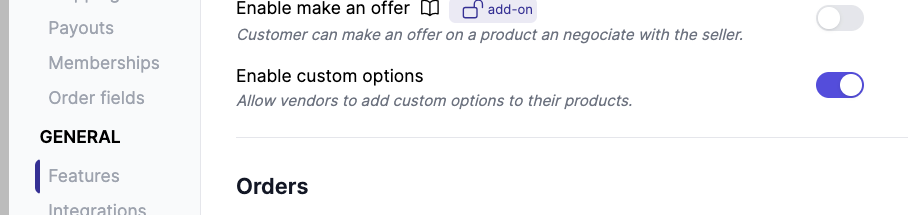
In Garnet > Admin Panel > Configuration, enable the Custom Options feature. This allows vendors to add custom options when uploading or editing products.
2. Enable the theme blocks in Shopify
Two theme blocks need to be enabled in your Shopify theme:
- Go to
Online Store > Themes > Customize - On the product template, add the Custom options app block. This renders the option fields on the product page.
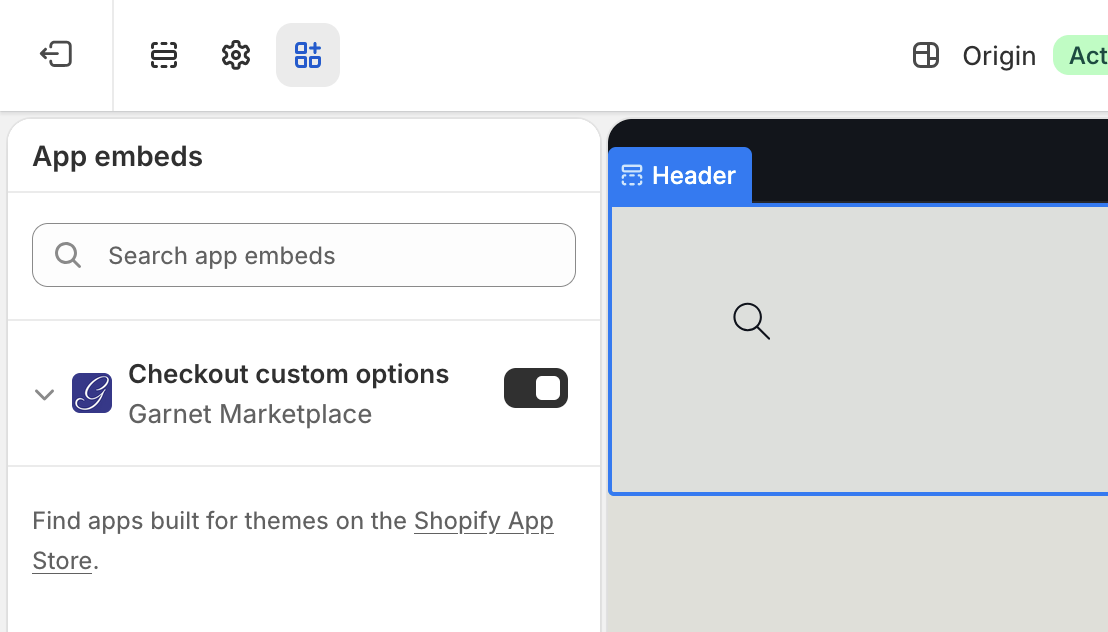
- In App embeds (bottom-left toggle icon), enable Checkout custom options. This handles the checkout price adjustment for custom option surcharges.
3. Add custom options to a product
Vendors can add custom options when uploading or editing a product in Garnet > Listings > Upload listing. The following option types are available:
| Type | Description | Supports pricing |
|---|---|---|
| Text | Single-line text input | No |
| Checkbox | A single on/off option | Yes |
| Single choice | Pick one option from a list | Yes (per option) |
| Multiple choice | Pick any number of options from a list | Yes (per option) |
Options can be reordered by dragging them into place; the order they appear in the editor is the order shown on the product page.
Limitations
- Buy It Now button: The Shopify "Buy it now" button bypasses the cart and does not support custom option pricing. We recommend hiding this button on products that use priced custom options.
- Shopify Plus: For Shopify Plus stores, a more seamless checkout integration is possible. Contact us to learn more.