
Appearance
Vendor details
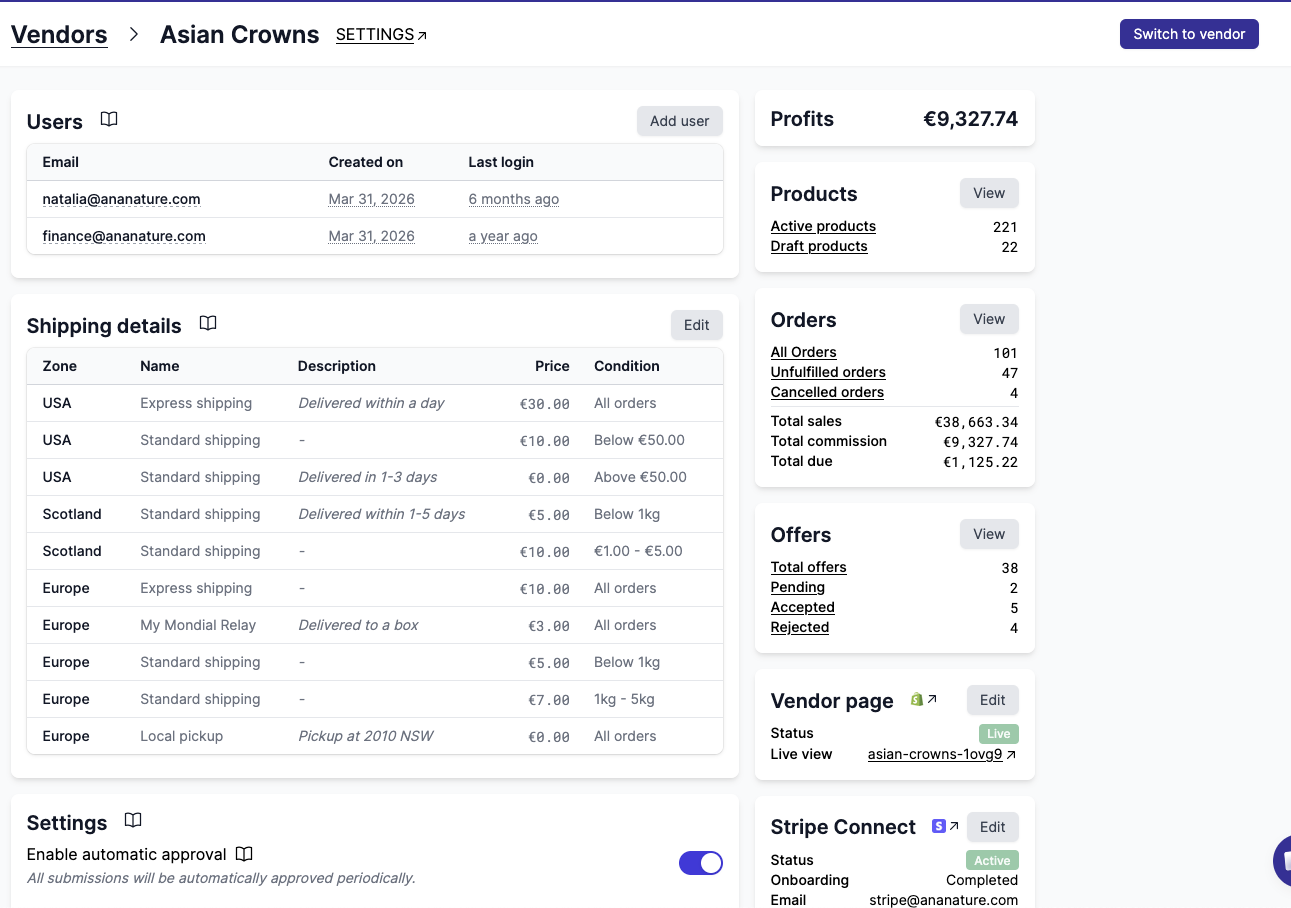
Clicking a vendor from the vendor list opens the vendor details page. This view gives admins a complete overview of a vendor at a glance, with links to all relevant settings. From here, the admin can view and change settings on the vendor's behalf.
Users
The list of users with their email, creation date, and last login. Click Add user to invite a new user, or click an email then Remove user to revoke access. See send invitations.
Shipping details
Displays the vendor's shipping configuration: zones, rates, and conditions for manual shipping, or ship-from address and parcel dimensions for Shippo and Easyship. Click Edit to update.
Settings
Toggle vendor-specific settings:
- Enable automatic approval to skip product review for this vendor
- Vendor is managed by the marketplace to indicate the marketplace handles this vendor's operations
- Use custom commission to override the default commission for this vendor
Vendor profile
Displays the vendor's profile fields grouped by section. Click the Shopify link to edit the metaobject in Shopify Admin.
Rename and delete vendor
Rename the vendor or remove the vendor entirely.
Profits
Total commission earned by this vendor.
Products
Count of active and draft products, with links to filter the product list by status.
Orders
Summary of the vendor's orders: total count, unfulfilled, cancelled, total sales, total commission, and total due.
Offers
Count of offers by status: pending, accepted, and rejected.
Messages
Messages received, sent, and pending conversations for this vendor.
Vendor page
Status of the vendor's collection page (not started, draft, or live), with a link to the public page and to the Shopify Admin collection editor.
Membership
The vendor's membership details: plan, price, billing period, status, total paid, and next billing date. Links to the Stripe subscription.
Integration
The vendor's integration type, store URL, price transform, and sync scope. Click Edit to update integration settings.
Payment
This section shows the vendor's payment provider settings. The marketplace can see at a glance which payout method the vendor has configured. Each provider links to its internal dashboard for reconciliation:
- Stripe Connect: account status, onboarding progress, email, business name, country, and currency. Links to the Stripe connected account dashboard.
- PayPal: PayPal email or Venmo handle used for payouts.
- Mollie: Mollie account connection status.
- Airwallex: Airwallex account connection status.