Appearance
Bulk image upload
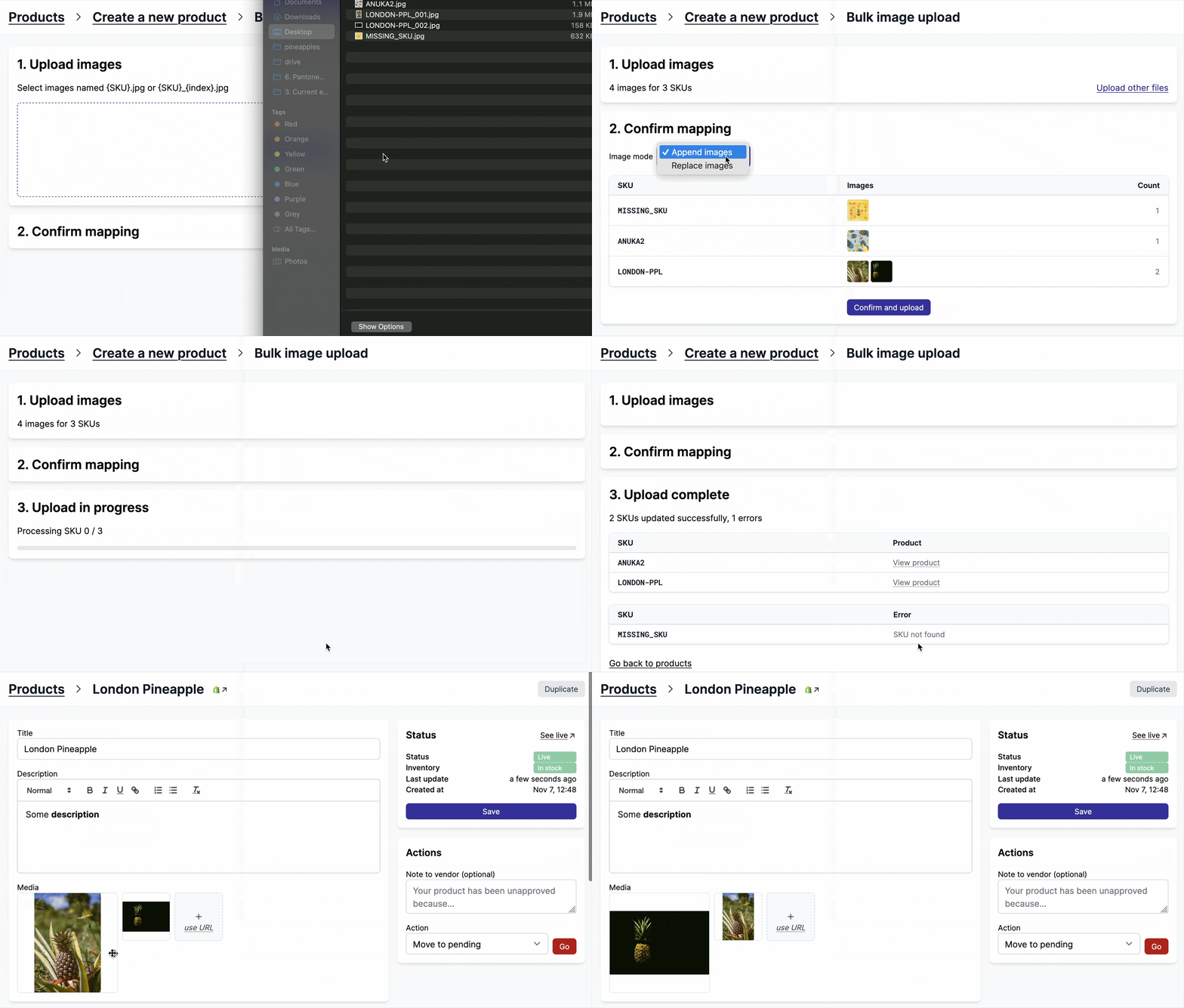
Upload images to many products at once by naming your image files after their SKU. This is useful when you have a large number of product images to add or replace.
This feature is found on Garnet > Products > Add product > Bulk image upload.
How it works
- Name your image files using the product SKU:
SKU.jpgorSKU_1.jpg,SKU_2.jpgfor multiple images per product. - Select all images at once in the upload dialog.
- Garnet groups the images by SKU and shows a preview of the mapping.
- Choose whether to append images to existing ones or replace all existing images.
- Confirm and upload.
File naming convention
| File name | SKU | Image index |
|---|---|---|
ABC-001.jpg | ABC-001 | 1st image |
ABC-001_1.jpg | ABC-001 | 1st image |
ABC-001_2.jpg | ABC-001 | 2nd image |
XYZ-200.png | XYZ-200 | 1st image |
Supported formats: .jpg, .jpeg, .png, .webp, .gif, .heic.
Append vs Replace
- Append images: New images are added alongside existing product images.
- Replace images: All existing images are removed before adding the new ones.
Demo