
Klaviyo email integration
By default, Garnet uses its own templates to send emails to vendors. With the Klaviyo integration, Garnet pushes each notification to your Klaviyo account as an event, and your Klaviyo flows send the emails.
Klaviyo is part of the Custom Sender Email add-on.
Generate an API Key
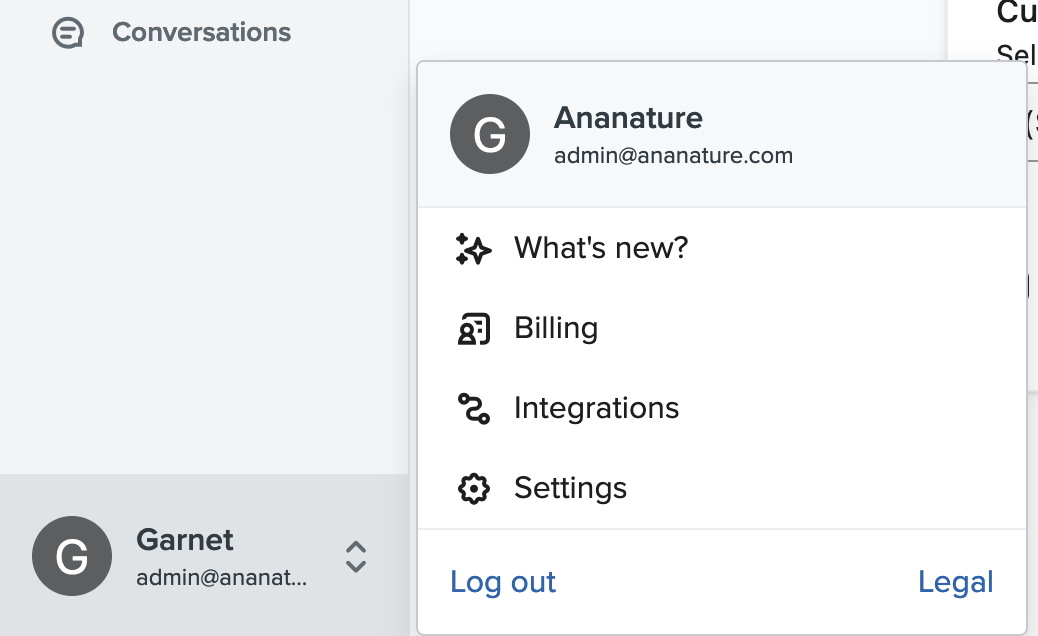
Garnet needs to be able to push events to your Klaviyo account. To do this, create an API key with full access to events. Go to Klaviyo > bottom right > Settings.
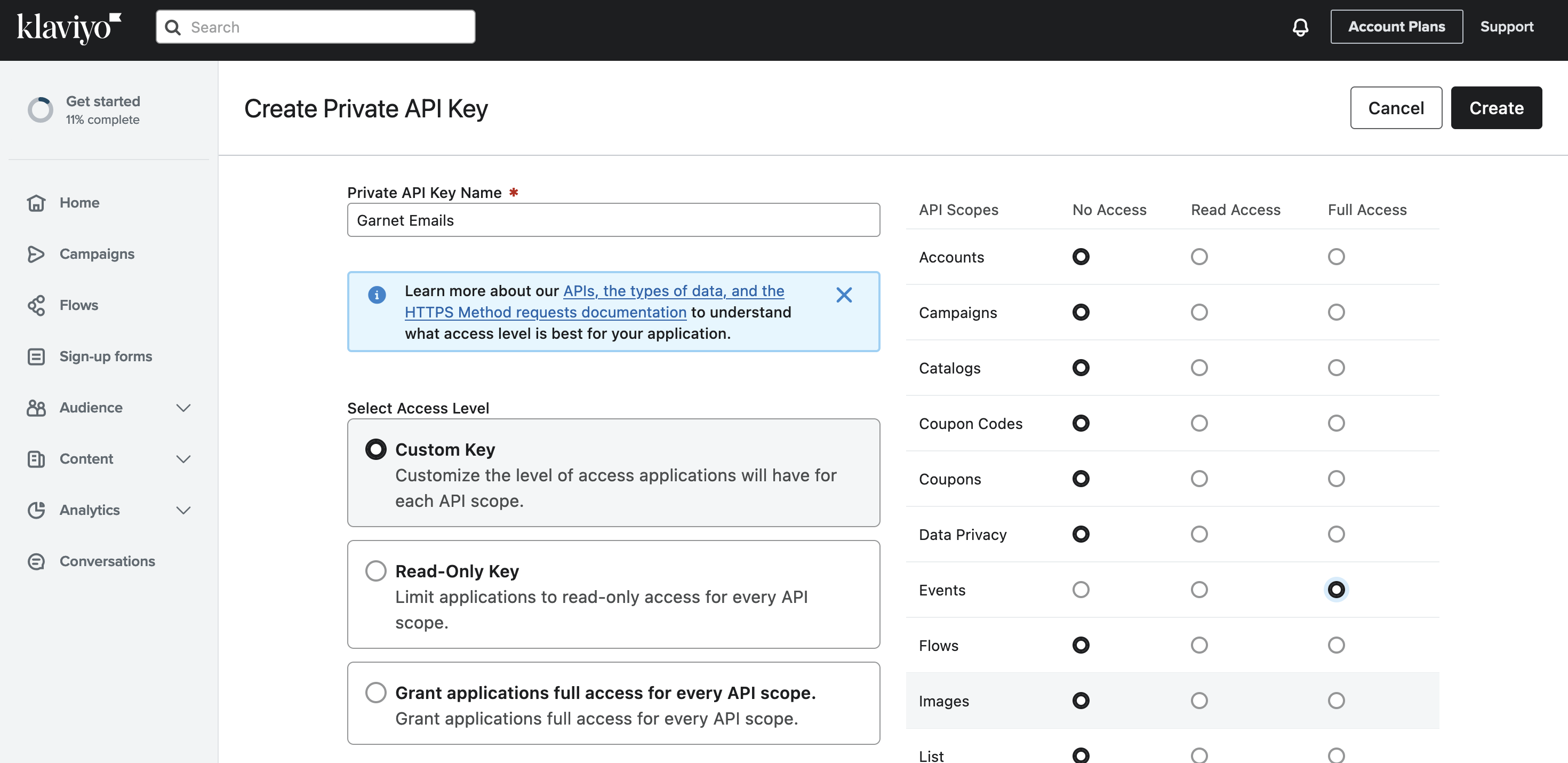
On the settings page, navigate to Accounts > API Keys > Create Private API Keys and create a new API key named Garnet emails with the access level Custom Key and the permission Events: Full Access.
Connect Klaviyo to Garnet
- Go to
Garnet > Admin Panel > Vendors > Notifications - In
Email integrations, paste the API key (it looks likepk_123...) inKlaviyo API key - Click
Connect Klaviyo
From now on, every notification is pushed to Klaviyo. If you also connected Brevo, the provider you connected last is the one used.
Avoid duplicate emails
Garnet keeps sending its own email for every template still enabled in Admin Panel > Vendors > Notifications. Once a Klaviyo flow sends an email, turn off the matching Garnet template, or turn on Disable all email notifications to let Klaviyo send everything.
Authentication emails and some marketplace emails cannot be turned off one by one: Garnet always sends them unless all notifications are disabled. The Bank transfers to send email is never pushed to Klaviyo, because Klaviyo cannot carry its CSV attachment.
Available events
Each event appears in Klaviyo > Analytics > Metrics the first time Garnet pushes it. To make one appear right away, open the email in Admin Panel > Vendors > Notifications and click Send a test email: with Klaviyo connected, the test is pushed to Klaviyo instead of sent by Garnet.
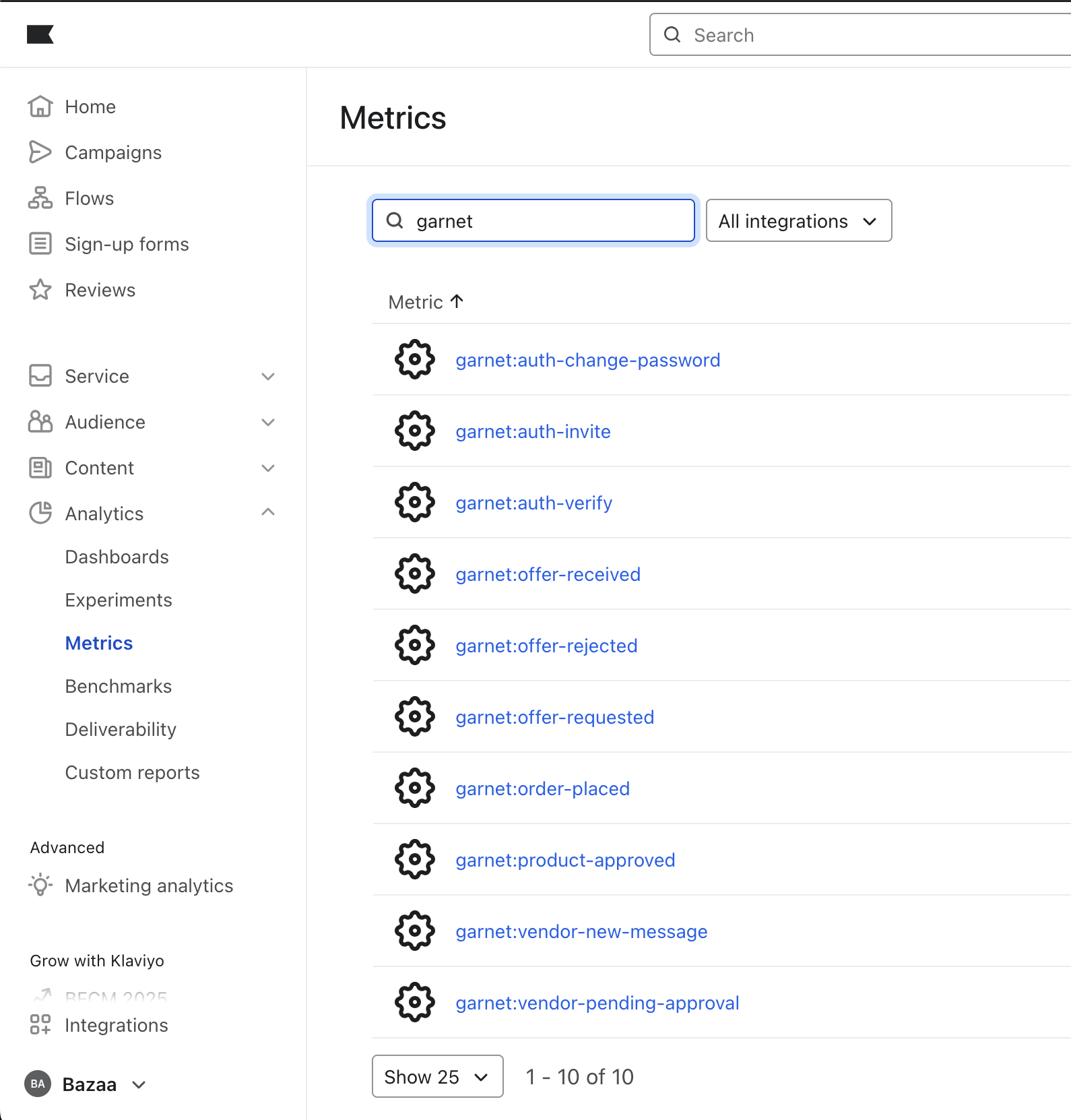
The event is attached to a Klaviyo profile with the recipient's email address.
| Metric | Sent to | Data available |
|---|---|---|
garnet:auth-change-password | User | Authentication code |
garnet:auth-invite | User | Authentication code, sent when a user is invited to a vendor |
garnet:auth-verify | User | Authentication code |
garnet:order-placed | Vendor | Shopify order object, with only the vendor's line items |
garnet:order-cancelled | Vendor | Shopify order object |
garnet:order-refunded | Vendor | Shopify order object and the refund |
garnet:product-approved | Vendor | Product id, title, handle and image |
garnet:product-unapproved | Vendor | Product id, title, image and your note |
garnet:vendor-new-message | Vendor or customer | Last messages of the conversation, type of recipient |
garnet:vendor-missing-payout-method | Vendor | Unpaid amount, orderCount and the first 20 orders |
garnet:vendor-pending-approval | Applicant | Application fields |
garnet:vendor-rejection | Applicant | Application fields, sent when the application is rejected |
garnet:offer-requested | Vendor | Shopify draft order object |
garnet:offer-received | Customer | Shopify draft order object |
garnet:offer-rejected | Customer | Shopify draft order object |
garnet:marketplace-... | Marketplace | The marketplace notifications, with the same data as Garnet's templates |
Every event also carries store, shopName, vendor and vendorId.
Create an email template
Here we'll create a template triggered by the event garnet:product-approved.
Go to Klaviyo > Content > Templates and create a new template, either from the library or from scratch.
Below is a template using the event's variables. To preview it with real data, go to Preview & test, pick Event on the right, and select garnet:product-approved.
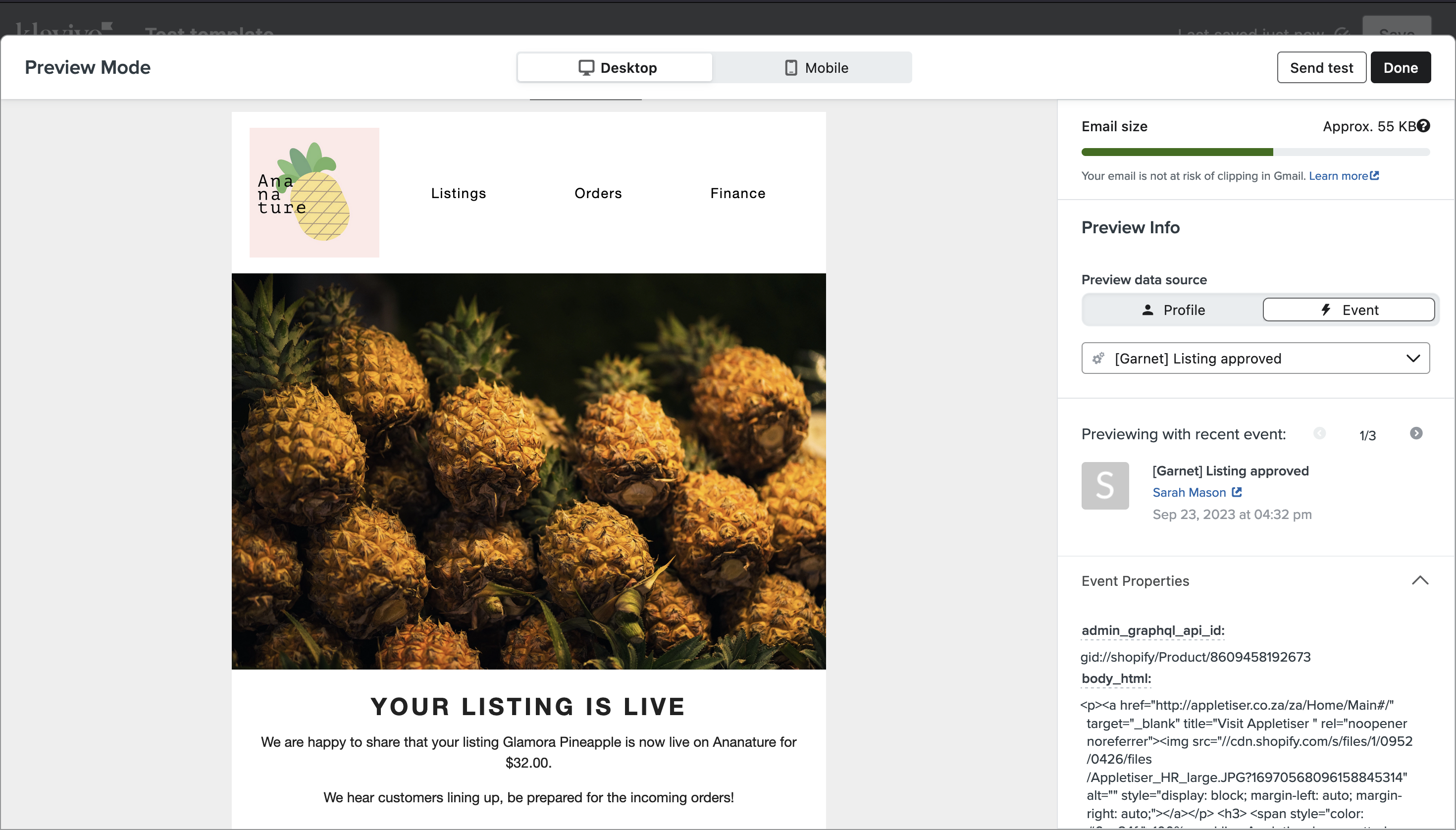
Here is how we wrote the text below the image:
text
We are happy to share that your listing {{ event.title }} is now live
on {{ event.shopName }}.
You can find more documentation on how to use variables inside the template in Klaviyo's documentation.
Data sample
js
{
  "product-approved": {
    "id": 8609458192673,
    "title": "Glamora Pineapple",
    "handle": "glamora-pineapple",
    "image": "https://cdn.shopify.com/s/files/1/0952/0426/files/pineapple.jpg",
    "store": "ananature2",
    "shopName": "Ananature",
    "vendor": "Asian Crowns",
    "vendorId": "a1b2c3"
  },
  "product-unapproved": {
    "id": 8609458192673,
    "title": "Glamora Pineapple",
    "image": "https://cdn.shopify.com/s/files/1/0952/0426/files/pineapple.jpg",
    "note": "Please add a photo on a white background"
  },
  "order-placed": "// Shopify order",
  "vendor-new-message": {
    "conversation": {
      "product": "// Shopify product",
      "conversationId": "1prpoqx",
      "messages": [
        {
          "createdAt": "2025-01-15T08:01:56.393Z",
          "from": "8392655503649",
          "text": "Hey, I am interested in this bag",
          "readAt": "2025-01-15T08:02:37.241Z"
        },
        {
          "createdAt": "2025-01-15T08:02:42.718Z",
          "from": "Asian Crowns",
          "text": "Sure here are more pictures",
          "readAt": "2025-01-15T08:02:49.306Z"
        },
        {
          "createdAt": "2025-01-22T16:24:59.410Z",
          "image": "https://cdn.garnetmarketplace.com/messages/ananature2/262436903486-sgcw5e.jpg",
          "from": "Asian Crowns",
          "text": ""
        },
        {
          "createdAt": "2025-01-22T16:25:17.583Z",
          "from": "Asian Crowns",
          "text": "It is available for collection from Sunmday onward."
        },
        {
          "createdAt": "2025-01-22T16:25:22.454Z",
          "from": "Asian Crowns",
          "text": "Sunday*"
        }
      ],
      "store": "ananature2",
      "ctas": [],
      "esIndexKey": "ananature2#1prpoqx",
      "participants": [
        {
          "vendor": "8392655503649",
          "name": "Marcus Arman",
          "email": "one@garnetmarketplace.com"
        },
        {
          "vendor": "Asian Crowns",
          "name": "Asian Crowns",
          "email": "two@garnetmarketplace.com"
        }
      ]
    },
    "sendEmailTo": "test-email-template@garnetmarketplace.com",
    "isCustomer": false,
    "sendToVendor": "Asian Crowns",
    "vendorName": "Asian Crowns"
  },
  "vendor-rejection": {
    "email": "info@asiancrowns.com",
    "vendorName": "Asian Crowns",
    "fields": [
      {
        "key": "",
        "name": "Company name",
        "value": "Asian Crowns"
      },
      {
        "key": "",
        "name": "Annual revenues",
        "value": "5M"
      }
    ],
    "store": ""
  },
  "vendor-pending-approval": {
    "createdAt": "",
    "email": "info@asiancrowns.com",
    "fields": [
      {
        "key": "",
        "name": "Company name",
        "value": "Asian Crowns"
      },
      {
        "key": "",
        "name": "Annual revenues",
        "value": "5M"
      }
    ],
    "store": ""
  },
  "auth-change-password": {
    "code": "JC39L",
    "vendor": "Asian Crowns",
    "email": "info@asiancrowns.com"
  },
  "auth-invite": {
    "code": "JC39L",
    "vendor": "Asian Crowns",
    "email": "info@asiancrowns.com"
  },
  "auth-verify": {
    "code": "JC39L",
    "vendor": "Asian Crowns",
    "email": "info@asiancrowns.com"
  }
}
Create the flows
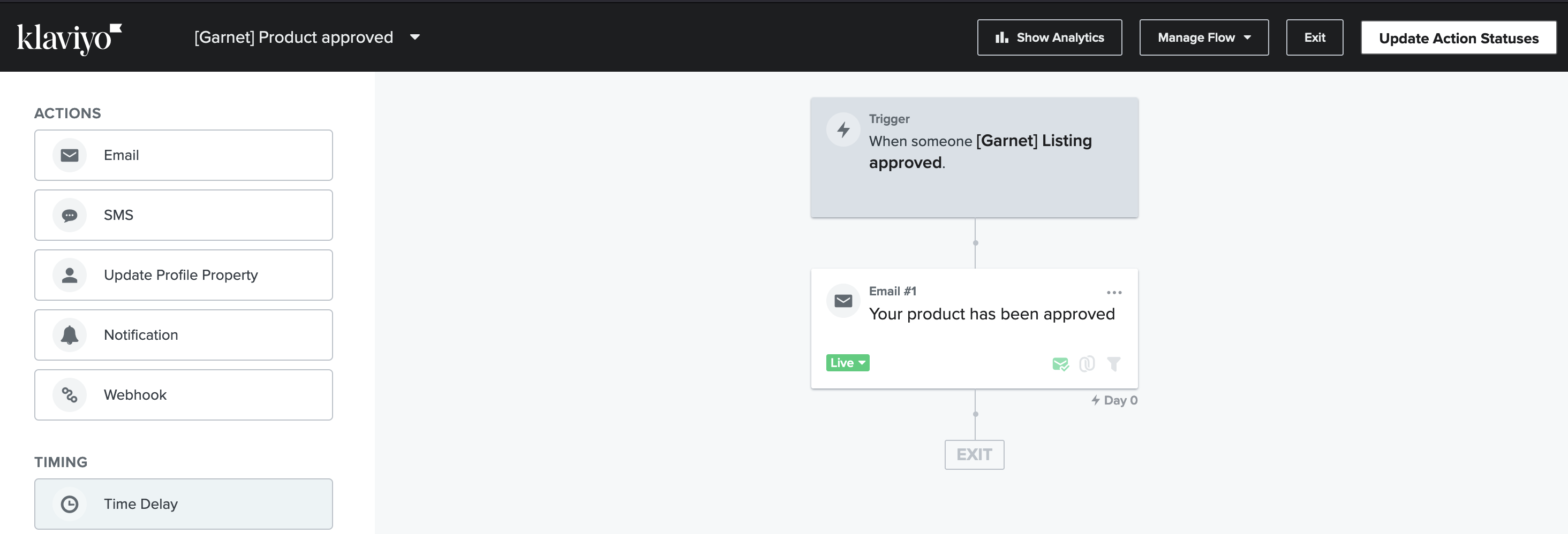
Great, the events and the template are here. Let's wire them together. Go to Klaviyo > Flows > Create Flow, you can create one from a template or from scratch. Here we created a flow from scratch named [Garnet] Product approved.
- As a trigger, use the desired metric,
garnet:product-approvedin our case. - Add an email block below, edit it, fill in the subject and click on
Drag and Dropto import the template you created. - Save and turn on the flow. In the end it should look as follows:
Test, iterate, and enjoy!
Your setup is completed, you can test it out by creating a new vendor on your store with your email address, submit a product, and approve it as an admin.
Look, I got mine: 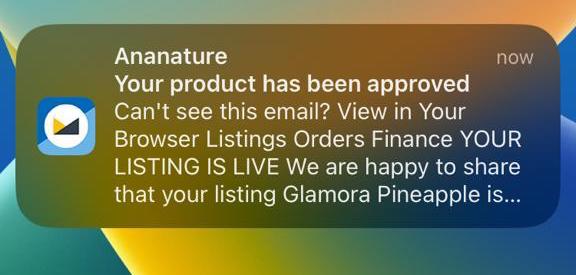
Looking for another integration?
Don't hesitate to request an integration.