
Keyboard shortcuts
Garnet has keyboard shortcuts for marketplace admins and vendors alike. Press ? anywhere in Garnet to see the ones that work on the page you are on.
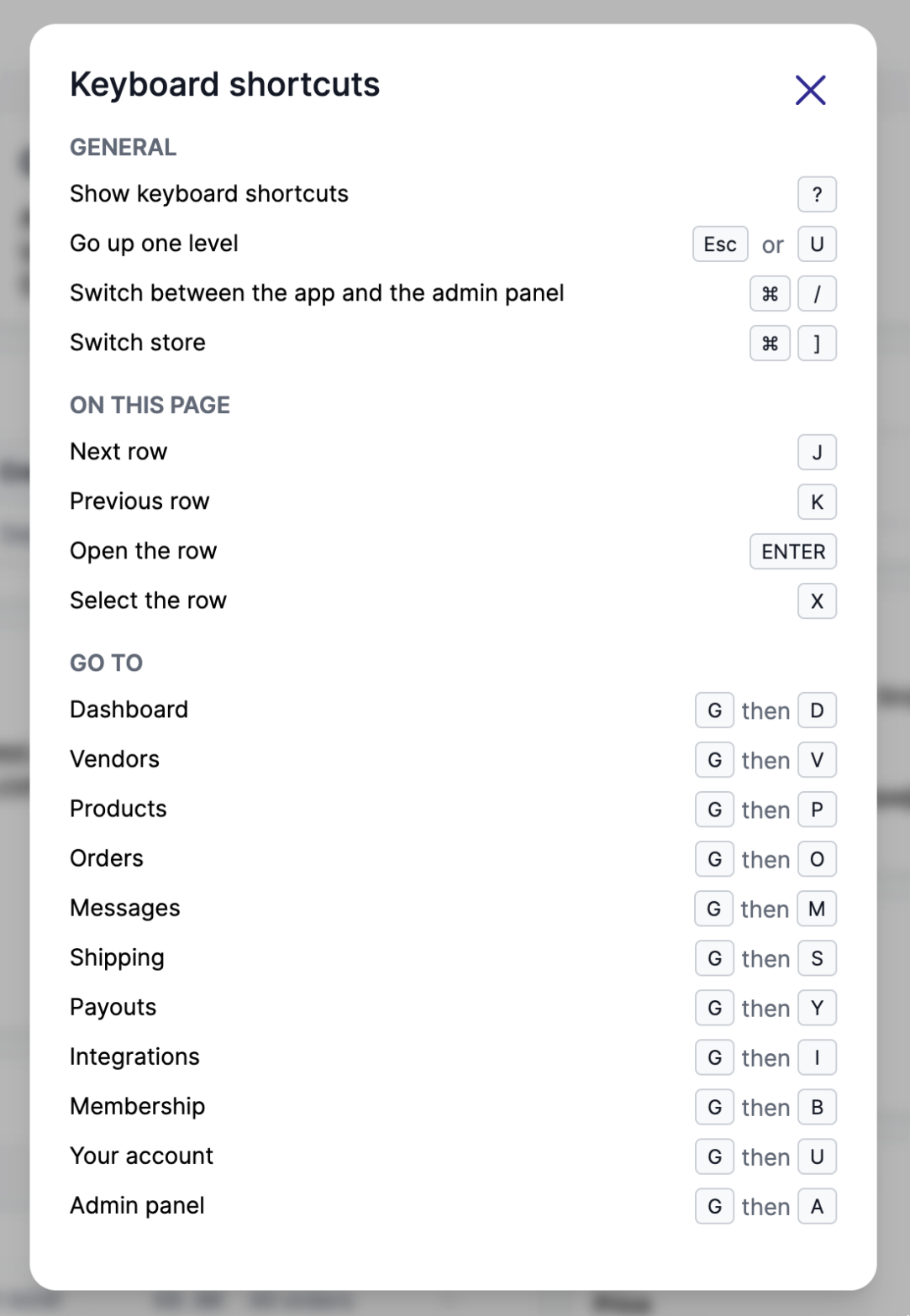
Shortcuts made of letters are off while you type in a field. Press Esc to leave the field, then use them.
General
| Shortcut | Action |
|---|---|
? | Show the keyboard shortcuts |
/ or ⌘ K (Ctrl K) | Search: jump to the search bar of the list, or search the settings in the admin panel |
Esc or U | Go up one level, for example from an order back to the orders list, or close the admin panel |
⌘ / (Ctrl /) | Switch between Garnet and the admin panel (admins only) |
On Windows and Linux, use Ctrl where Mac uses ⌘.
Lists and messages
In a list, such as orders, products or vendors (the first table of the page):
| Shortcut | Action |
|---|---|
J / K | Move to the next / previous row |
Enter | Open the row |
X | Select the row, for bulk actions such as Bulk fulfill |
→ / ← | Next / previous page |
In a conversation, ⌘ Enter (Ctrl Enter) sends your message. On a product, ⌘ S (Ctrl S) saves it.
Go to a page
Press G, then the letter of the page, within a second.
| Shortcut | Page |
|---|---|
G D | Dashboard |
G V | Vendors (admins only) |
G P | Products |
G O | Orders |
G F | Offers |
G M | Messages |
G S | Shipping settings (vendors only) |
G Y | Payouts settings (vendors only) |
G I | Integrations (vendors only) |
G B | Membership (vendors only) |
G U | Your account |
G A | Admin panel (admins only) |
On a vendor's page, G D, G P, G O, G F and G M open that vendor's dashboard, products, orders, offers and messages, G S, G Y and G I its shipping, payout and integration settings, and G B scrolls to its membership. Press Esc to come back to the vendor.
A shortcut only works when its page is in your menu: G F does nothing on a marketplace without offers, for instance.
Turn off single-key shortcuts
Shortcuts typed as a single key, such as G O, J or ?, can get in the way of voice control. To turn them off:
- Go to
Garnet > Your account - Untick
Single-key shortcutsunderKeyboard shortcuts
The setting applies to the browser you are using. Shortcuts with ⌘ or Ctrl, Esc, Enter and the arrows keep working.